

Crowd Control Setup Guides
CC Setup Guides
Hytale
Our mod for Hytale does not require the CC Desktop App to “Start” a session.
Local Server Setup
If you would like to play on a locally hosted Hytale server.
This can be use for single player or “online” play.
Open Crowd Control Desktop App
Select Hytale from the game list
Follow the Auto Setup checklist (left side of app)
Select Path: You may need to manually select the Hytale folder.
If using CurseForge, launch Hytale manually!
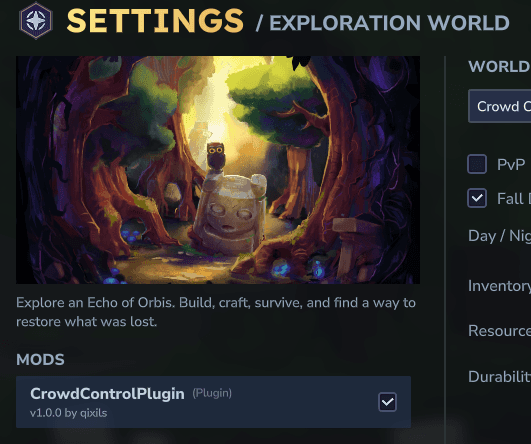
Enable CrowdControlPlugin from the game, Worlds > Edit.
Head to Connect and Start Session below.
Remote Server Setup
If you would like to play on a remote hosted Hytale server.
Our mod can be found here: Hytale-CC.zip or on CurseForge
Power off the server
Extract CrowdControl.jar to your servers “Mods” folder
Power on the server and follow Connect and Start Session below.
Connect and Start Session
After the mod is installed, you can start your Crowd Control session from within the game.
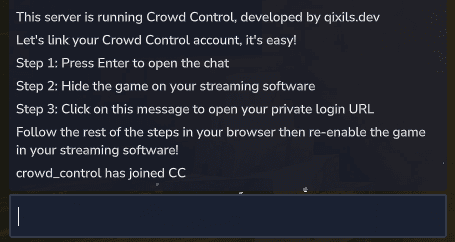
When first loading in your world, follow the prompts given from in-game chat.
Clicking “Step 3” will open your browser, prompting you to login to your CC account!
Test Before You Stream
You can only test effects after starting a session!
Always test a few effects before going live to confirm effects trigger as expected
Skipping this step can lead to broken streams and confusion!
Mod Compatibility
Our mod can be found here: Hytale-CC.zip or on CurseForge
This should be extracted to
%appdata%\Hytale\UserData\Mods\Other mods may work, but have not been tested with Crowd Control.
If you have issues, try with just Crowd Control.
No mod conflicts reported so far!
If you find a mod that causes issues, let us know!
Our mod for Hytale does not require the CC Desktop App to “Start” a session.
Local Server Setup
If you would like to play on a locally hosted Hytale server.
This can be use for single player or “online” play.
Open Crowd Control Desktop App
Select Hytale from the game list
Follow the Auto Setup checklist (left side of app)
Select Path: You may need to manually select the Hytale folder.
If using CurseForge, launch Hytale manually!
Enable CrowdControlPlugin from the game, Worlds > Edit.
Head to Connect and Start Session below.
Remote Server Setup
If you would like to play on a remote hosted Hytale server.
Our mod can be found here: Hytale-CC.zip or on CurseForge
Power off the server
Extract CrowdControl.jar to your servers “Mods” folder
Power on the server and follow Connect and Start Session below.
Connect and Start Session
After the mod is installed, you can start your Crowd Control session from within the game.
When first loading in your world, follow the prompts given from in-game chat.
Clicking “Step 3” will open your browser, prompting you to login to your CC account!
Test Before You Stream
You can only test effects after starting a session!
Always test a few effects before going live to confirm effects trigger as expected
Skipping this step can lead to broken streams and confusion!
Mod Compatibility
Our mod can be found here: Hytale-CC.zip or on CurseForge
This should be extracted to
%appdata%\Hytale\UserData\Mods\Other mods may work, but have not been tested with Crowd Control.
If you have issues, try with just Crowd Control.
No mod conflicts reported so far!
If you find a mod that causes issues, let us know!
Ready to get Started?
Start Streaming the Interactive Way
Have any Questions?
Check our FAQs, or join Discord for Support
Making a Game?
Consider integrating Crowd Control!
