
Stream Deck
Install the Crowd Control Desktop App to get started!
Need help? Reach out via Discord or check the FAQ
Crowd Control Disrupts
This integration allows executing Stream Deck buttons from custom Crowd Control Disrupts. Currently, Elgato requires you own a physical Stream Deck product to use this functionality. To setup:
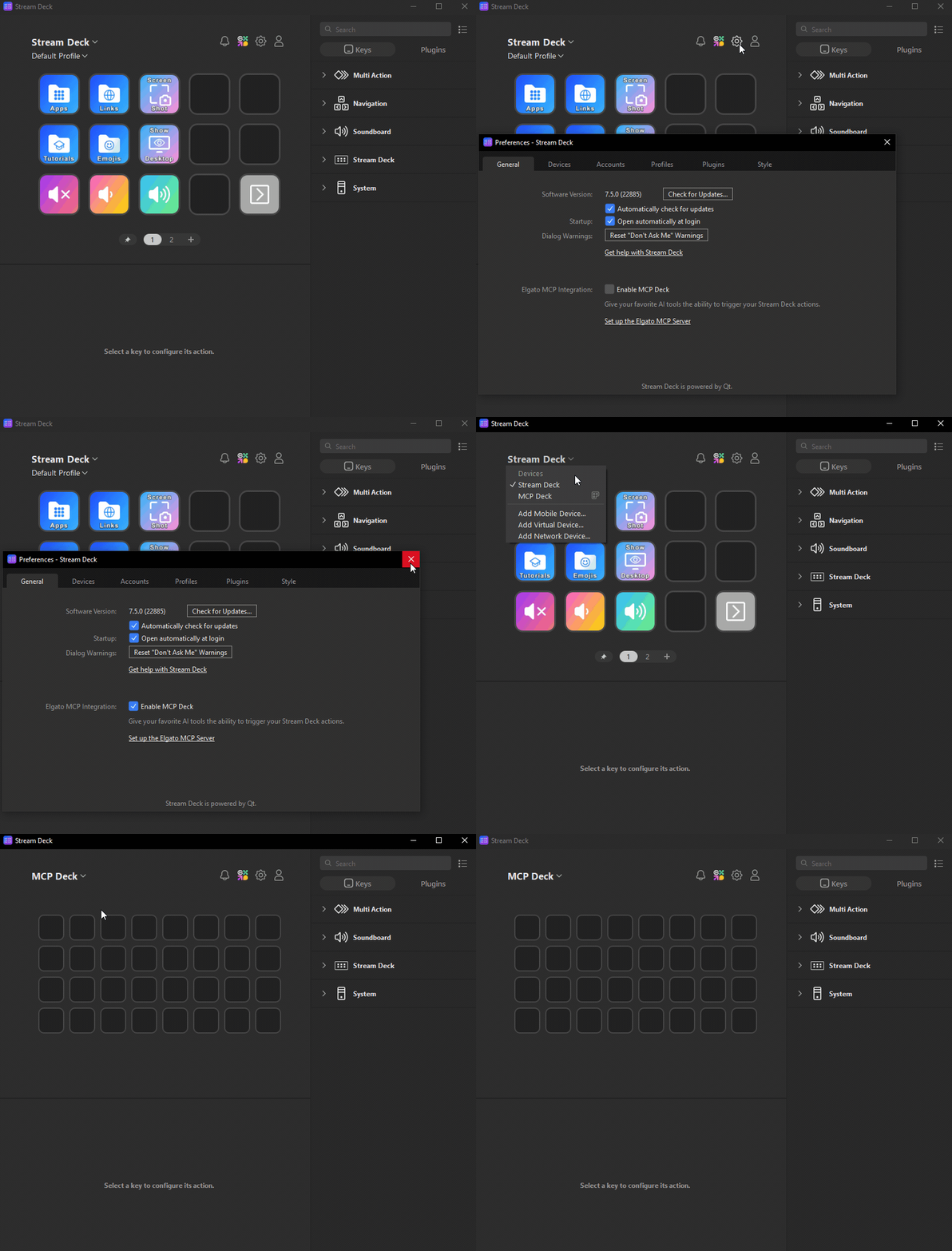
Prep Stream Deck
- Grab the last Stream Deck software from Elgato.com
- In the Stream Deck app, navigate to Preferences (cog), General, then select Enable MCP Deck.
- You should now see a new “device” called MCP Deck.
- Crowd Control can only access the actions created under this deck.
- Use MCP Deck to create actions you may want to use on stream.
- Use Right Click > Copy and Paste to transfer actions from another profile/device.
Prep Crowd Control
- In the Crowd Control app, navigate to Integrations, and select Stream Deck on the right.
- Enable the integration and it should read “connected”. If not, click “Reconnect”.
- If you are unable to connect, make sure Stream Deck software is running and MCP is prepped.
Create Disrupt Actions
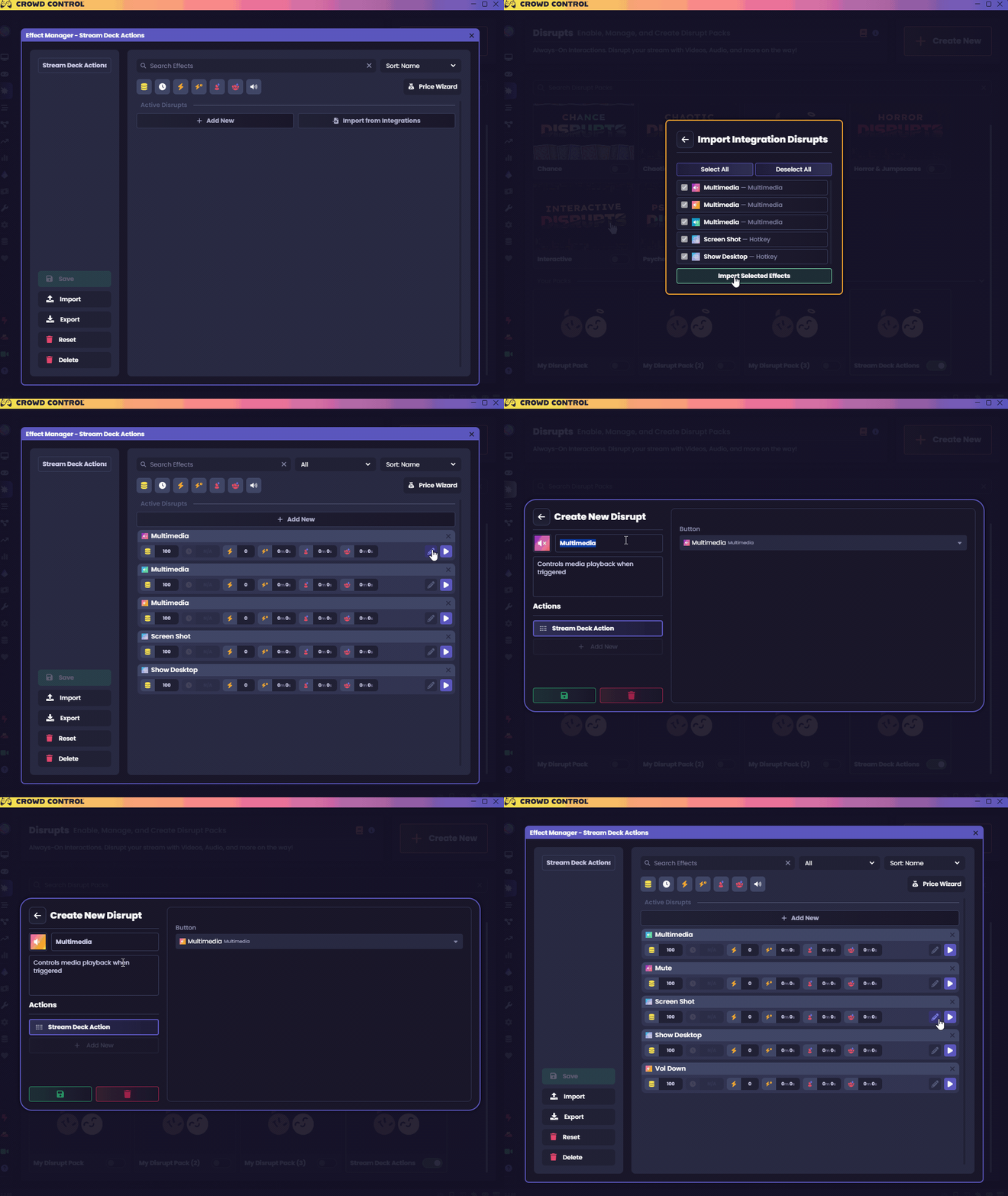
- Navigate to Disrupts, then create or edit a disrupt pack
- Select Import from Integrations.
- This will list all available actions; select the ones you would like to import and click Import Selected Effects.
- You can edit the name, description and icon after import.
- Importing may take a few seconds!
- Adjust the prices of your new actions!
Test Stream Deck Disrupt Actions
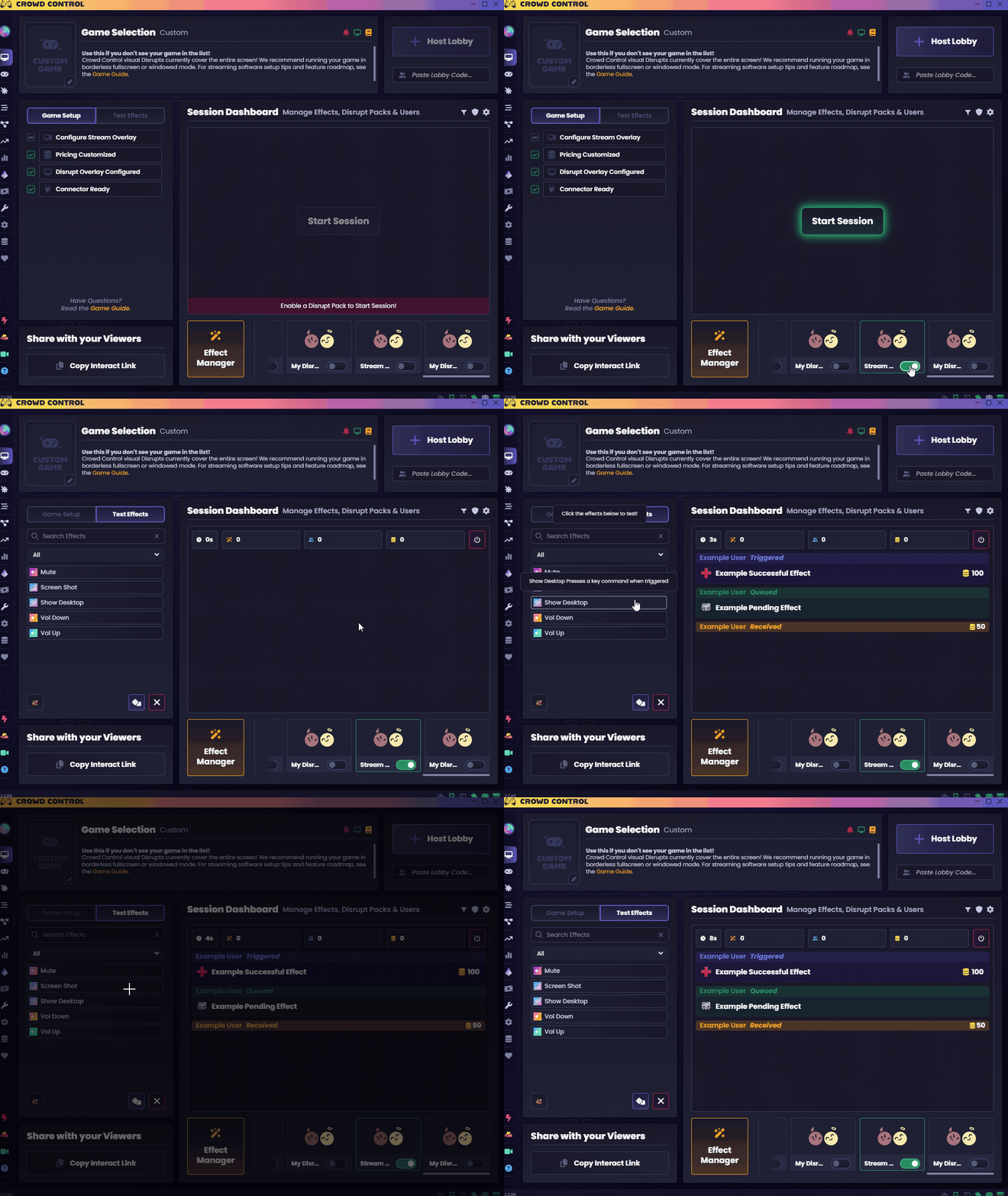
- Select a game!
- Enable your Disrupt Pack.
- Start a session and send a test effect.
2 PC Setup Instructions
If you’re using a 2 PC setup we recommend that Crowd Control runs on the same PC as your Stream Deck and game. However if your setup does not allow for that we have created an additional tool that you can install on both PCs to expose your Stream Deck MCP server from the computer running the Stream Deck to the PC running Crowd Control.
You can download and find the additional instructions at https://github.com/WarpWorld/StreamDeckRelay/releases