

Crowd Control Displays a Black or White Screen on Launch
In rare cases, Crowd Control may launch to a completely black or white window. This is typically caused by a graphics driver or hardware acceleration issue.
Fortunately, there’s a simple workaround that usually resolves the problem.
Step 1: Force Close Crowd Control
If Crowd Control is stuck on a black or white screen and won’t close normally:
- Press Ctrl + Shift + Esc to open Task Manager
- Find Crowd Control
- Click End Task
Step 2: Launch Crowd Control with GPU Disabled
- Press Windows Key + R
- Copy and paste the following command:
%localappdata%\Programs\CrowdControl\CrowdControl.exe --disable-gpu- Click OK or press Enter
Crowd Control should now launch with GPU acceleration disabled.
Step 3: Permanently Disable GPU Support
Once Crowd Control is open:
- Click Config on the left hand side of the application.
- Click Options
- Locate Disable GPU Support near the top left
- Enable the checkbox
- Restart Crowd Control
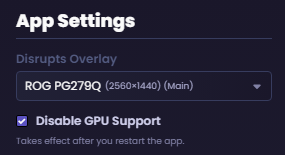
This will ensure Crowd Control continues launching with GPU support disabled in the future.
Why Does This Happen?
Crowd Control is built using modern rendering technologies that rely on your graphics hardware. Some GPU drivers, integrated graphics chipsets, remote desktop environments, or driver updates can occasionally cause rendering issues that result in a blank application window.
Disabling GPU support forces Crowd Control to use software rendering instead, which avoids these compatibility problems. While some performance may be lost with this disabled it shouldn’t cause a noticeable decrease in performance for most users.
Still Having Issues?
If Crowd Control continues to display a black or white screen after disabling GPU support, please contact support and include:
- Your Windows version
- Your GPU model
- Whether you’re using Remote Desktop, Parsec, Moonlight, or another streaming application
- Any screenshots of the issue
We’ll be happy to help investigate further.