

Crowd Control Setup Guides
CC Setup Guides
SM64 Co-Op DX
1. Start with the App
Open Crowd Control Desktop App
Select SM64 Co-Op DX from the game list
- Download from https://sm64coopdx.com/
Follow the Auto Setup checklist (left side of app)
- Select your install folder, usually sm64coopdx_Windows
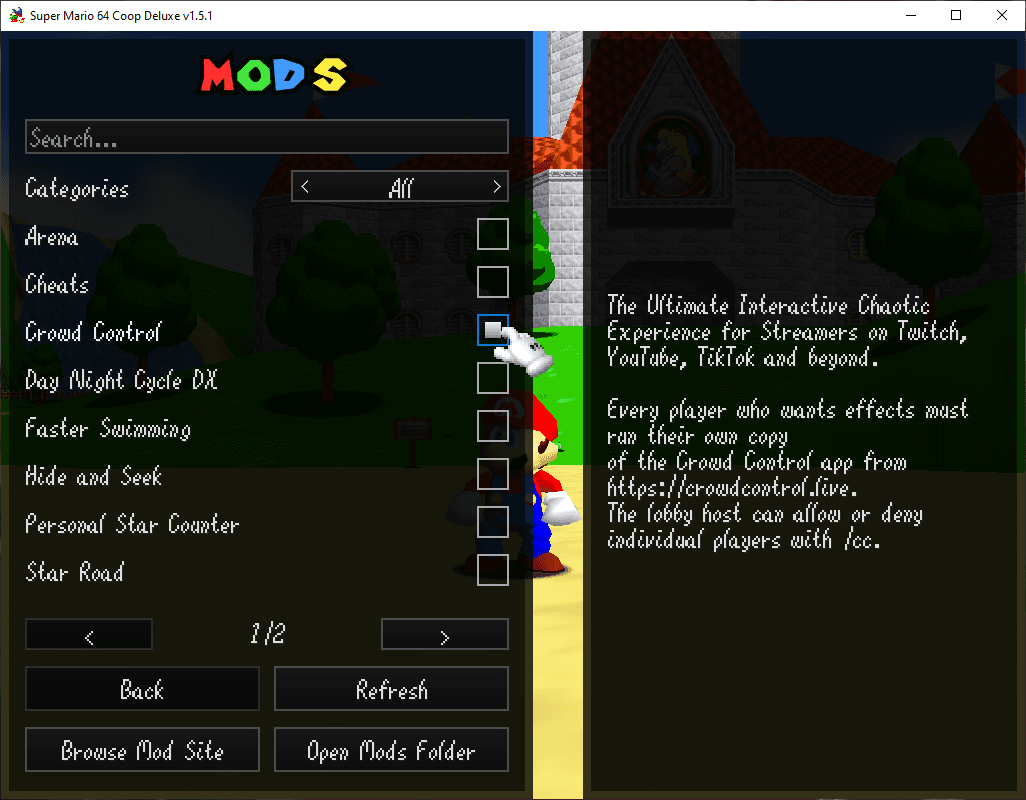
Confirm the mod is enabled when you Host.
- Host > Mods > Check “Crowd Control”
2. Test Before You Stream
You can only test effects after pressing "Start Session" in the Crowd Control app
Always test a few effects before going live to confirm effects trigger as expected
Skipping this step can lead to broken streams and confusion!
Game Version
Our support has been tested with the PC build of sm64coopdx from https://sm64coopdx.com.
Mod Compatibility
Our mod is a Lua mod for sm64coopdx.
Our mod package can be found here: SuperMario64CoopDx-CC.zip
Other mods may work, but have not been tested with Crowd Control.
Mods should be extracted to
%appdata%\sm64coopdx\mods\
Common Issues
Connection: make sure you are in a level (not on the title screen) and that the Crowd Control mod is enabled in the Mod Menu.
Effects on cap switches and stars require the lobby host to have the mod and apply to the hosts save file.
Uninstall
To uninstall the Crowd Control mod:
From the CC desktop app, select your game.
Click the trash icon next to "Mod Installed" to run the uninstaller.
1. Start with the App
Open Crowd Control Desktop App
Select SM64 Co-Op DX from the game list
- Download from https://sm64coopdx.com/
Follow the Auto Setup checklist (left side of app)
- Select your install folder, usually sm64coopdx_Windows
Confirm the mod is enabled when you Host.
- Host > Mods > Check “Crowd Control”
2. Test Before You Stream
You can only test effects after pressing "Start Session" in the Crowd Control app
Always test a few effects before going live to confirm effects trigger as expected
Skipping this step can lead to broken streams and confusion!
Game Version
Our support has been tested with the PC build of sm64coopdx from https://sm64coopdx.com.
Mod Compatibility
Our mod is a Lua mod for sm64coopdx.
Our mod package can be found here: SuperMario64CoopDx-CC.zip
Other mods may work, but have not been tested with Crowd Control.
Mods should be extracted to
%appdata%\sm64coopdx\mods\
Common Issues
Connection: make sure you are in a level (not on the title screen) and that the Crowd Control mod is enabled in the Mod Menu.
Effects on cap switches and stars require the lobby host to have the mod and apply to the hosts save file.
Uninstall
To uninstall the Crowd Control mod:
From the CC desktop app, select your game.
Click the trash icon next to "Mod Installed" to run the uninstaller.
Ready to get Started?
Start Streaming the Interactive Way
Have any Questions?
Check our FAQs, or join Discord for Support
Making a Game?
Consider integrating Crowd Control!
