
Crowd Control Setup Guides
CC Setup Guides
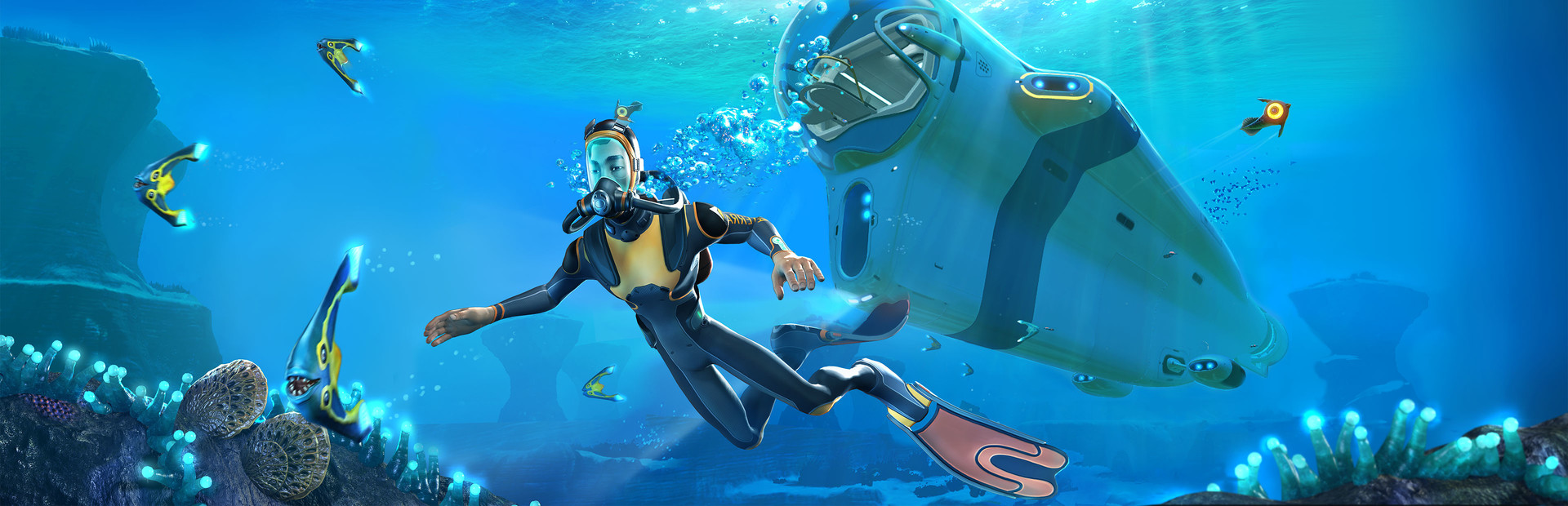
Subnautica
1. Start with the App
Open Crowd Control Desktop App
Select Subnautica from the game list
Latest Steam (2025 Patch) OR Old Version (2023 Patch)
Follow the Auto Setup checklist (left side of app)
2. Test Before You Stream
You can only test effects after pressing “Start Session” in the Crowd Control app
Always test a few effects before going live to confirm effects trigger as expected
Skipping this step can lead to broken streams and confusion!
Mod Compatibility
You can find the complete mod package here: CrowdControl-Subnautica-BepInEx-new.zip
This includes Tobey’s BepInEx Pack for Subnautica & Nautilus.
You can grab just the mod files here: CrowdControl-Subnautica-Modonly.zip
This is just the mod, packaged as:
Gameplay Support
Softlocked?
In most cases, saving and quitting will resolves most issues. Same should be true for the “RIP Riley” and “Go back home” effects.
Old Version (2023 Patch): If you are using older mods, you can use this but we suggest the “Latest” Steam build.
Overlay Suggestion
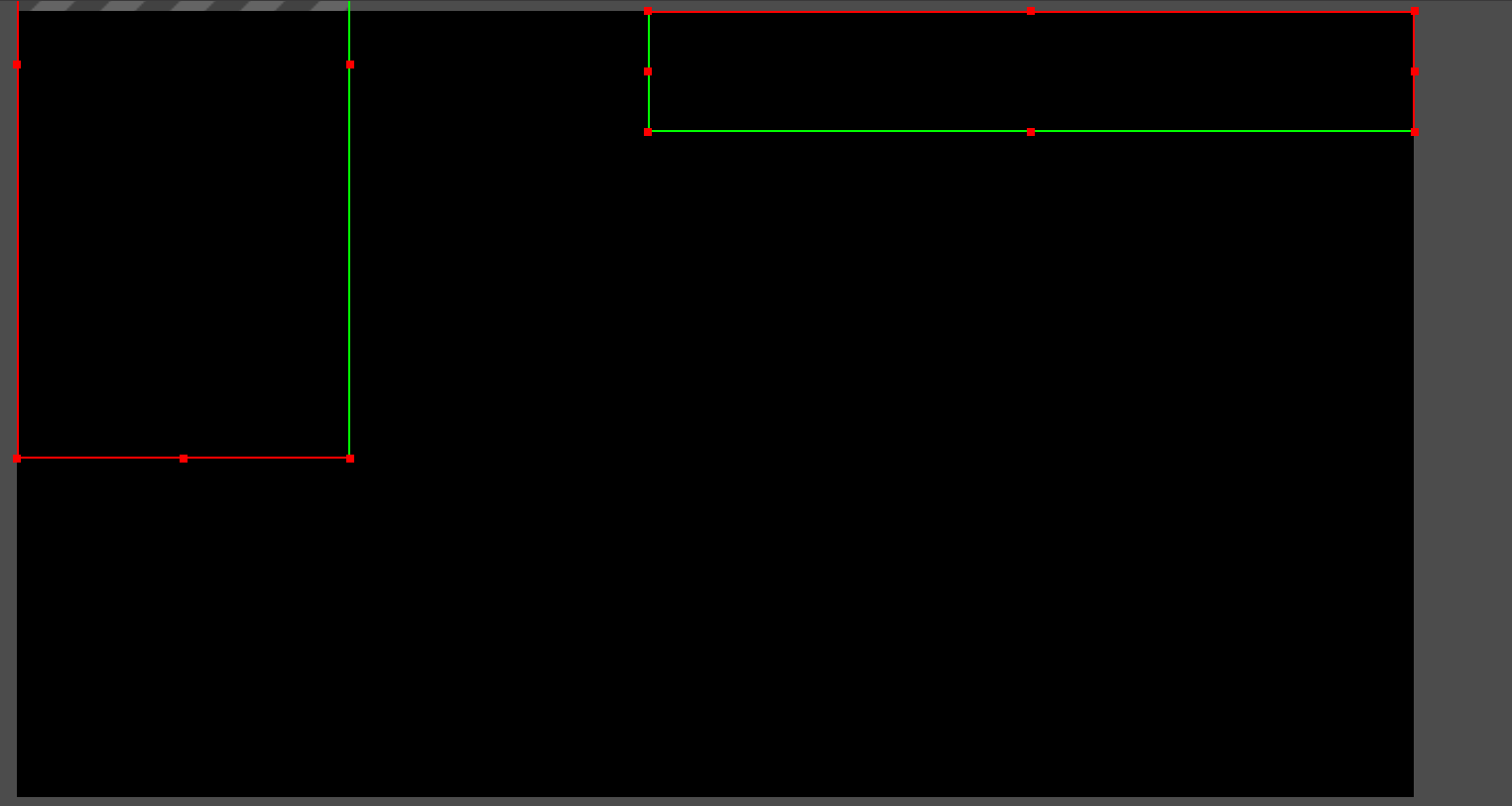
Since the mod has some built in timers, our normal overlay works best when split. We recommend duplicating the browser source and cropping it up so the bottom left and top right are only shown. This will show past activated effects and currently queued effects, leaving the mod to display current timers.
Uninstall
To uninstall the Crowd Control mod:
From the CC desktop app, select your game.
Click the trash icon 🗑️ next to “Mod Installed” to run the uninstaller.
Credits
Thanks RazorOne for implementing the original mod into Crowd Control!
And thanks to the original mod creator Salv and team. Find more info here:
https://www.nexusmods.com/subnautica/mods/644/
https://github.com/Shop-kins/SubnauticaTwitchInteractionMod
The base mod also relies on Tobey’s BepInEx Pack for Subnautica & Nautilus.
1. Start with the App
Open Crowd Control Desktop App
Select Subnautica from the game list
Latest Steam (2025 Patch) OR Old Version (2023 Patch)
Follow the Auto Setup checklist (left side of app)
2. Test Before You Stream
You can only test effects after pressing “Start Session” in the Crowd Control app
Always test a few effects before going live to confirm effects trigger as expected
Skipping this step can lead to broken streams and confusion!
Mod Compatibility
You can find the complete mod package here: CrowdControl-Subnautica-BepInEx-new.zip
This includes Tobey’s BepInEx Pack for Subnautica & Nautilus.
You can grab just the mod files here: CrowdControl-Subnautica-Modonly.zip
This is just the mod, packaged as:
Gameplay Support
Softlocked?
In most cases, saving and quitting will resolves most issues. Same should be true for the “RIP Riley” and “Go back home” effects.
Old Version (2023 Patch): If you are using older mods, you can use this but we suggest the “Latest” Steam build.
Overlay Suggestion
Since the mod has some built in timers, our normal overlay works best when split. We recommend duplicating the browser source and cropping it up so the bottom left and top right are only shown. This will show past activated effects and currently queued effects, leaving the mod to display current timers.
Uninstall
To uninstall the Crowd Control mod:
From the CC desktop app, select your game.
Click the trash icon 🗑️ next to “Mod Installed” to run the uninstaller.
Credits
Thanks RazorOne for implementing the original mod into Crowd Control!
And thanks to the original mod creator Salv and team. Find more info here:
https://www.nexusmods.com/subnautica/mods/644/
https://github.com/Shop-kins/SubnauticaTwitchInteractionMod
The base mod also relies on Tobey’s BepInEx Pack for Subnautica & Nautilus.
Ready to get Started?
Start Streaming the Interactive Way
Have any Questions?
Check our FAQs, or join Discord for Support
Making a Game?
Consider integrating Crowd Control!