
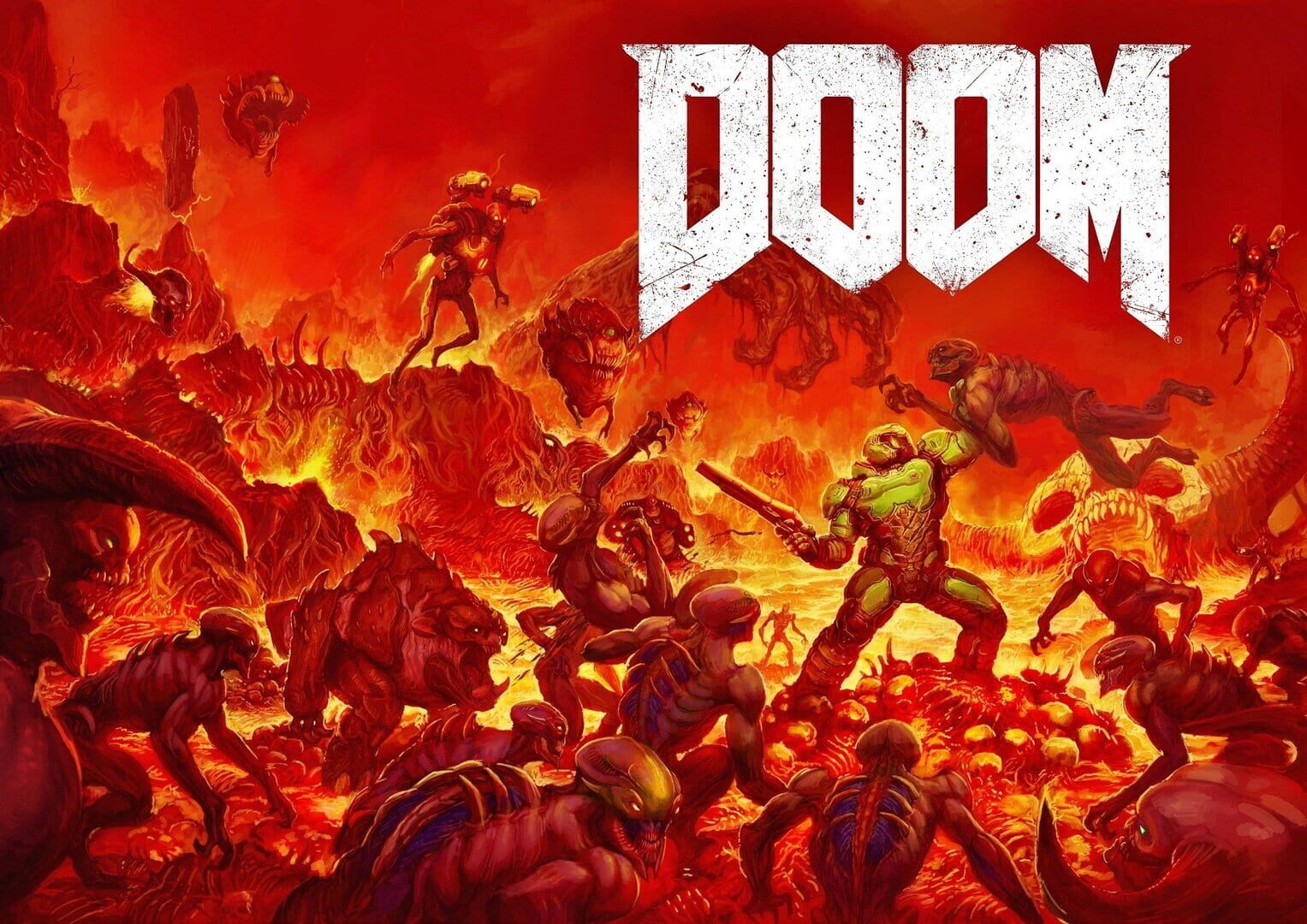
1. Start with the App
Open the Crowd Control desktop app.
Select DOOM (2016)
Follow the Auto Setup checklist.
2. Test Before You Stream
Press Start Session.
Load into a campaign level.
Test several effects before going live.
Check the in-game effect feed for connection and effect status.
Mod Compatibility
Uses a native dinput8.dll proxy.
Other tools that replace or wrap dinput8.dll may conflict.
Game Version
Tested with the current Steam build.
Vulkan and OpenGL executables are supported.
Single player campaign is supported.
Multiplayer is not supported.
If a game update breaks the pack, request support with the game version.
Common Issues
Effects wait while the game is loading, paused, menu-focused, or the player is dead.
DOOM pauses simulation when unfocused. Keep the game focused while testing effects.
Some demons only exist on certain maps. Unavailable demon effects may answer Retry or disappear from the menu.
The on-screen effect feed needs borderless or windowed mode.
Uninstall
Use the Crowd Control app trash icon for Auto Setup installs.
Manual installs can delete dinput8.dll, CrowdControl.ini, ccver, and doom2016_cc_tcp.log from the game folder.
Ready to get Started?
Start Streaming the Interactive Way
Have any Questions?
Check our FAQs, or join Discord for Support
Making a Game?
Consider integrating Crowd Control!

OTHER SERVICES