
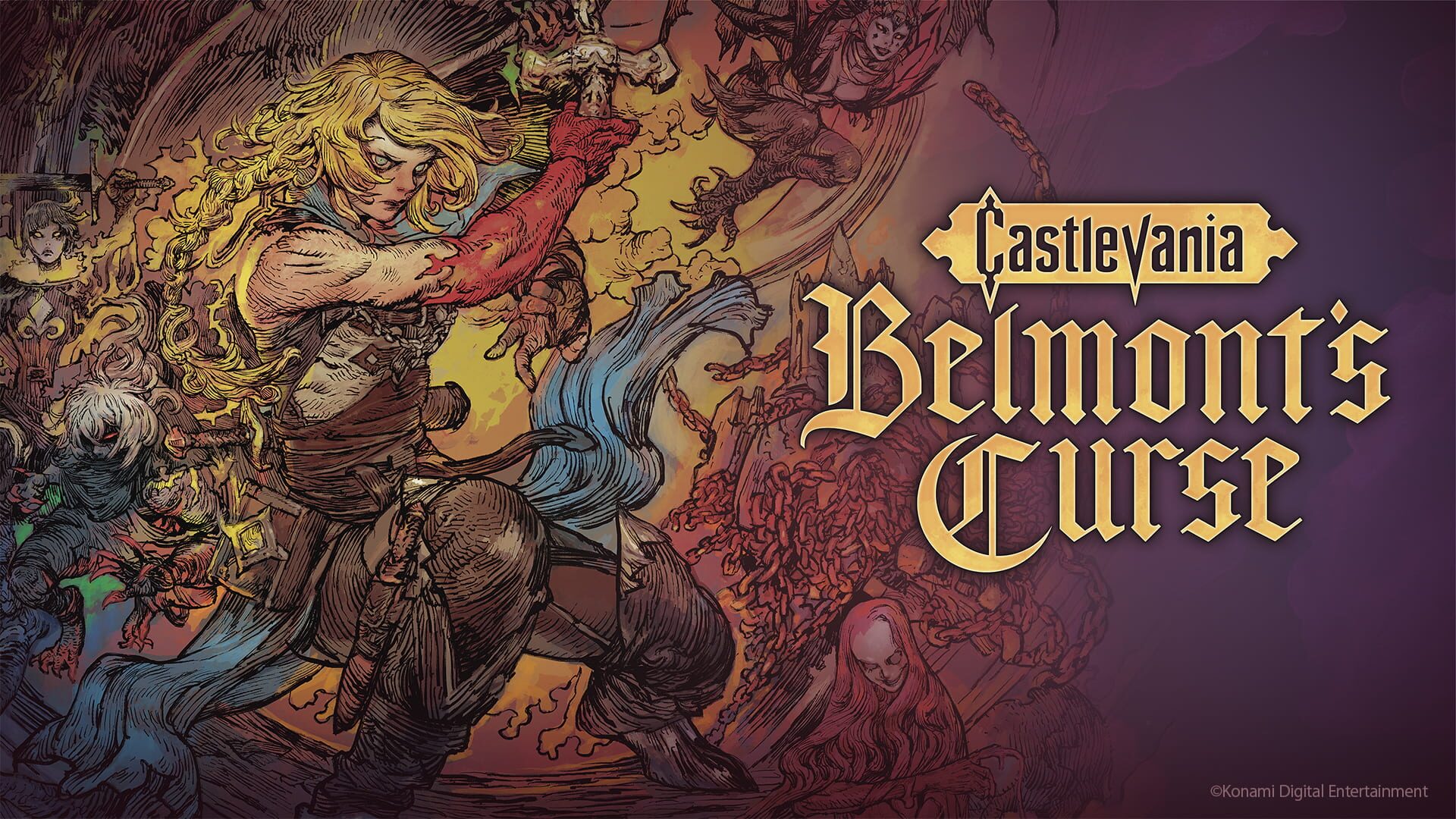
1. Start with the App
Open the Crowd Control Desktop App
Select Castlevania: Belmont's Curse from the game list
Follow the Auto Setup checklist (left side of the app)
2. Test Before You Stream
Effects can only be tested after pressing "Start Session" in the app
Always test a few effects before going live
Skipping this can lead to broken streams and confusion!
Mod Compatibility
Our mod uses MelonLoader, 64-bit build for the IL2CPP version of the game
Other mods may work, but are not tested with Crowd Control
If you have issues, try with just Crowd Control
Game Version
Tested with the Steam version of the game
Other game stores may work but have not been tested
Want another store supported? Submit a request in our Discord, #cc-requests
Notes
Press F8 in-game to cycle the Crowd Control status panel: normal, then a network diagnostics view, then hidden.
Press F9 in-game to force the mod to reconnect to the Crowd Control app
The status panel is drawn separately, so screen flip effects do not mirror it
Panel settings live in UserData\MelonPreferences.cfg (Display, Controls and Advanced sections)
Uninstall
In the CC desktop app, select your game
Click the trash icon next to "Mod Installed" to run the uninstaller
Ready to get Started?
Start Streaming the Interactive Way
Have any Questions?
Check our FAQs, or join Discord for Support
Making a Game?
Consider integrating Crowd Control!

OTHER SERVICES