
How to use Crowd Control:
For Game Developers
Welcome to Crowd Control!
Welcome to Crowd Control!
Crowd Control provides games developers with a unique way to increase the appeal, re-playability, and longevity of their games by allowing content creators to make fun, highly interactive experiences.
It's free to use, available for every main game engine, and comes with Crowd Control's community of creators who are already looking for new & exciting interactive experiences.
Crowd Control offers free built-in support for connections to Twitch, TikTok, YouTube, Pulsoid, Streamer.bot, Stream Deck, VNyan, StreamFog, Voicemod, SAMMIBot, MixItUp, LumiaStream, and more all through one API without any further effort on your end.
Crowd Control provides games developers with a unique way to increase the appeal, re-playability, and longevity of their games by allowing content creators to make fun, highly interactive experiences.
It's free to use, available for every main game engine, and comes with Crowd Control's community of creators who are already looking for new & exciting interactive experiences.
Crowd Control offers free built-in support for connections to Twitch, TikTok, YouTube, Pulsoid, Streamer.bot, Stream Deck, VNyan, StreamFog, Voicemod, SAMMIBot, MixItUp, LumiaStream, and more all through one API without any further effort on your end.
Getting Started
Getting Started
We offer many plugins and APIs to make integrating your software as easy as possible. Follow the links below to find our full documentation on each, or continue scrolling for our Unity or Unreal Engine guides.
We offer many plugins and APIs to make integrating your software as easy as possible. Follow the links below to find our full documentation on each, or continue scrolling for our Unity or Unreal Engine guides.
Unity Developers: see our Unity Plugin
Unreal Developers: see our Unreal Plugin
Godot developers: see our community-contributed plugins:
Unity Modders: see our BepInEx Example Plugin and Modded Connectors
Other Modders: see our Modded Connectors
Other Developers: see our WebSocket & HTTP APIs


Adding Crowd Control to your Project
Managing Crowd Control within your game can be as simple or as complicated as you'd like, but here we will cover a few features we recommend as a baseline experience for your players. First, select whether you are building your game un Unity or Unreal Engine.
Modding a Game Instead?
See Crowd Control's SDK Documentation for access to connectors for emulators, windows apps, BepInEx, MelonLoader, and many more.
Set up the UI
Managing Crowd Control within your game can be as simple or as complicated as you'd like, but here we will cover a few features we recommend as a baseline experience for your players.
Settings Menu Integration
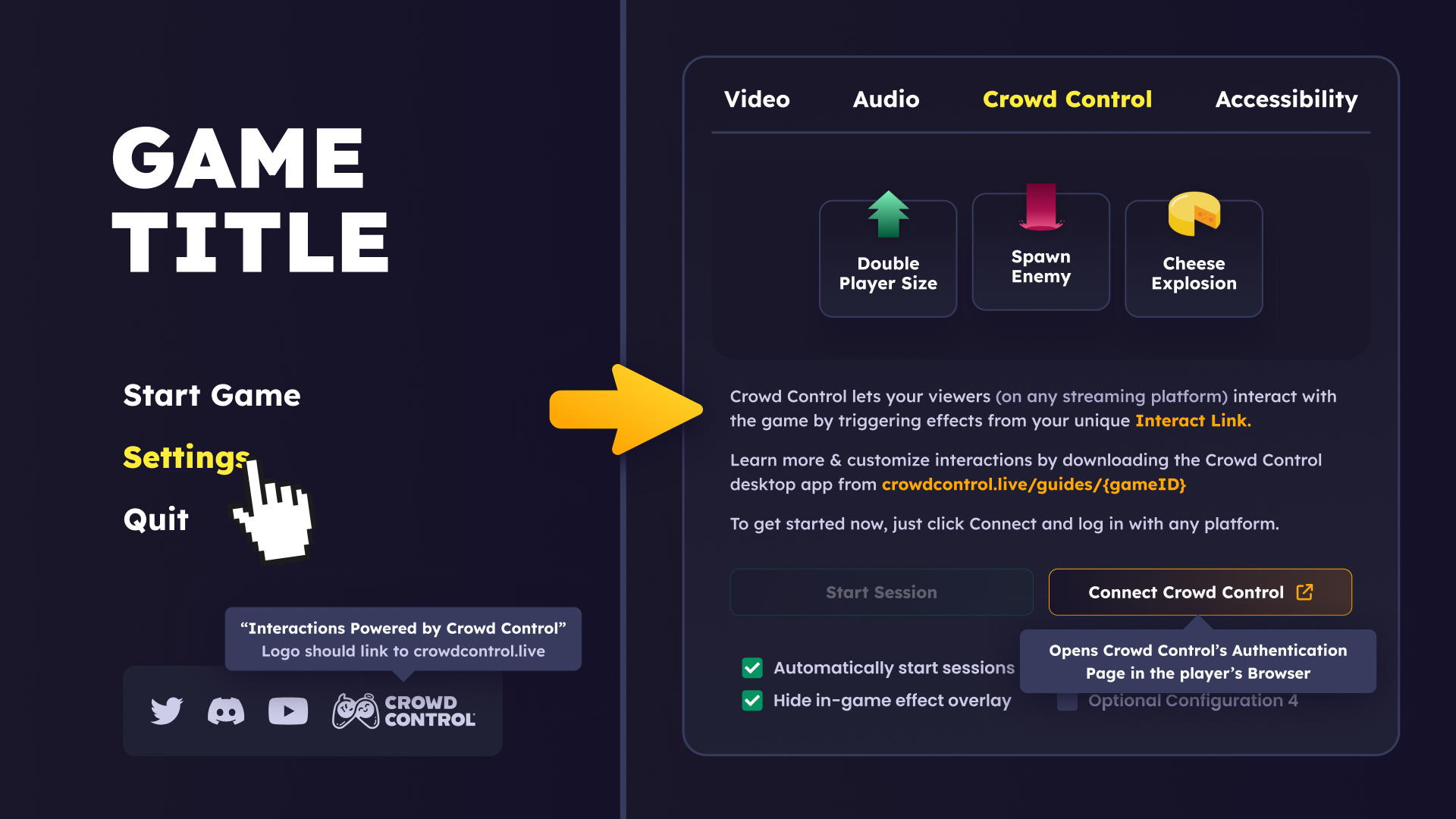
Players will need to be able to set Crowd Control related settings.
To indicate to players this option is available, we also recommend (and very much appreciate) including some mention of Crowd Control, such as the logo or "Stream Interactions powered by Crowd Control." You can find Crowd Control's official assets at crowdcontrol.live/brand.
We recommend a sub-menu in your game's settings titled something like "Crowd Control Interactions" or "Livestream Interactions."
When clicking on this option, we recommend a dialog box somewhere that explains what exactly Crowd Control is and how to use it. For example:
Crowd Control lets your viewers (on any streaming platform) interact with the game by triggering effects from your unique Interact Link.
Learn more & customize interactions by downloading the Crowd Control desktop app from crowdcontrol.live/guides/{gameID}
To get started now, just click Connect and log in with any platform.
We create guides for each game supported by Crowd Control. These go over how to set up the game using the Crowd Control app.
Authenticating Crowd Control
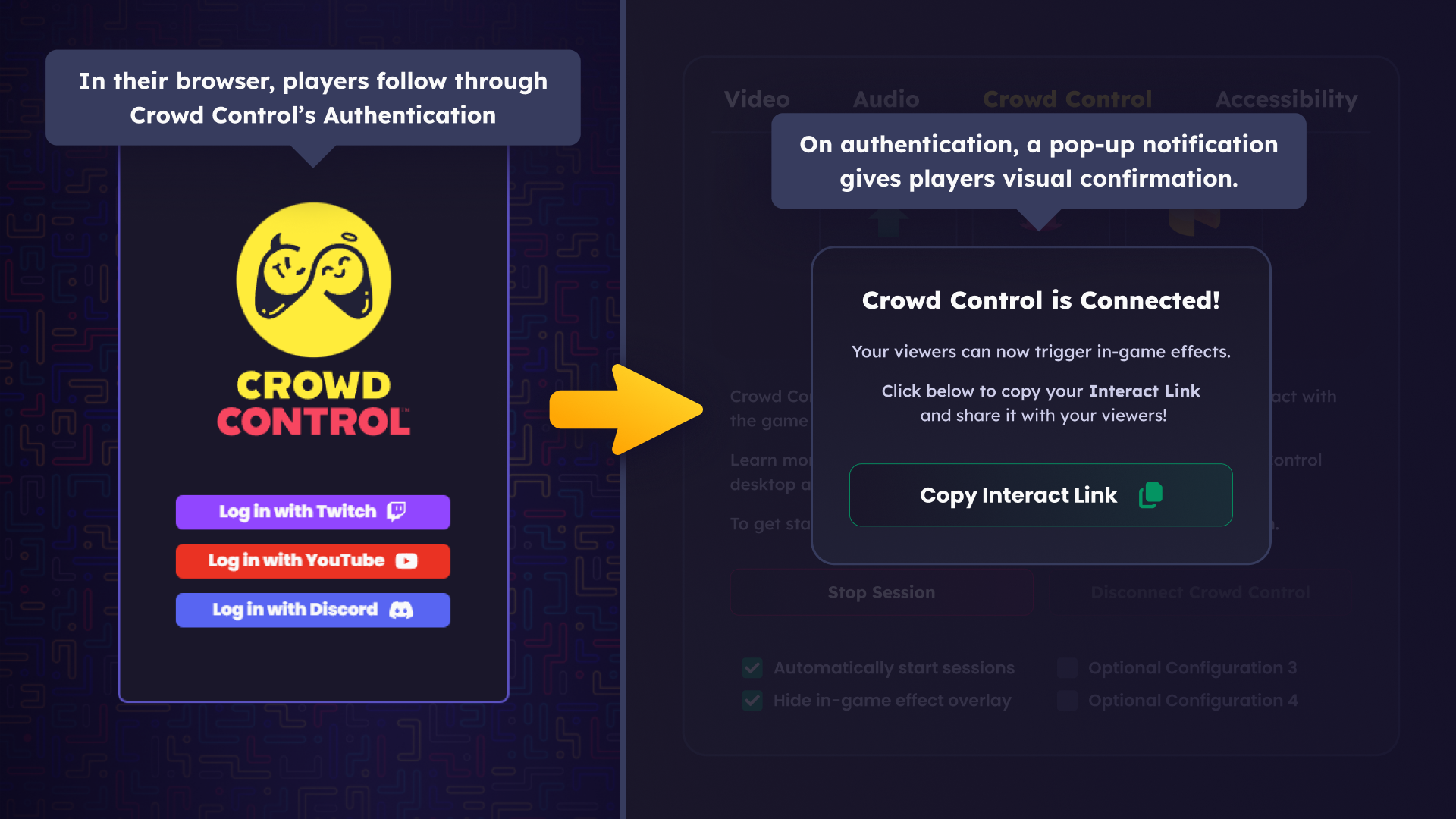
Players will need to connect the game to their Crowd Control account.
Create a button in the Crowd Control settings titled something like "Connect Crowd Control," or "Link Crowd Control Account." This button will direct players to our auth page, and shouldn't need further information from your game afterwards.
The login process only has about 3 minutes from when players click Connect before the token times out: consider leaving a status message that states it is waiting for authentication.
Once successfully logged in, the player should see that it was successful. Consider adding a visual marker, sound effect, dialogue box, or whatever else fits within the setting of your game.
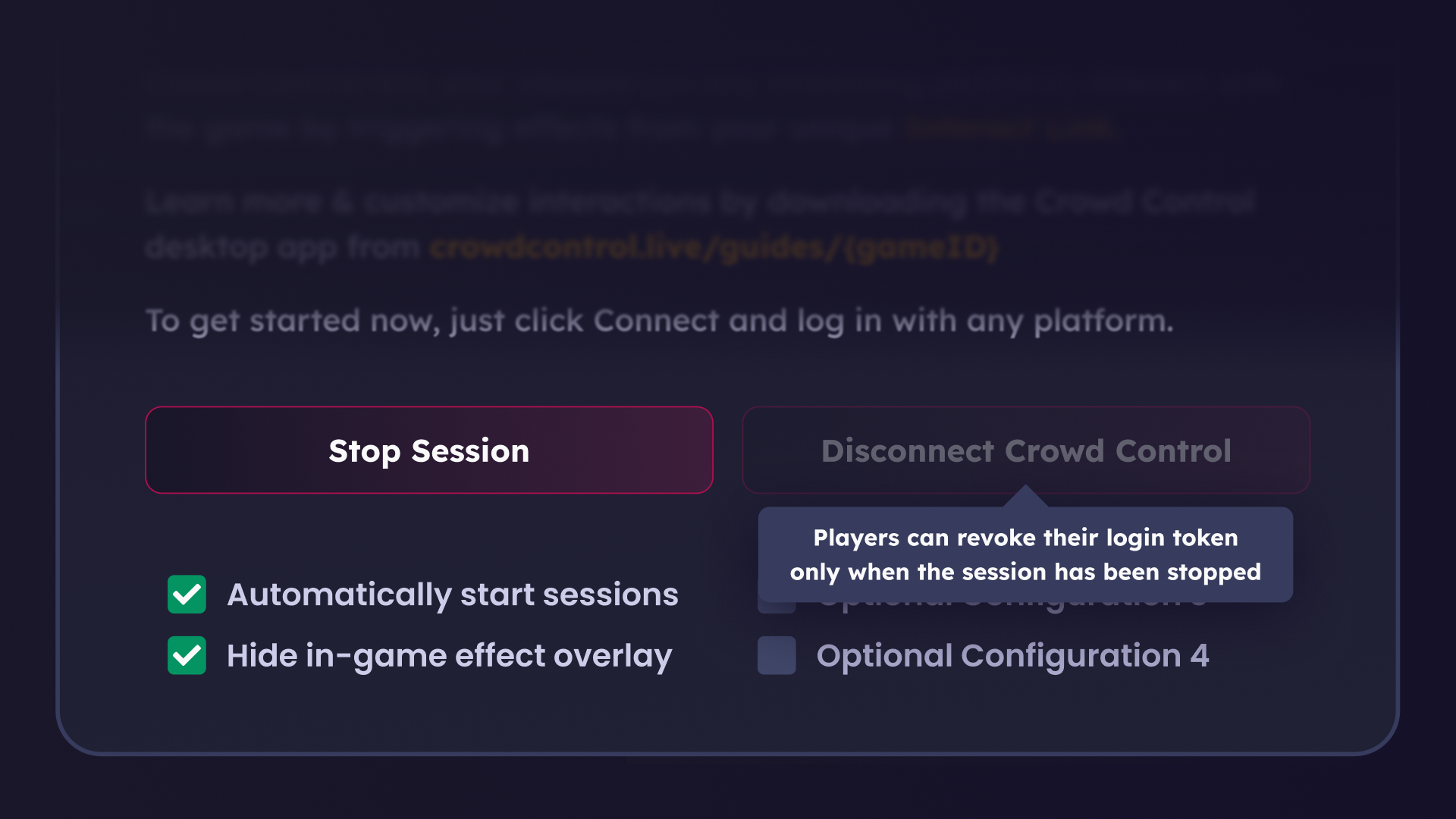
Players should also have the ability to reset or disconnect their login token, in case they chose the wrong account, or just wish to remove access. Use clear verbiage such as "Disconnect Crowd Control"
Beyond simply enabling and disabling Crowd Control, we recommend a couple other settings, like automatically starting sessions on game launch or the option to disable the in-game effect overlay.
Additionally, you could provide options to change the overlays size, location, or whatever else you see as necessary.
Effect Display Mechanics
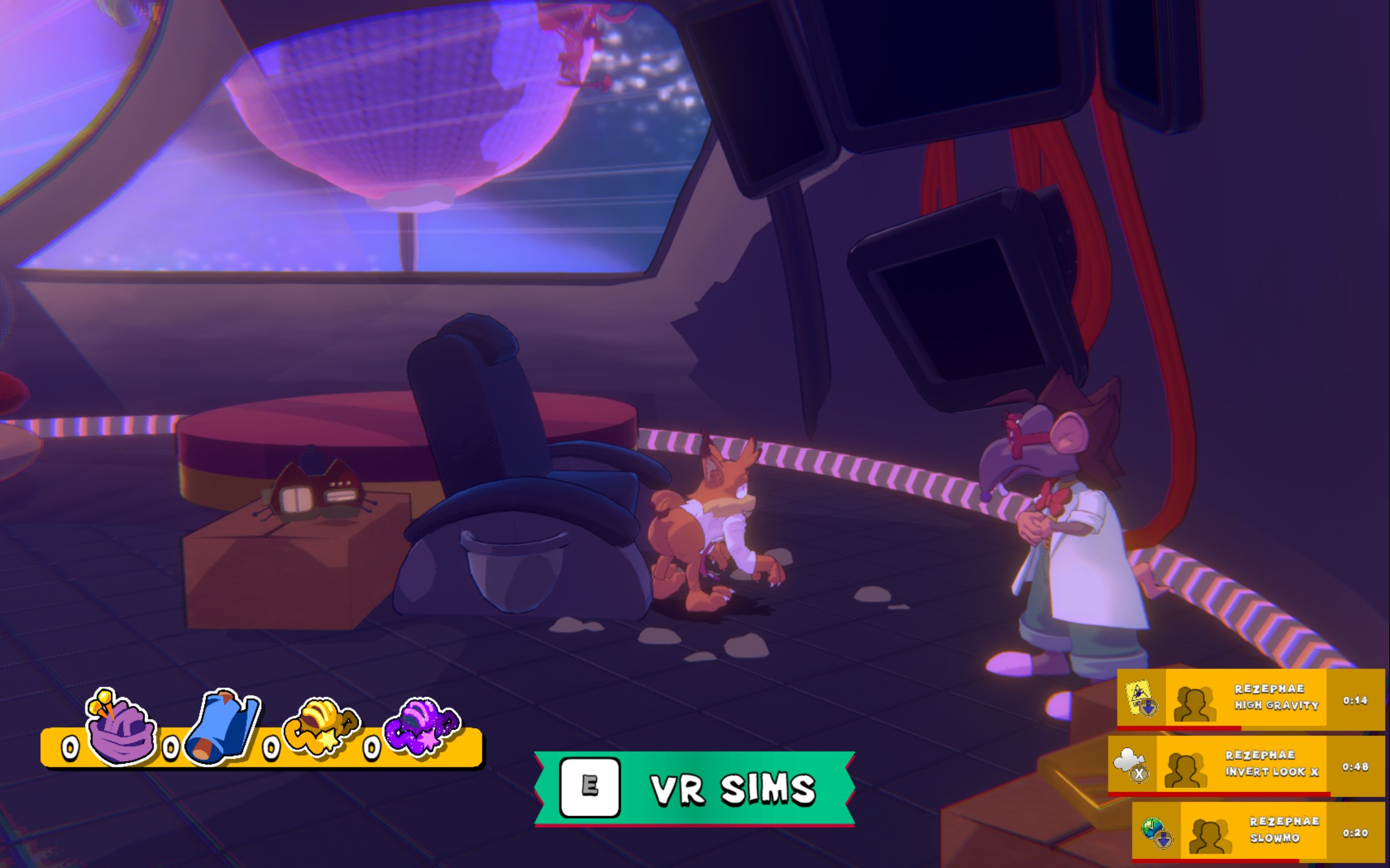
When an effect is activated, it should be immediately apparent in the game.
We highly recommend the overlay match the tone and style of your game: the possibilities are endless! Effects could show up in dialogue boxes or as notifications in the corners of the game, or they could be fully integrated to the player model with however many fancy effects you can think of.
Crowd Control Effects have a few unique properties that you can take into consideration when designing your overlay.
Including the sender's username lets your players' viewers see themselves in the game!
We used to include the sender's profile picture as well, but now recommend leaving it out for moderation reasons.
Effects are first sent into a Queue: consider showing a preview of the upcoming effects.
Timed effects are active for a set duration: add an indicator to the player of its length.
The plugin is responsible for ensuring that timed effects automatically pause when the game is paused.
Some effects could be spammed: these can be combined into one by adding a multiplier.
Effect volume: stress test your overlay! You wouldn't want your game's experience to be lessened by an overlay that is too big or overstays its welcome.
Use your best judgement to ensure Crowd Control feels like a native part of your game. We are available to collaborate on the final text styling or phrasing!
Bubsy 4D by Fabraz
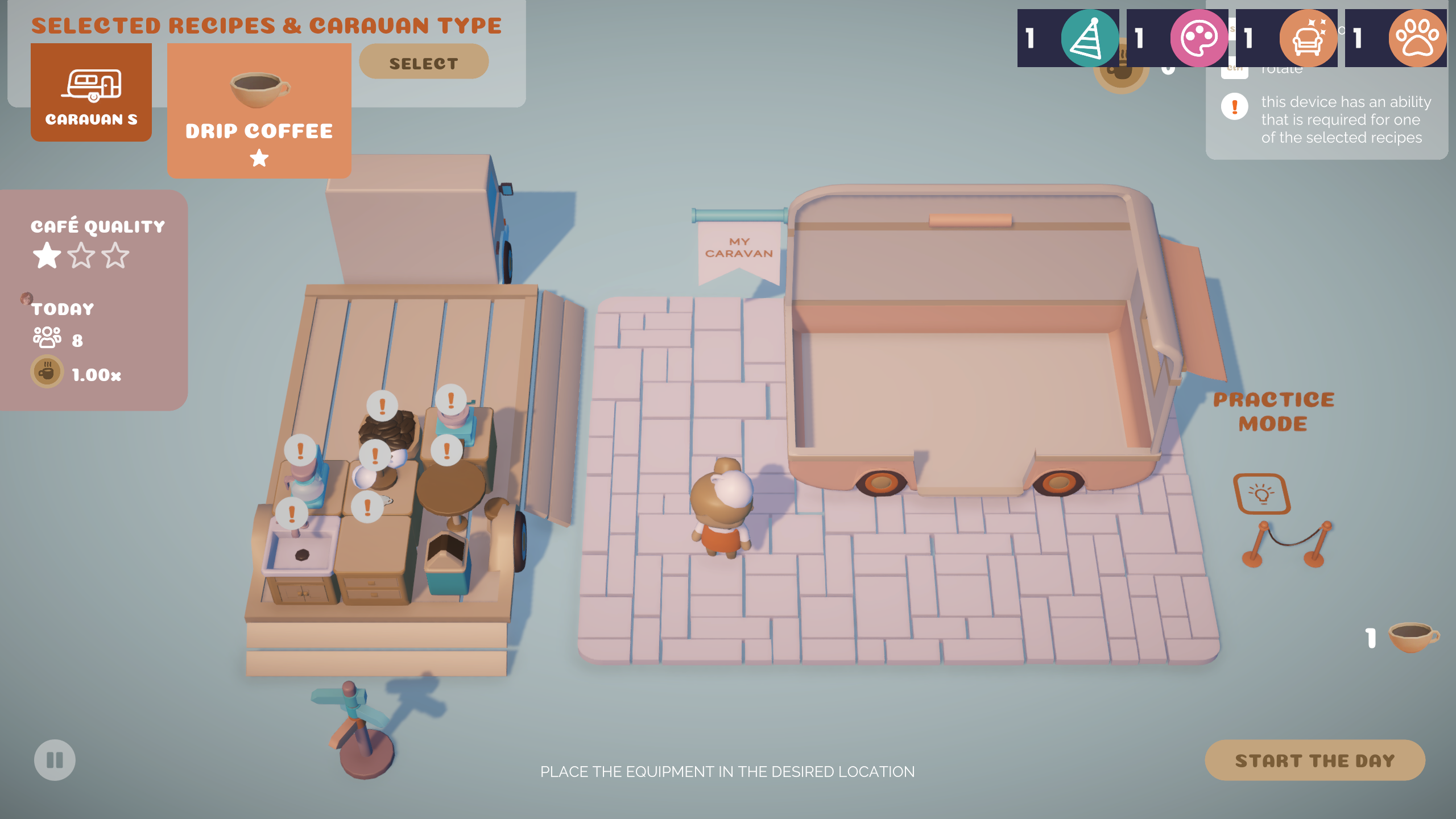
Coffee Caravan by Broccoli Games
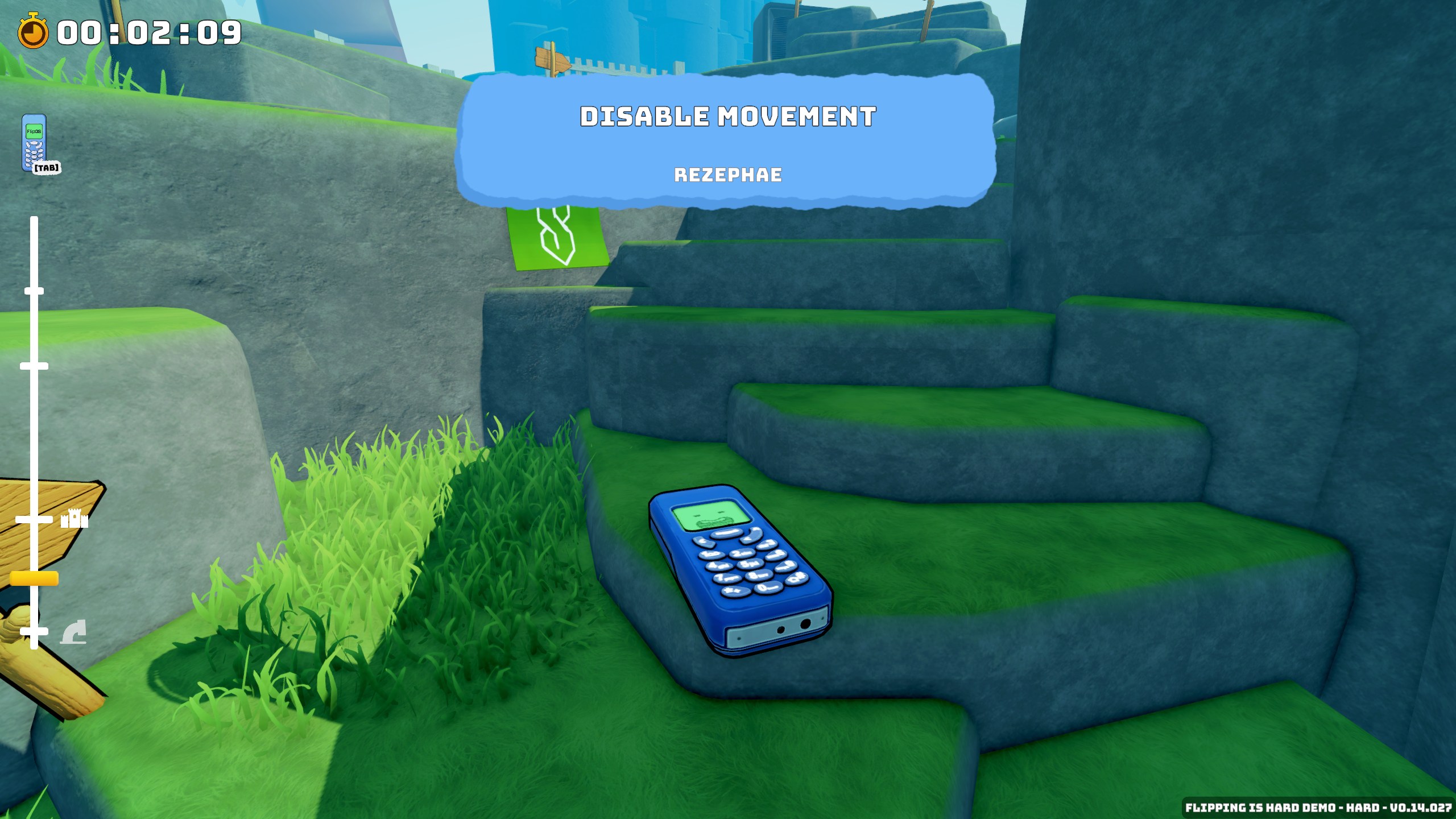
Flipping is Hard by Elegant Horse Studios
Additional UX Necessities
Players will be able to adjust effect pricing and availability in the Crowd Control app, so there is no need to include these options in your game.
The guide link mentioned above will help your players learn how to navigate our app.
Players should also have access to enabling or disabling Crowd Control at any time.
The plugin is responsible for ensuring that timed effects automatically pause when the game is paused.
It's up to you whether or not your game's Crowd Control integration disables Achievements, but it should most definitely disable any updates to a leaderboard.
Consider adding an achievement for using Crowd Control! 👀
Effects should be paused during any loading, dialog, cutscenes, menus, etc.
If the game is closed while a Crowd Control Session is still active, have the game automatically end the session before closing out.
Adding Crowd Control to your Project
Managing Crowd Control within your game can be as simple or as complicated as you'd like, but here we will cover a few features we recommend as a baseline experience for your players. First, select whether you are building your game un Unity or Unreal Engine.
Modding a Game Instead?
See Crowd Control's SDK Documentation for access to connectors for emulators, windows apps, BepInEx, MelonLoader, and many more.
Set up the UI
Managing Crowd Control within your game can be as simple or as complicated as you'd like, but here we will cover a few features we recommend as a baseline experience for your players.
Settings Menu Integration
Players will need to be able to set Crowd Control related settings.
To indicate to players this option is available, we also recommend (and very much appreciate) including some mention of Crowd Control, such as the logo or "Stream Interactions powered by Crowd Control." You can find Crowd Control's official assets at crowdcontrol.live/brand.
We recommend a sub-menu in your game's settings titled something like "Crowd Control Interactions" or "Livestream Interactions."
When clicking on this option, we recommend a dialog box somewhere that explains what exactly Crowd Control is and how to use it. For example:
Crowd Control lets your viewers (on any streaming platform) interact with the game by triggering effects from your unique Interact Link.
Learn more & customize interactions by downloading the Crowd Control desktop app from crowdcontrol.live/guides/{gameID}
To get started now, just click Connect and log in with any platform.
We create guides for each game supported by Crowd Control. These go over how to set up the game using the Crowd Control app.
Authenticating Crowd Control
Players will need to connect the game to their Crowd Control account.
Create a button in the Crowd Control settings titled something like "Connect Crowd Control," or "Link Crowd Control Account." This button will direct players to our auth page, and shouldn't need further information from your game afterwards.
The login process only has about 3 minutes from when players click Connect before the token times out: consider leaving a status message that states it is waiting for authentication.
Once successfully logged in, the player should see that it was successful. Consider adding a visual marker, sound effect, dialogue box, or whatever else fits within the setting of your game.
Players should also have the ability to reset or disconnect their login token, in case they chose the wrong account, or just wish to remove access. Use clear verbiage such as "Disconnect Crowd Control"
Beyond simply enabling and disabling Crowd Control, we recommend a couple other settings, like automatically starting sessions on game launch or the option to disable the in-game effect overlay.
Additionally, you could provide options to change the overlays size, location, or whatever else you see as necessary.
Effect Display Mechanics
When an effect is activated, it should be immediately apparent in the game.
We highly recommend the overlay match the tone and style of your game: the possibilities are endless! Effects could show up in dialogue boxes or as notifications in the corners of the game, or they could be fully integrated to the player model with however many fancy effects you can think of.
Crowd Control Effects have a few unique properties that you can take into consideration when designing your overlay.
Including the sender's username lets your players' viewers see themselves in the game!
We used to include the sender's profile picture as well, but now recommend leaving it out for moderation reasons.
Effects are first sent into a Queue: consider showing a preview of the upcoming effects.
Timed effects are active for a set duration: add an indicator to the player of its length.
The plugin is responsible for ensuring that timed effects automatically pause when the game is paused.
Some effects could be spammed: these can be combined into one by adding a multiplier.
Effect volume: stress test your overlay! You wouldn't want your game's experience to be lessened by an overlay that is too big or overstays its welcome.
Use your best judgement to ensure Crowd Control feels like a native part of your game. We are available to collaborate on the final text styling or phrasing!
Bubsy 4D by Fabraz
Coffee Caravan by Broccoli Games
Flipping is Hard by Elegant Horse Studios
Additional UX Necessities
Players will be able to adjust effect pricing and availability in the Crowd Control app, so there is no need to include these options in your game.
The guide link mentioned above will help your players learn how to navigate our app.
Players should also have access to enabling or disabling Crowd Control at any time.
The plugin is responsible for ensuring that timed effects automatically pause when the game is paused.
It's up to you whether or not your game's Crowd Control integration disables Achievements, but it should most definitely disable any updates to a leaderboard.
Consider adding an achievement for using Crowd Control! 👀
Effects should be paused during any loading, dialog, cutscenes, menus, etc.
If the game is closed while a Crowd Control Session is still active, have the game automatically end the session before closing out.
Ready to get Started?
Start Streaming the Interactive Way
Have any Questions?
Check our FAQs, or join Discord for Support
Making a Game?
Consider integrating Crowd Control!
