Crowd Control Disrupts let you add always-on interactions to your stream, no matter which platform you call home.
Want to turn Animal Crossing into a horror game? Or your favorite battle royale into a comedy of errors? Disrupts have you covered.
New to Crowd Control? Welcome. We'll walk through the few steps you need to get started.
Step 1: Create Your Account
Download the app at crowdcontrol.live and choose a platform to create your Crowd Control account.
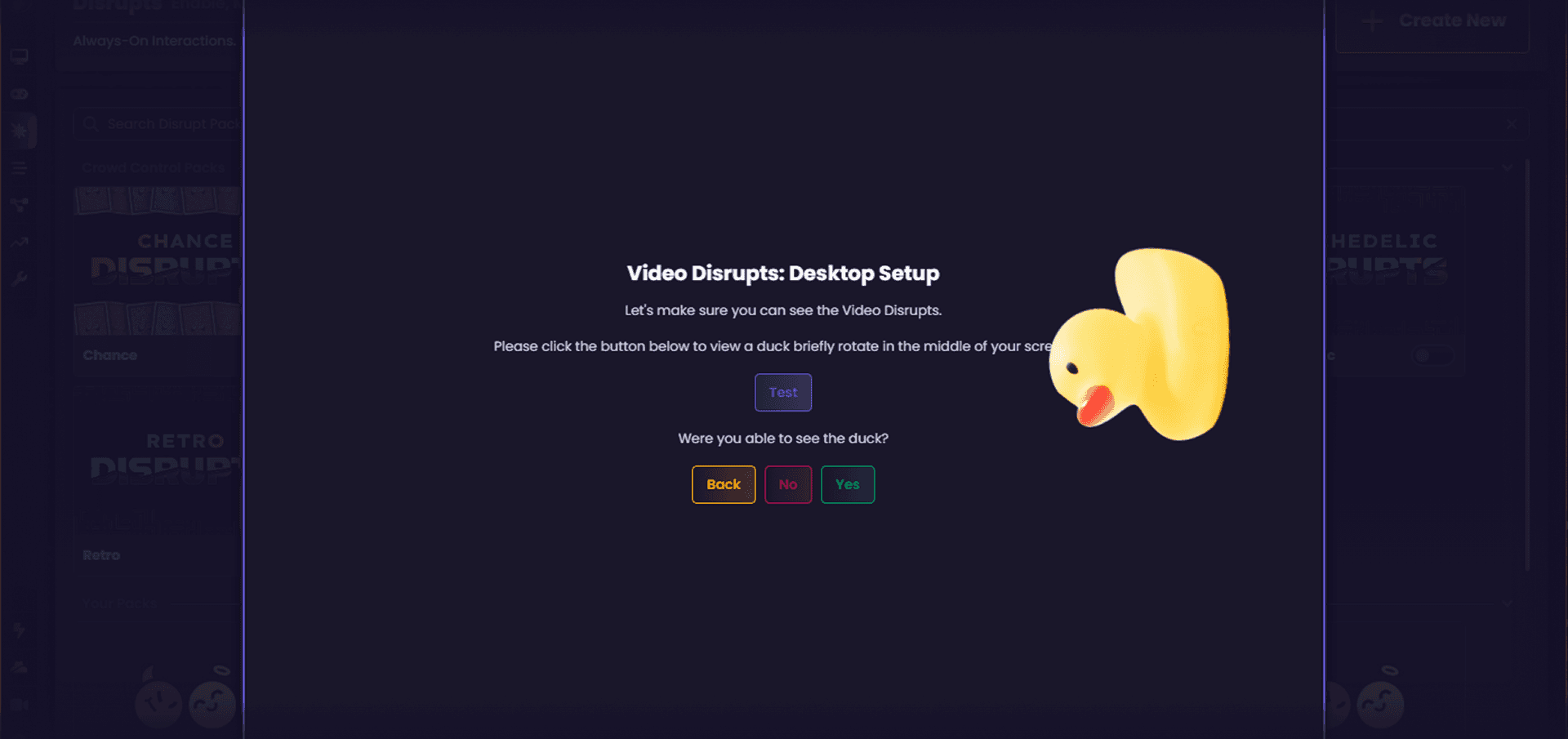
Step 2: Set Up Disrupts in the App
Head to the Disrupts page in the app to get your stream ready.
The setup guide will ask you to select:
Your monitor
Your streaming software
How you capture footage
In this example, we'll select our main monitor, then OBS Studio, then Window Capture.
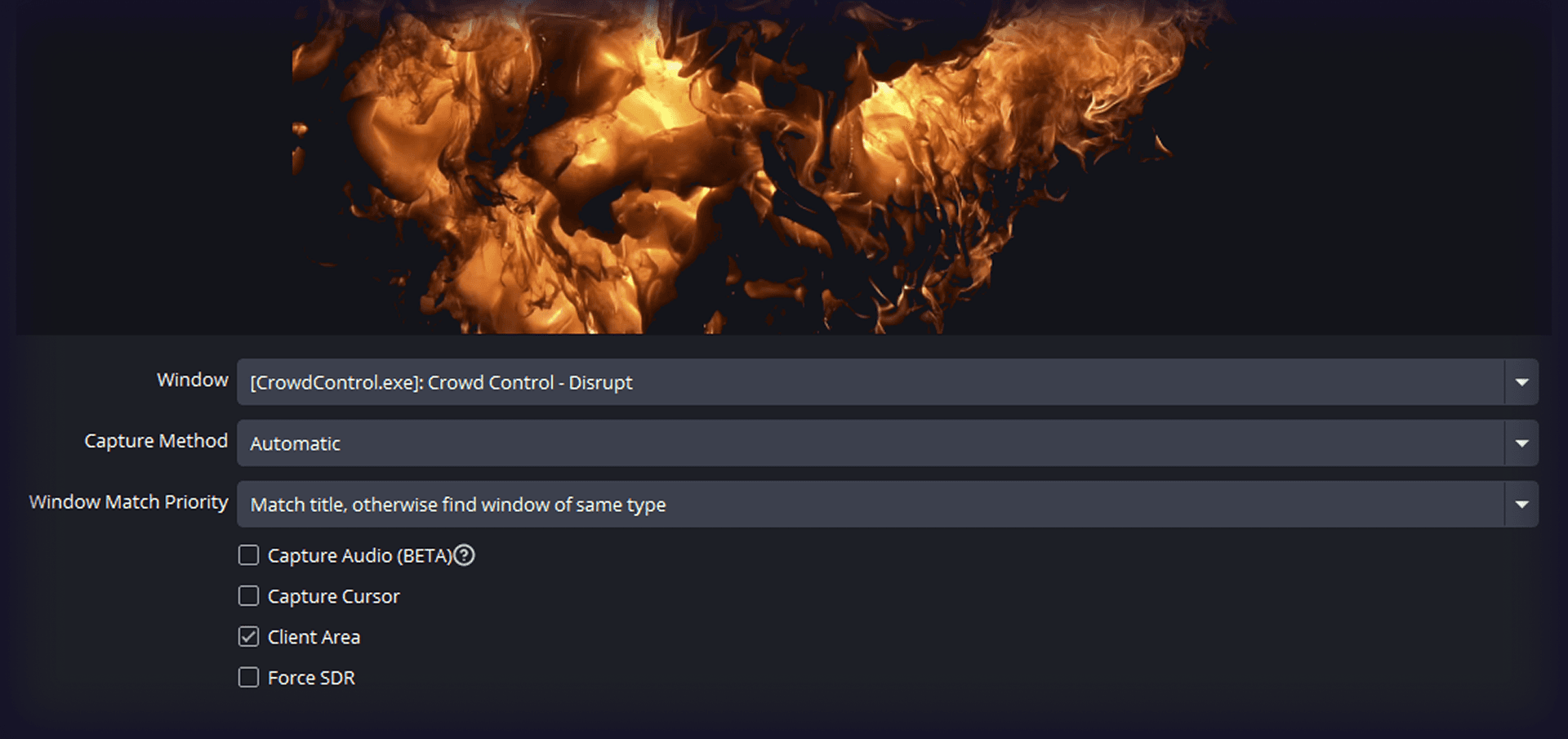
Step 3: Configure Your Capture in OBS
In OBS, create a new Window Capture and select "Crowd Control - Disrupt" from the list. Disable Cursor Capture, then make the source full screen. Once that's done, head back into the app.
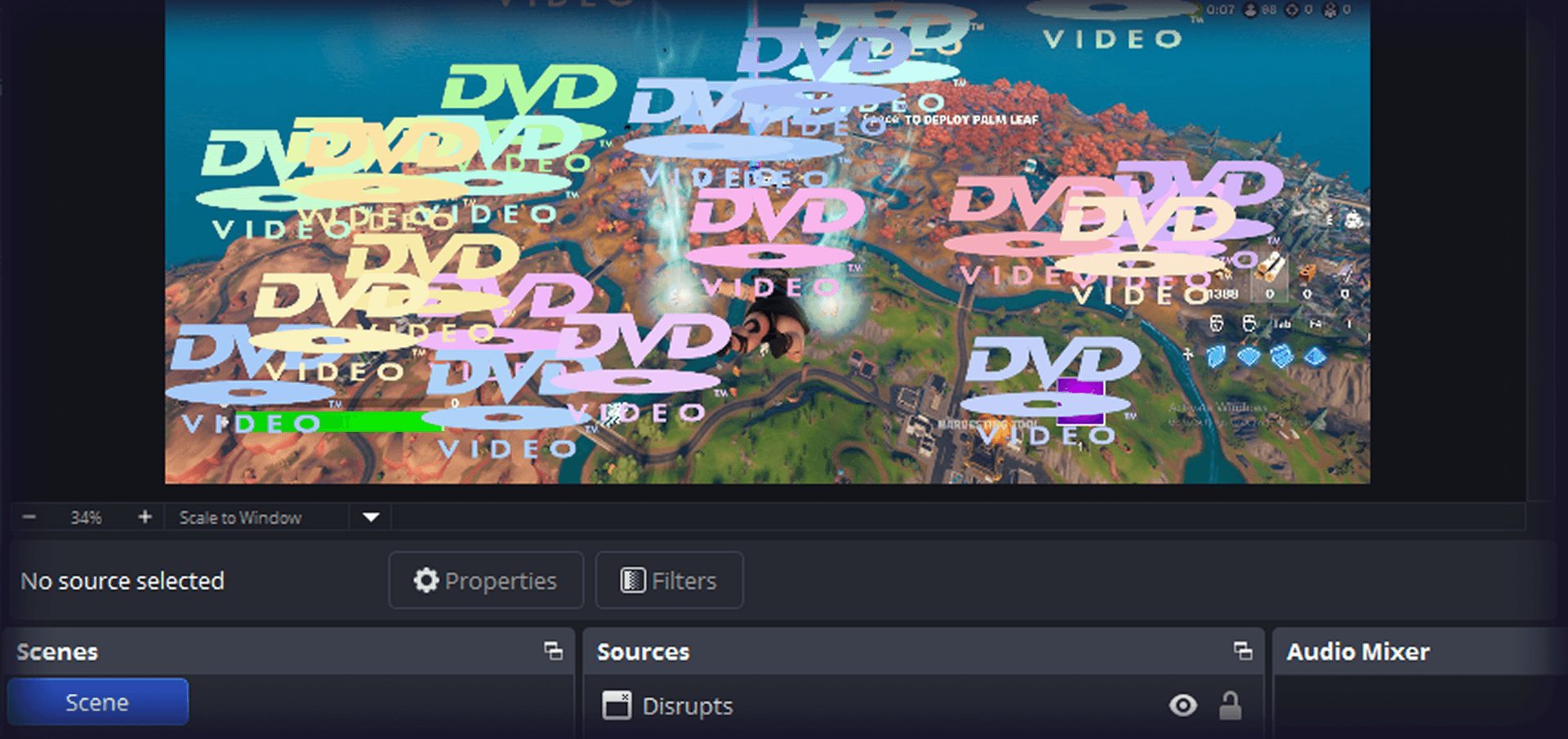
Step 4: Test a Disrupt
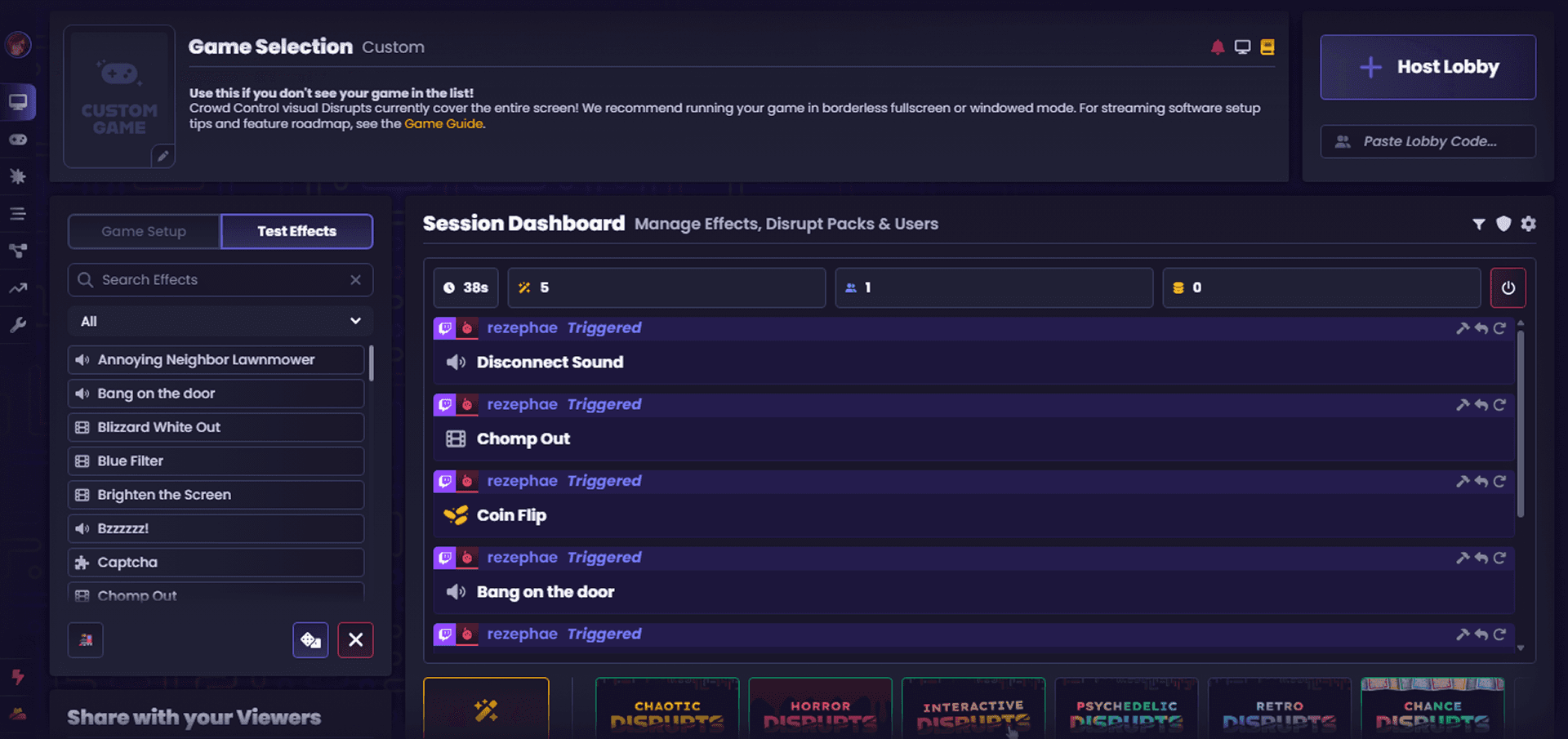
Open any Disrupt Pack's Effect Manager and hit a play button. You should see the Disrupt appear both on your monitor and in your streaming software.
This is also where you'll manage default prices, settings, integrations, and availability for each effect. For now, just know: 100 Coins = 1 USD.
Step 5: Go Live
Once your Disrupts are configured:
Select Custom Packs from the list
Give chat access to your Interact Link
Start and test your session
Go live
Using Disrupts with Integrated Games
Disrupts work great alongside Crowd Control's more integrated games, like Minecraft or Skyrim, though these require additional setup. Each game has its own dedicated setup guide to walk you through it.
What's Next for Disrupts
Disrupts are just getting started, with Keyboard, Screen, Shader, and Code-Based Interactions on the roadmap. Check our roadmap to see what's coming, and get ready for the chaos ahead.


" width="14.000000116459887px"><path d="M 3.269 0 C 5.075 0 6.538 1.464 6.538 3.269 C 6.538 5.075 5.075 6.538 3.269 6.538 C 1.464 6.538 0 5.075 0 3.269 C 0 1.464 1.464 0 3.269 0 Z M 2.177 2.015 C 2.114 1.989 2.039 1.958 1.98 2.003 C 1.95 2.024 1.928 2.054 1.906 2.082 L 1.902 2.087 C 1.866 2.135 1.825 2.183 1.778 2.22 C 1.67 2.31 1.536 2.354 1.394 2.361 L 1.392 2.361 C 1.368 2.362 1.343 2.365 1.319 2.37 C 1.23 2.388 1.208 2.456 1.192 2.54 C 1.189 2.554 1.186 2.569 1.183 2.583 C 1.171 2.636 1.158 2.695 1.173 2.74 C 1.204 2.832 1.372 2.822 1.477 2.815 L 1.49 2.814 C 1.502 2.813 1.513 2.813 1.523 2.812 C 1.608 2.806 1.673 2.823 1.718 2.901 C 1.939 3.363 2.222 3.801 2.607 4.159 C 2.624 4.174 2.642 4.189 2.661 4.201 C 2.686 4.216 2.714 4.224 2.74 4.22 C 2.791 4.21 2.827 4.17 2.86 4.132 L 2.863 4.129 C 2.869 4.123 2.875 4.116 2.881 4.11 C 2.887 4.102 2.894 4.095 2.901 4.087 C 2.937 4.047 2.977 4.002 2.98 3.95 C 2.982 3.911 2.961 3.878 2.936 3.849 C 2.76 3.667 2.59 3.477 2.449 3.269 C 2.324 3.082 2.208 2.89 2.134 2.68 C 2.125 2.646 2.121 2.611 2.129 2.576 C 2.14 2.526 2.173 2.485 2.206 2.444 L 2.219 2.427 C 2.258 2.379 2.294 2.329 2.325 2.276 C 2.348 2.236 2.372 2.188 2.36 2.142 L 2.36 2.141 C 2.343 2.084 2.276 2.056 2.22 2.033 C 2.207 2.028 2.194 2.023 2.183 2.018 Z M 5.468 2.642 C 5.442 2.639 5.413 2.638 5.388 2.646 L 5.304 2.726 C 5.199 2.935 5.028 3.05 4.795 3.067 C 4.766 3.071 4.736 3.077 4.712 3.093 L 4.711 3.093 C 4.661 3.126 4.649 3.195 4.638 3.258 L 4.637 3.261 C 4.634 3.277 4.631 3.293 4.628 3.308 C 4.623 3.331 4.619 3.354 4.614 3.377 L 4.612 3.389 L 4.611 3.393 C 4.601 3.444 4.591 3.494 4.582 3.541 C 4.578 3.566 4.574 3.591 4.578 3.616 C 4.583 3.656 4.614 3.681 4.653 3.691 C 5.086 3.76 5.545 3.534 5.788 3.176 C 5.845 3.092 5.976 2.864 5.935 2.768 C 5.915 2.726 5.858 2.715 5.811 2.706 C 5.801 2.704 5.791 2.703 5.782 2.701 C 5.746 2.694 5.708 2.687 5.67 2.679 C 5.603 2.666 5.536 2.653 5.468 2.642 Z M 3.146 1.105 C 3.094 1.1 3.037 1.095 2.997 1.131 C 2.978 1.151 2.968 1.181 2.963 1.214 C 2.912 1.824 2.997 2.394 3.257 2.859 C 3.284 2.901 3.327 2.926 3.377 2.911 C 3.406 2.903 3.432 2.889 3.458 2.875 C 3.46 2.873 3.463 2.872 3.465 2.87 C 3.522 2.839 3.582 2.805 3.64 2.772 L 3.69 2.744 C 3.699 2.739 3.708 2.733 3.718 2.728 C 3.764 2.702 3.814 2.674 3.826 2.621 L 3.826 2.621 C 3.831 2.598 3.826 2.573 3.818 2.55 C 3.663 2.204 3.583 1.819 3.604 1.38 C 3.604 1.366 3.604 1.352 3.605 1.337 C 3.608 1.284 3.61 1.227 3.584 1.185 C 3.559 1.148 3.512 1.138 3.471 1.133 C 3.407 1.127 3.343 1.121 3.279 1.116 C 3.246 1.113 3.214 1.111 3.182 1.108 C 3.17 1.107 3.158 1.106 3.146 1.105 Z M 5.376 2.65 C 5.375 2.651 5.373 2.652 5.371 2.653 L 5.375 2.651 Z" fill="rgb(234, 61, 106)" height="6.538250575370619px" id="EHOHSwCqJ" transform="translate(0 2.239)" width="6.538250568278272px"/><path d="M 1.24 0.899 C 1.24 1.156 1.293 1.399 1.388 1.621 C 1.393 1.632 1.392 1.645 1.387 1.655 C 1.381 1.666 1.371 1.673 1.359 1.676 C 0.828 1.772 0.334 2.051 0.109 2.209 C 0.099 2.216 0.086 2.218 0.074 2.214 C 0.062 2.209 0.053 2.199 0.05 2.187 C 0.011 2.025 -0.005 1.859 0.001 1.692 C 0.034 0.858 0.627 0.179 1.404 0.001 C 1.435 -0.006 1.46 0.028 1.445 0.057 C 1.31 0.317 1.239 0.606 1.24 0.899 Z" fill="rgb(234, 61, 106)" height="2.215802804588664px" id="f7GQHGnLg" transform="translate(1.053 0)" width="1.4492800256519736px"/><path d="M 3.269 0 C 5.075 0 6.538 1.464 6.538 3.269 C 6.538 5.075 5.075 6.538 3.269 6.538 C 1.464 6.538 0 5.075 0 3.269 C 0 1.464 1.464 0 3.269 0 Z M 3.833 2.887 C 3.802 2.893 3.77 2.91 3.739 2.928 L 3.738 2.928 C 3.712 2.943 3.685 2.958 3.659 2.974 C 3.584 3.017 3.535 3.06 3.545 3.153 C 3.547 3.171 3.549 3.188 3.552 3.205 C 3.556 3.235 3.56 3.264 3.561 3.294 C 3.576 3.688 3.118 3.935 2.798 3.698 C 2.782 3.687 2.767 3.676 2.753 3.663 C 2.723 3.638 2.692 3.613 2.654 3.602 L 2.654 3.602 C 2.603 3.589 2.553 3.613 2.508 3.638 C 2.479 3.654 2.45 3.671 2.421 3.688 L 2.416 3.691 C 2.369 3.719 2.311 3.755 2.317 3.817 C 2.326 3.903 2.445 4.004 2.511 4.056 C 3.221 4.598 4.209 3.929 3.989 3.071 L 3.988 3.068 C 3.967 2.991 3.934 2.87 3.833 2.887 Z M 2.32 2.836 C 1.907 2.311 1.071 2.37 0.732 2.945 C 0.594 3.177 0.552 3.467 0.629 3.727 C 0.661 3.828 0.696 3.934 0.823 3.878 C 0.863 3.86 0.901 3.837 0.939 3.815 C 0.957 3.805 0.974 3.794 0.992 3.784 C 1.092 3.727 1.15 3.692 1.133 3.57 C 1.123 3.491 1.117 3.412 1.14 3.335 L 1.14 3.334 C 1.21 3.068 1.528 2.928 1.769 3.06 C 1.8 3.075 1.828 3.097 1.856 3.118 C 1.88 3.136 1.905 3.155 1.93 3.169 C 1.962 3.186 1.997 3.187 2.032 3.175 C 2.066 3.163 2.099 3.145 2.13 3.127 L 2.137 3.123 L 2.174 3.102 C 2.211 3.081 2.247 3.061 2.282 3.039 C 2.371 2.985 2.385 2.921 2.32 2.836 Z M 4.579 1.271 C 4.366 1.119 4.092 1.055 3.834 1.102 C 3.639 1.138 3.459 1.234 3.32 1.376 C 3.085 1.613 2.983 1.975 3.064 2.3 L 3.068 2.314 C 3.087 2.383 3.115 2.482 3.18 2.503 C 3.226 2.514 3.276 2.488 3.317 2.465 L 3.318 2.465 L 3.325 2.461 C 3.372 2.435 3.418 2.408 3.465 2.381 C 3.505 2.357 3.549 2.33 3.568 2.286 C 3.586 2.25 3.582 2.207 3.577 2.168 L 3.577 2.167 C 3.542 1.976 3.62 1.777 3.791 1.681 L 3.792 1.68 C 3.952 1.585 4.164 1.612 4.305 1.733 L 4.308 1.736 L 4.312 1.739 C 4.322 1.746 4.332 1.755 4.343 1.762 C 4.363 1.776 4.383 1.787 4.406 1.792 C 4.458 1.804 4.51 1.776 4.554 1.752 L 4.568 1.744 C 4.62 1.715 4.671 1.685 4.721 1.654 C 4.766 1.628 4.815 1.589 4.804 1.531 C 4.787 1.439 4.652 1.325 4.579 1.271 Z" fill="rgb(255, 236, 59)" height="6.538250573381028px" id="PKYXAbHzG" transform="translate(7.462 2.195)" width="6.538250562779467px"/><path d="M 0.265 0.872 C 0.616 1.141 1.117 1.29 1.565 1.282 C 1.786 1.273 2.031 1.231 2.155 1.035 C 2.224 0.923 2.221 0.783 2.162 0.667 C 1.92 0.235 1.222 0.021 0.75 0.001 C 0.52 -0.005 0.254 0.018 0.091 0.194 C -0.108 0.426 0.052 0.707 0.264 0.871 L 0.265 0.872 Z M 0.679 0.361 C 1.004 0.364 1.377 0.467 1.659 0.649 C 1.705 0.678 1.898 0.817 1.828 0.868 C 1.775 0.914 1.549 0.931 1.396 0.915 C 1.152 0.893 0.915 0.827 0.696 0.718 C 0.566 0.654 0.339 0.504 0.363 0.437 C 0.399 0.372 0.607 0.361 0.678 0.361 L 0.679 0.361 L 0.679 0.361 Z" fill="rgb(255, 236, 59)" height="1.2826122415748673px" id="SRezIcBjl" transform="translate(10.929 0.483)" width="2.2065572669175775px"/></g></svg>)
