
How To
How to Set Up Crowd Control

Moni Mendez
Head of Marketing
Have any Crowd Control Questions?
Our Team is quick to answer!

What if your chat could reach into your stream and mess with your world? Force you to solve captchas, trigger jump scares, age you up, or spawn enemies mid-game?
No matter what you stream, Crowd Control makes it possible. Here's exactly how to get set up.
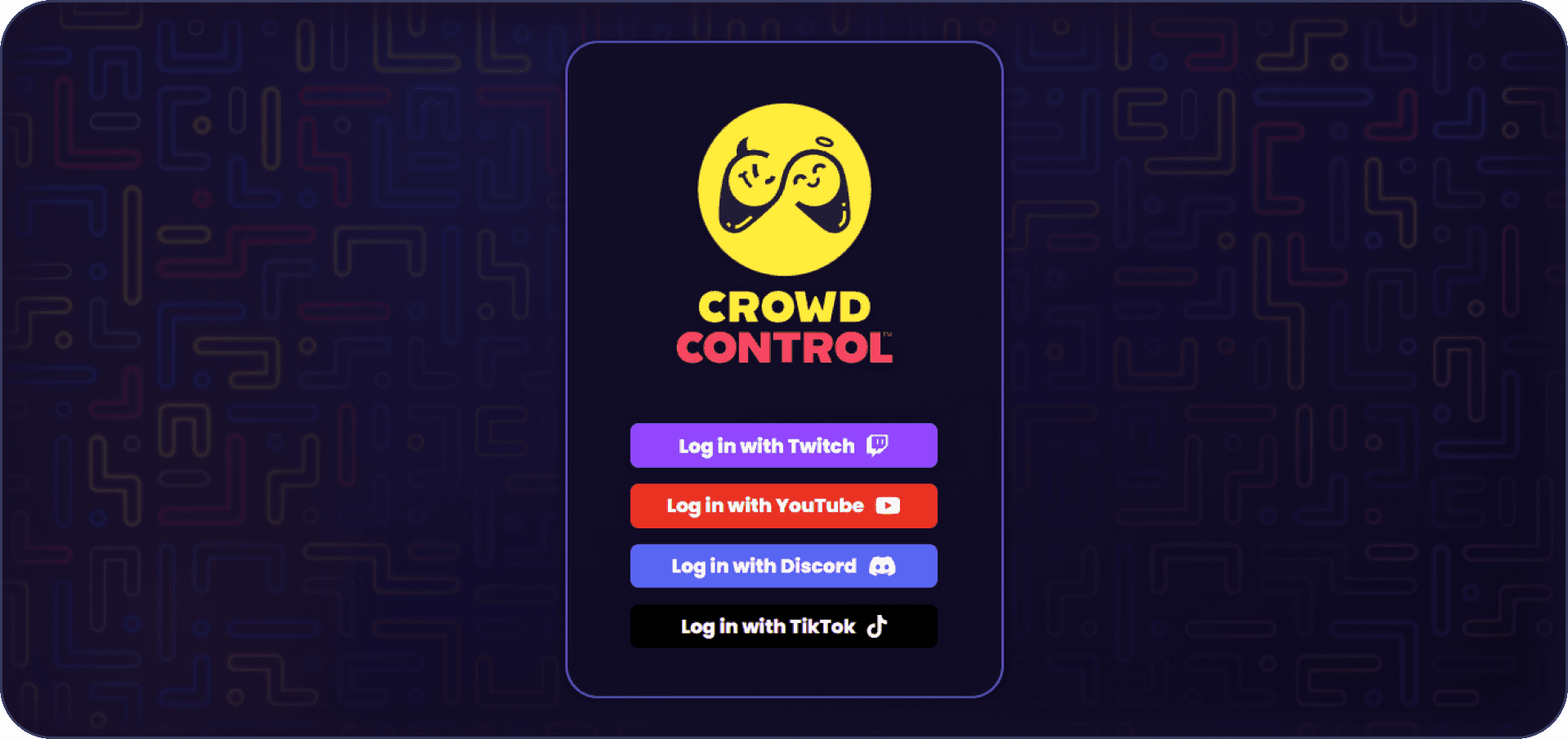
Step 1: Create Your Crowd Control Account
Download the app for free at crowdcontrol.live and sign in with your preferred account.
This creates your Crowd Control account, you'll still be able to use Crowd Control on platforms not listed during sign in.
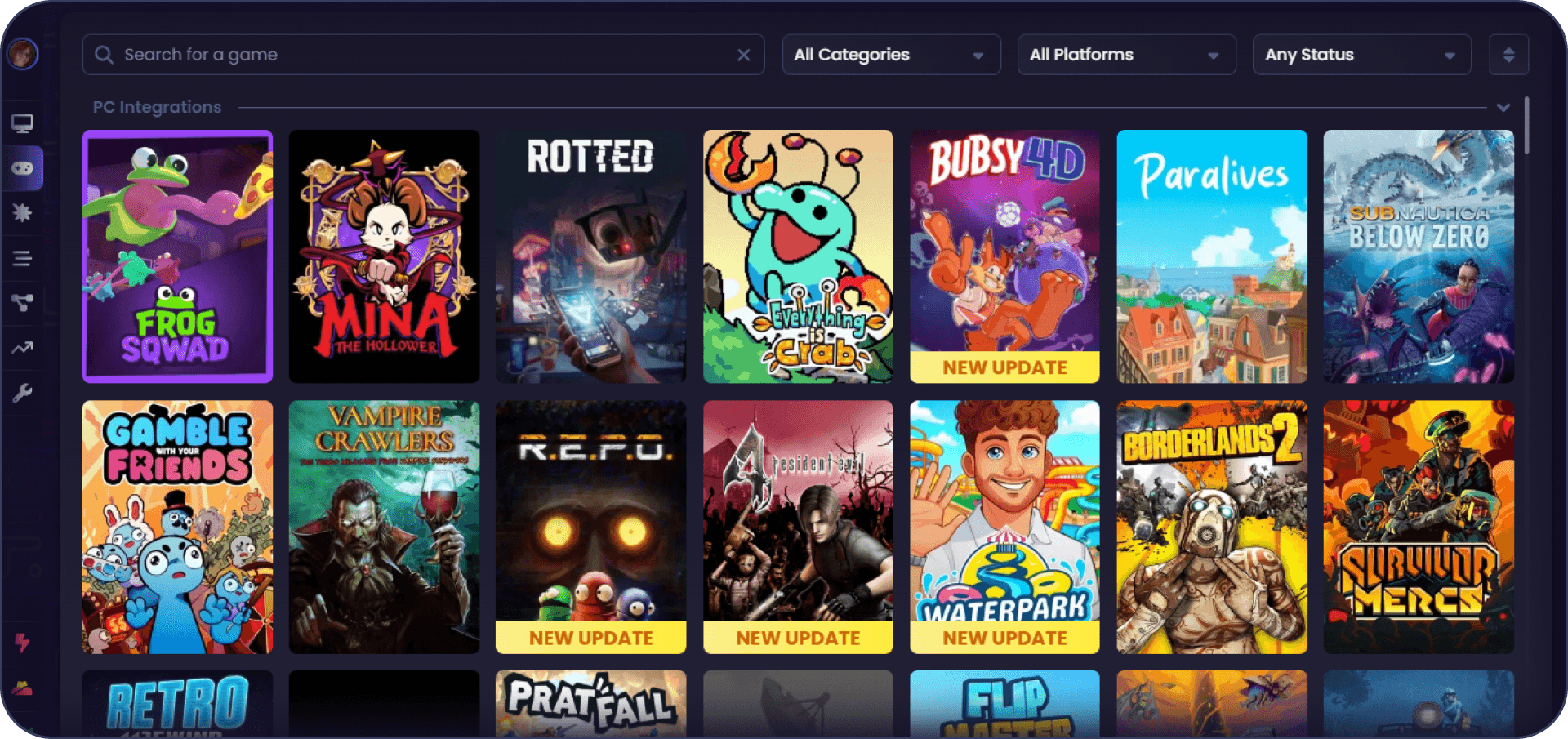
Step 2: Choose What You're Streaming
Crowd Control works with any kind of stream.
If you select Custom Game from the list, you'll unlock our always-on Interactions called Disrupts.
To get Disrupts appearing on stream, set up the Disrupts Overlay by following the on-screen instructions, and make sure you're using Display Capture in your streaming software.
We also natively support over 200 games with their own unique in-game effects. Just follow the setup guide for your game.
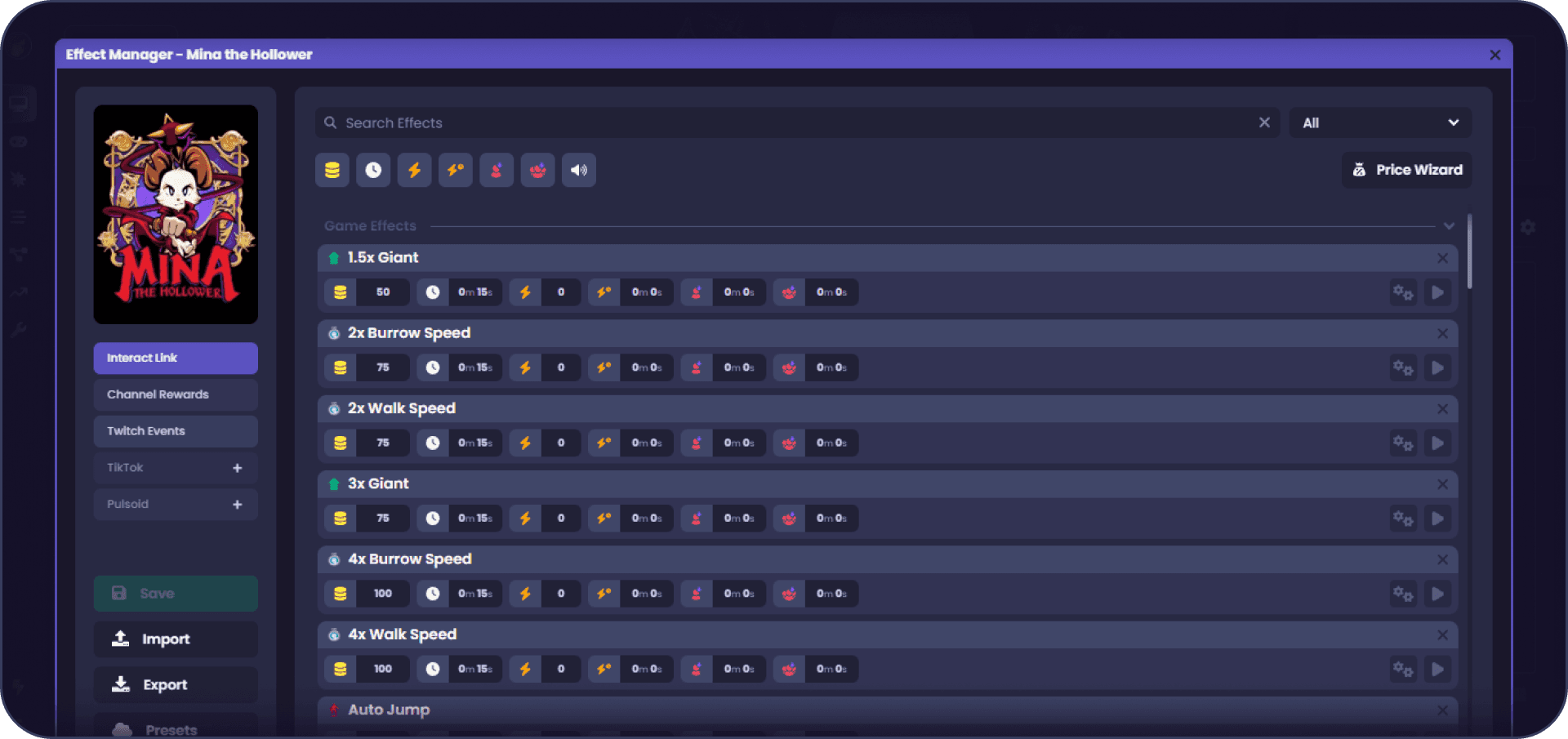
Step 3: Explore the Effect Manager
Open the Effect Manager to see what's available for your stream.
Effects are priced in Coins (100 Coins = 1 USD), with a standard 80:20 revenue split in your favor.
To curate the experience for your community, use the Price Wizard or Keyboard Shortcuts to adjust prices, durations, cooldowns, and more.
Pro tip: Already using tools like Voicemod, Lumia, VNyan, or Streamerbot? Check out the Integrations tab. Linking these accounts unlocks even more customization options for each effect.
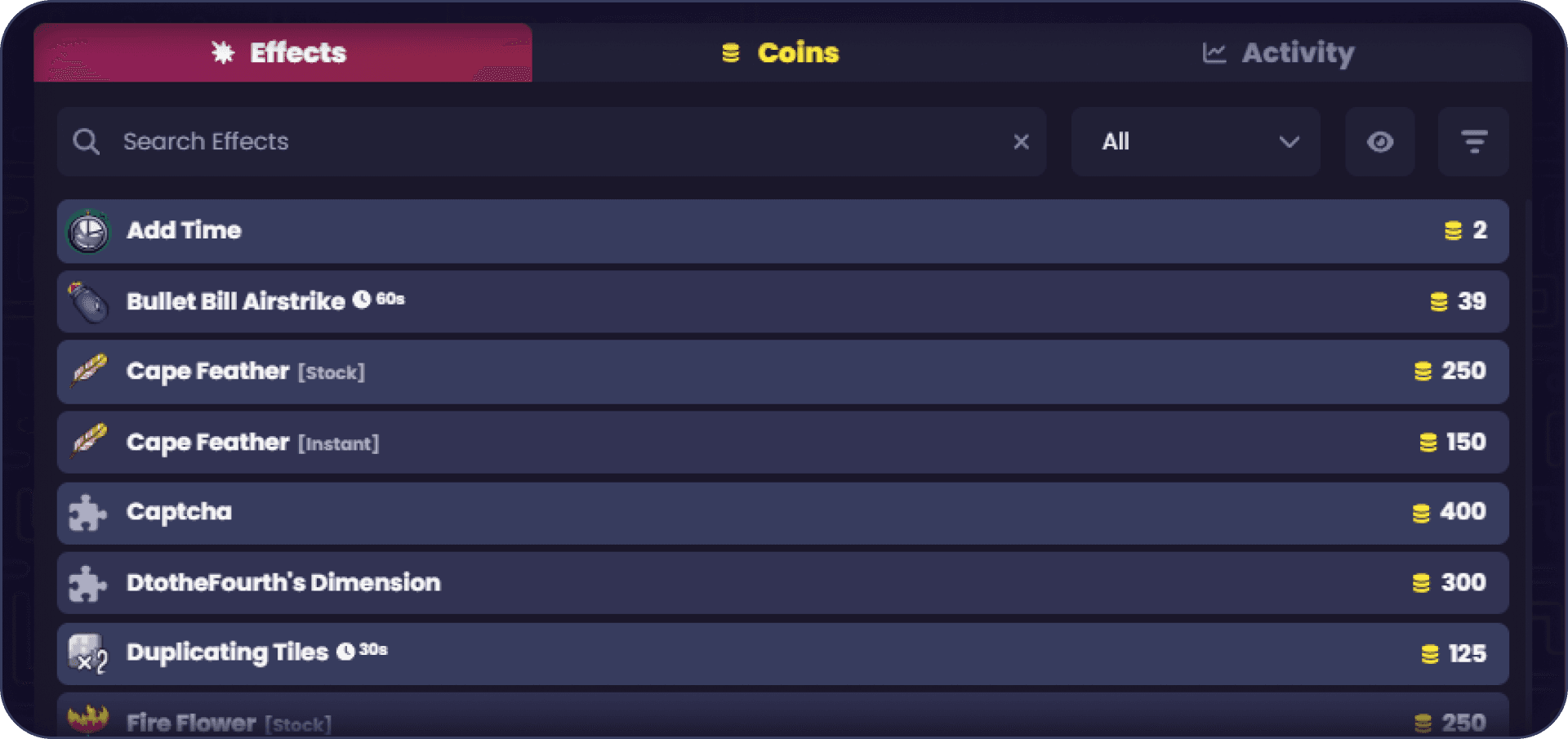
Step 4: Set Up Your Effect Overlay
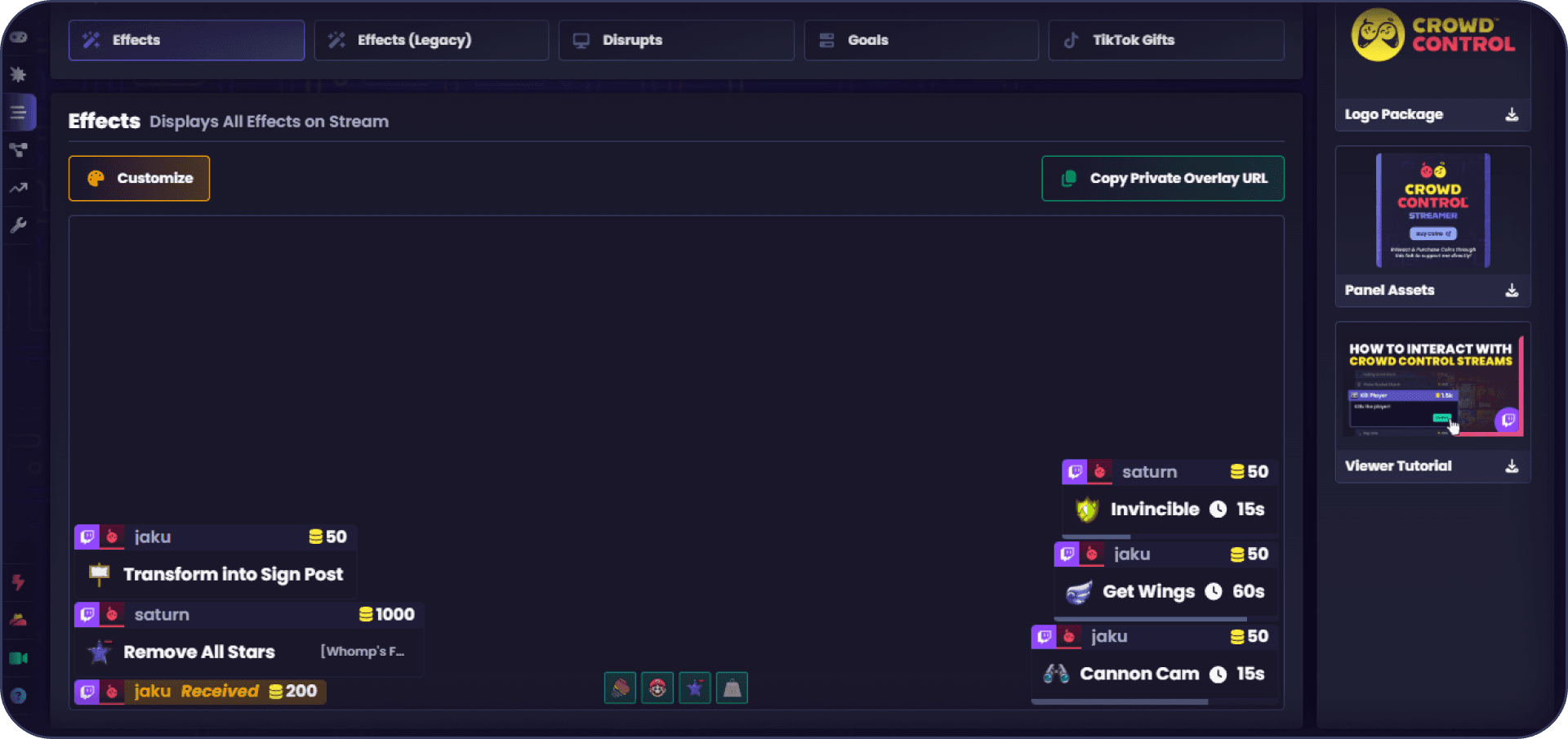
Add the Effect Overlay to your streaming software so chat can see the chaos unfold, including which effects are active and who triggered them.
Step 5: Share Your Interact Link
This is how your viewers actually participate. Chat needs your Interact Link to acquire Coins and send effects, so make it easy to find by pinning it to your chat, description, or bio.
A few platform-specific options:
Twitch streamers can enable the Crowd Control Extension for one-click access.
TikTok streamers can link effects directly to Gifts, Likes, Follows, and Shares.
Check out our Twitch and TikTok setup videos for more.
Step 6: Test Before You Go Live
You don't need to be live to test effects, and we highly recommend you don't skip this step.
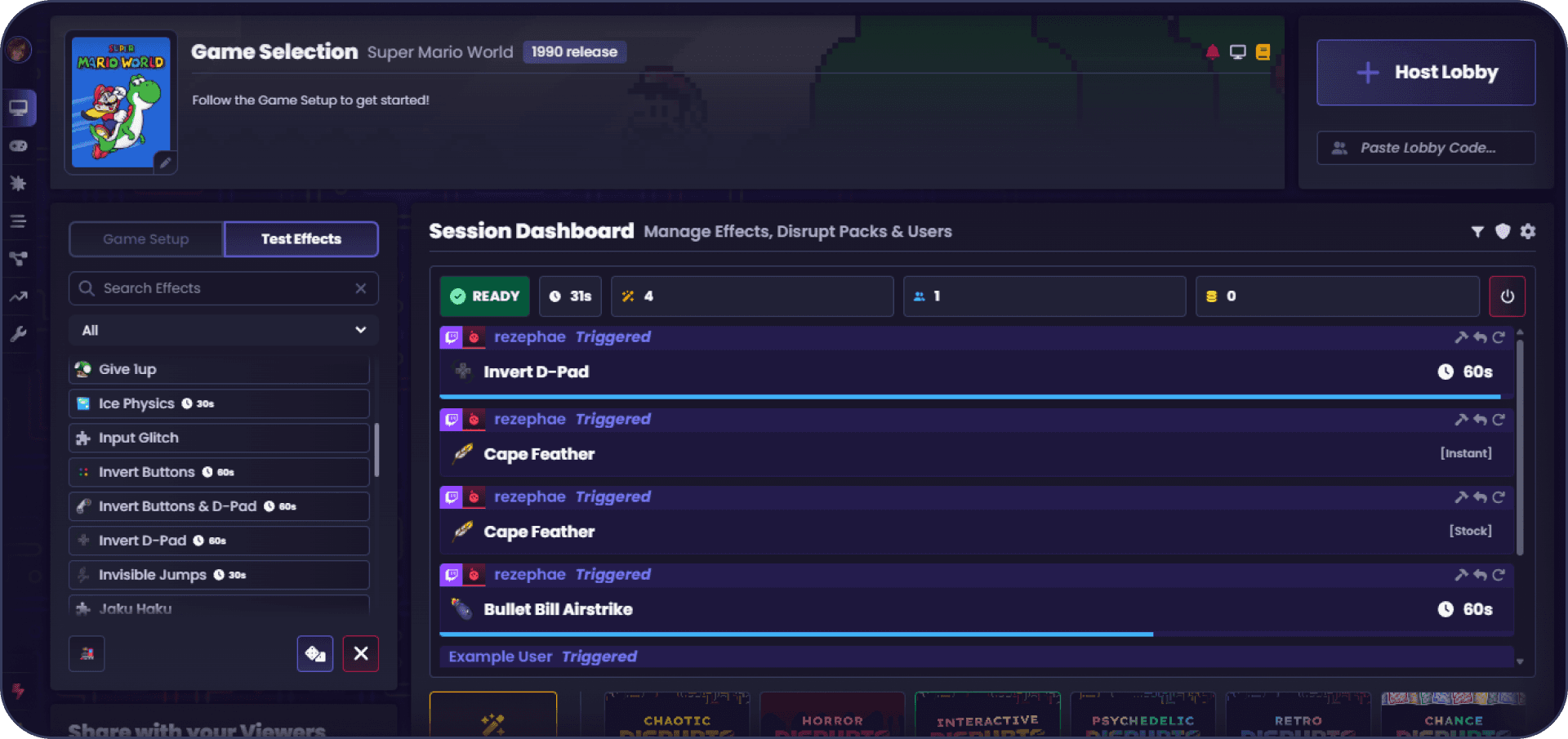
Start a session, then use the app or your Interact Link to send yourself an effect and confirm everything's working.
Running into issues? Our support team is fast and active in the Crowd Control Discord Server.
You're Ready to Go Live
This is just the surface of what Crowd Control can do. Explore, experiment, and let your community shape the chaos.
Happy streaming.
What if your chat could reach into your stream and mess with your world? Force you to solve captchas, trigger jump scares, age you up, or spawn enemies mid-game?
No matter what you stream, Crowd Control makes it possible. Here's exactly how to get set up.
Step 1: Create Your Crowd Control Account
Download the app for free at crowdcontrol.live and sign in with your preferred account.
This creates your Crowd Control account, you'll still be able to use Crowd Control on platforms not listed during sign in.
Step 2: Choose What You're Streaming
Crowd Control works with any kind of stream.
If you select Custom Game from the list, you'll unlock our always-on Interactions called Disrupts.
To get Disrupts appearing on stream, set up the Disrupts Overlay by following the on-screen instructions, and make sure you're using Display Capture in your streaming software.
We also natively support over 200 games with their own unique in-game effects. Just follow the setup guide for your game.
Step 3: Explore the Effect Manager
Open the Effect Manager to see what's available for your stream.
Effects are priced in Coins (100 Coins = 1 USD), with a standard 80:20 revenue split in your favor.
To curate the experience for your community, use the Price Wizard or Keyboard Shortcuts to adjust prices, durations, cooldowns, and more.
Pro tip: Already using tools like Voicemod, Lumia, VNyan, or Streamerbot? Check out the Integrations tab. Linking these accounts unlocks even more customization options for each effect.
Step 4: Set Up Your Effect Overlay
Add the Effect Overlay to your streaming software so chat can see the chaos unfold, including which effects are active and who triggered them.
Step 5: Share Your Interact Link
This is how your viewers actually participate. Chat needs your Interact Link to acquire Coins and send effects, so make it easy to find by pinning it to your chat, description, or bio.
A few platform-specific options:
Twitch streamers can enable the Crowd Control Extension for one-click access.
TikTok streamers can link effects directly to Gifts, Likes, Follows, and Shares.
Check out our Twitch and TikTok setup videos for more.
Step 6: Test Before You Go Live
You don't need to be live to test effects, and we highly recommend you don't skip this step.
Start a session, then use the app or your Interact Link to send yourself an effect and confirm everything's working.
Running into issues? Our support team is fast and active in the Crowd Control Discord Server.
You're Ready to Go Live
This is just the surface of what Crowd Control can do. Explore, experiment, and let your community shape the chaos.
Happy streaming.
" width="14.000000116459887px"><path d="M 3.269 0 C 5.075 0 6.538 1.464 6.538 3.269 C 6.538 5.075 5.075 6.538 3.269 6.538 C 1.464 6.538 0 5.075 0 3.269 C 0 1.464 1.464 0 3.269 0 Z M 2.177 2.015 C 2.114 1.989 2.039 1.958 1.98 2.003 C 1.95 2.024 1.928 2.054 1.906 2.082 L 1.902 2.087 C 1.866 2.135 1.825 2.183 1.778 2.22 C 1.67 2.31 1.536 2.354 1.394 2.361 L 1.392 2.361 C 1.368 2.362 1.343 2.365 1.319 2.37 C 1.23 2.388 1.208 2.456 1.192 2.54 C 1.189 2.554 1.186 2.569 1.183 2.583 C 1.171 2.636 1.158 2.695 1.173 2.74 C 1.204 2.832 1.372 2.822 1.477 2.815 L 1.49 2.814 C 1.502 2.813 1.513 2.813 1.523 2.812 C 1.608 2.806 1.673 2.823 1.718 2.901 C 1.939 3.363 2.222 3.801 2.607 4.159 C 2.624 4.174 2.642 4.189 2.661 4.201 C 2.686 4.216 2.714 4.224 2.74 4.22 C 2.791 4.21 2.827 4.17 2.86 4.132 L 2.863 4.129 C 2.869 4.123 2.875 4.116 2.881 4.11 C 2.887 4.102 2.894 4.095 2.901 4.087 C 2.937 4.047 2.977 4.002 2.98 3.95 C 2.982 3.911 2.961 3.878 2.936 3.849 C 2.76 3.667 2.59 3.477 2.449 3.269 C 2.324 3.082 2.208 2.89 2.134 2.68 C 2.125 2.646 2.121 2.611 2.129 2.576 C 2.14 2.526 2.173 2.485 2.206 2.444 L 2.219 2.427 C 2.258 2.379 2.294 2.329 2.325 2.276 C 2.348 2.236 2.372 2.188 2.36 2.142 L 2.36 2.141 C 2.343 2.084 2.276 2.056 2.22 2.033 C 2.207 2.028 2.194 2.023 2.183 2.018 Z M 5.468 2.642 C 5.442 2.639 5.413 2.638 5.388 2.646 L 5.304 2.726 C 5.199 2.935 5.028 3.05 4.795 3.067 C 4.766 3.071 4.736 3.077 4.712 3.093 L 4.711 3.093 C 4.661 3.126 4.649 3.195 4.638 3.258 L 4.637 3.261 C 4.634 3.277 4.631 3.293 4.628 3.308 C 4.623 3.331 4.619 3.354 4.614 3.377 L 4.612 3.389 L 4.611 3.393 C 4.601 3.444 4.591 3.494 4.582 3.541 C 4.578 3.566 4.574 3.591 4.578 3.616 C 4.583 3.656 4.614 3.681 4.653 3.691 C 5.086 3.76 5.545 3.534 5.788 3.176 C 5.845 3.092 5.976 2.864 5.935 2.768 C 5.915 2.726 5.858 2.715 5.811 2.706 C 5.801 2.704 5.791 2.703 5.782 2.701 C 5.746 2.694 5.708 2.687 5.67 2.679 C 5.603 2.666 5.536 2.653 5.468 2.642 Z M 3.146 1.105 C 3.094 1.1 3.037 1.095 2.997 1.131 C 2.978 1.151 2.968 1.181 2.963 1.214 C 2.912 1.824 2.997 2.394 3.257 2.859 C 3.284 2.901 3.327 2.926 3.377 2.911 C 3.406 2.903 3.432 2.889 3.458 2.875 C 3.46 2.873 3.463 2.872 3.465 2.87 C 3.522 2.839 3.582 2.805 3.64 2.772 L 3.69 2.744 C 3.699 2.739 3.708 2.733 3.718 2.728 C 3.764 2.702 3.814 2.674 3.826 2.621 L 3.826 2.621 C 3.831 2.598 3.826 2.573 3.818 2.55 C 3.663 2.204 3.583 1.819 3.604 1.38 C 3.604 1.366 3.604 1.352 3.605 1.337 C 3.608 1.284 3.61 1.227 3.584 1.185 C 3.559 1.148 3.512 1.138 3.471 1.133 C 3.407 1.127 3.343 1.121 3.279 1.116 C 3.246 1.113 3.214 1.111 3.182 1.108 C 3.17 1.107 3.158 1.106 3.146 1.105 Z M 5.376 2.65 C 5.375 2.651 5.373 2.652 5.371 2.653 L 5.375 2.651 Z" fill="rgb(234, 61, 106)" height="6.538250575370619px" id="EHOHSwCqJ" transform="translate(0 2.239)" width="6.538250568278272px"/><path d="M 1.24 0.899 C 1.24 1.156 1.293 1.399 1.388 1.621 C 1.393 1.632 1.392 1.645 1.387 1.655 C 1.381 1.666 1.371 1.673 1.359 1.676 C 0.828 1.772 0.334 2.051 0.109 2.209 C 0.099 2.216 0.086 2.218 0.074 2.214 C 0.062 2.209 0.053 2.199 0.05 2.187 C 0.011 2.025 -0.005 1.859 0.001 1.692 C 0.034 0.858 0.627 0.179 1.404 0.001 C 1.435 -0.006 1.46 0.028 1.445 0.057 C 1.31 0.317 1.239 0.606 1.24 0.899 Z" fill="rgb(234, 61, 106)" height="2.215802804588664px" id="f7GQHGnLg" transform="translate(1.053 0)" width="1.4492800256519736px"/><path d="M 3.269 0 C 5.075 0 6.538 1.464 6.538 3.269 C 6.538 5.075 5.075 6.538 3.269 6.538 C 1.464 6.538 0 5.075 0 3.269 C 0 1.464 1.464 0 3.269 0 Z M 3.833 2.887 C 3.802 2.893 3.77 2.91 3.739 2.928 L 3.738 2.928 C 3.712 2.943 3.685 2.958 3.659 2.974 C 3.584 3.017 3.535 3.06 3.545 3.153 C 3.547 3.171 3.549 3.188 3.552 3.205 C 3.556 3.235 3.56 3.264 3.561 3.294 C 3.576 3.688 3.118 3.935 2.798 3.698 C 2.782 3.687 2.767 3.676 2.753 3.663 C 2.723 3.638 2.692 3.613 2.654 3.602 L 2.654 3.602 C 2.603 3.589 2.553 3.613 2.508 3.638 C 2.479 3.654 2.45 3.671 2.421 3.688 L 2.416 3.691 C 2.369 3.719 2.311 3.755 2.317 3.817 C 2.326 3.903 2.445 4.004 2.511 4.056 C 3.221 4.598 4.209 3.929 3.989 3.071 L 3.988 3.068 C 3.967 2.991 3.934 2.87 3.833 2.887 Z M 2.32 2.836 C 1.907 2.311 1.071 2.37 0.732 2.945 C 0.594 3.177 0.552 3.467 0.629 3.727 C 0.661 3.828 0.696 3.934 0.823 3.878 C 0.863 3.86 0.901 3.837 0.939 3.815 C 0.957 3.805 0.974 3.794 0.992 3.784 C 1.092 3.727 1.15 3.692 1.133 3.57 C 1.123 3.491 1.117 3.412 1.14 3.335 L 1.14 3.334 C 1.21 3.068 1.528 2.928 1.769 3.06 C 1.8 3.075 1.828 3.097 1.856 3.118 C 1.88 3.136 1.905 3.155 1.93 3.169 C 1.962 3.186 1.997 3.187 2.032 3.175 C 2.066 3.163 2.099 3.145 2.13 3.127 L 2.137 3.123 L 2.174 3.102 C 2.211 3.081 2.247 3.061 2.282 3.039 C 2.371 2.985 2.385 2.921 2.32 2.836 Z M 4.579 1.271 C 4.366 1.119 4.092 1.055 3.834 1.102 C 3.639 1.138 3.459 1.234 3.32 1.376 C 3.085 1.613 2.983 1.975 3.064 2.3 L 3.068 2.314 C 3.087 2.383 3.115 2.482 3.18 2.503 C 3.226 2.514 3.276 2.488 3.317 2.465 L 3.318 2.465 L 3.325 2.461 C 3.372 2.435 3.418 2.408 3.465 2.381 C 3.505 2.357 3.549 2.33 3.568 2.286 C 3.586 2.25 3.582 2.207 3.577 2.168 L 3.577 2.167 C 3.542 1.976 3.62 1.777 3.791 1.681 L 3.792 1.68 C 3.952 1.585 4.164 1.612 4.305 1.733 L 4.308 1.736 L 4.312 1.739 C 4.322 1.746 4.332 1.755 4.343 1.762 C 4.363 1.776 4.383 1.787 4.406 1.792 C 4.458 1.804 4.51 1.776 4.554 1.752 L 4.568 1.744 C 4.62 1.715 4.671 1.685 4.721 1.654 C 4.766 1.628 4.815 1.589 4.804 1.531 C 4.787 1.439 4.652 1.325 4.579 1.271 Z" fill="rgb(255, 236, 59)" height="6.538250573381028px" id="PKYXAbHzG" transform="translate(7.462 2.195)" width="6.538250562779467px"/><path d="M 0.265 0.872 C 0.616 1.141 1.117 1.29 1.565 1.282 C 1.786 1.273 2.031 1.231 2.155 1.035 C 2.224 0.923 2.221 0.783 2.162 0.667 C 1.92 0.235 1.222 0.021 0.75 0.001 C 0.52 -0.005 0.254 0.018 0.091 0.194 C -0.108 0.426 0.052 0.707 0.264 0.871 L 0.265 0.872 Z M 0.679 0.361 C 1.004 0.364 1.377 0.467 1.659 0.649 C 1.705 0.678 1.898 0.817 1.828 0.868 C 1.775 0.914 1.549 0.931 1.396 0.915 C 1.152 0.893 0.915 0.827 0.696 0.718 C 0.566 0.654 0.339 0.504 0.363 0.437 C 0.399 0.372 0.607 0.361 0.678 0.361 L 0.679 0.361 L 0.679 0.361 Z" fill="rgb(255, 236, 59)" height="1.2826122415748673px" id="SRezIcBjl" transform="translate(10.929 0.483)" width="2.2065572669175775px"/></g></svg>)
Crowd Control lets your viewers send effects like interactive puzzles, jumpscares, and even in-game events: no matter where or what you stream.
Link effects to all kinds of actions, including TikTok Gifts, Likes, Shares and Follows, plus Twitch Channel Points, Subs, Raids and more!
Have any Crowd Control Questions?
Our Team is quick to answer!
Ready to get Started?
Start Streaming the Interactive Way
Have any Questions?
Check our FAQs, or join Discord for Support
Making a Game?
Consider integrating Crowd Control!
