Goal Overlays are perfect for incentivizing your community during special events, milestones, or personal fundraisers, on any platform.
With Crowd Control, your chat can trigger jumpscares, interactive puzzles, and in-game events while working toward a shared goal together.
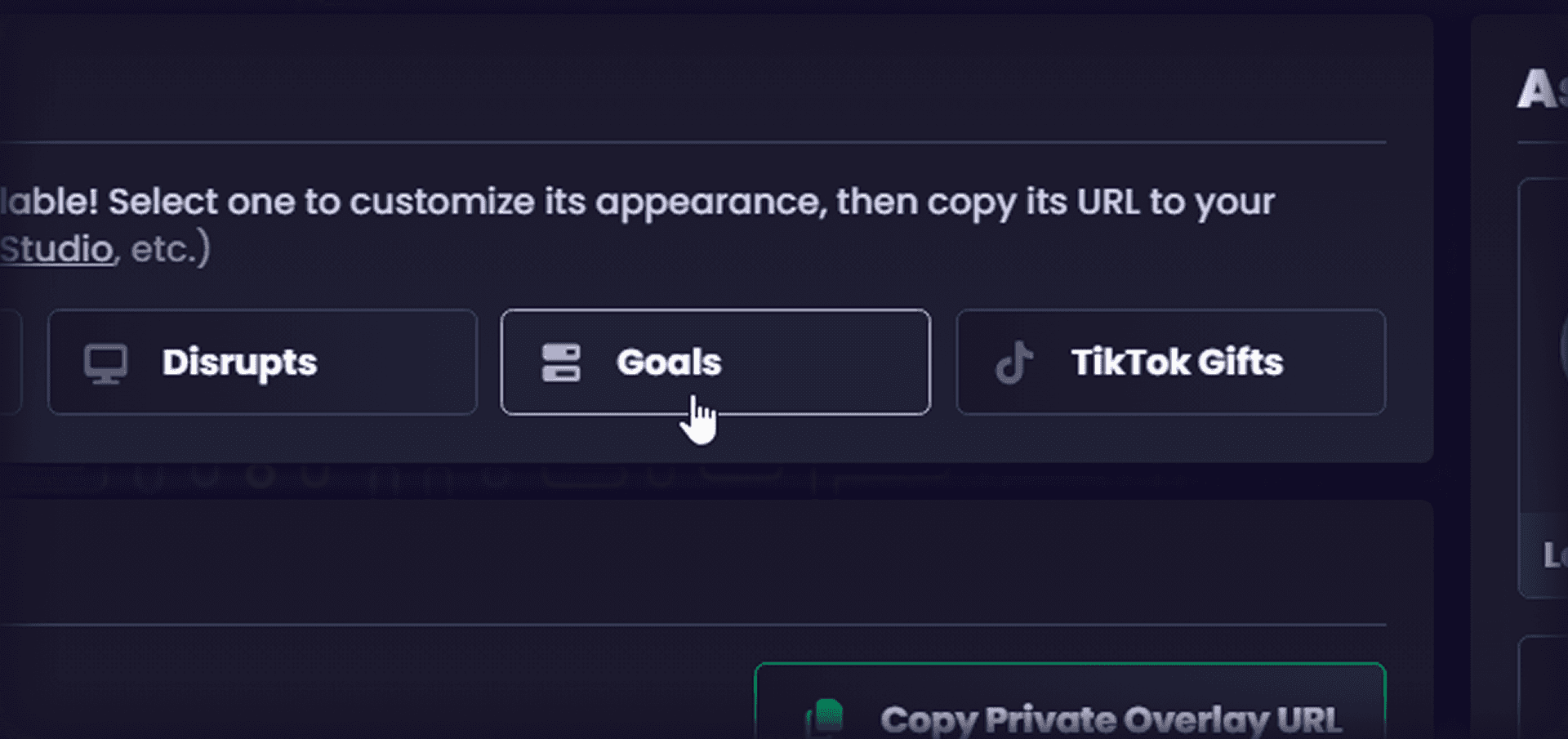
Step 1: Open the Goals Page
Head to the Overlays and Assets page in the app and select Goals.
Step 2: Choose Your Goal Type
There are four types of goals you can create:
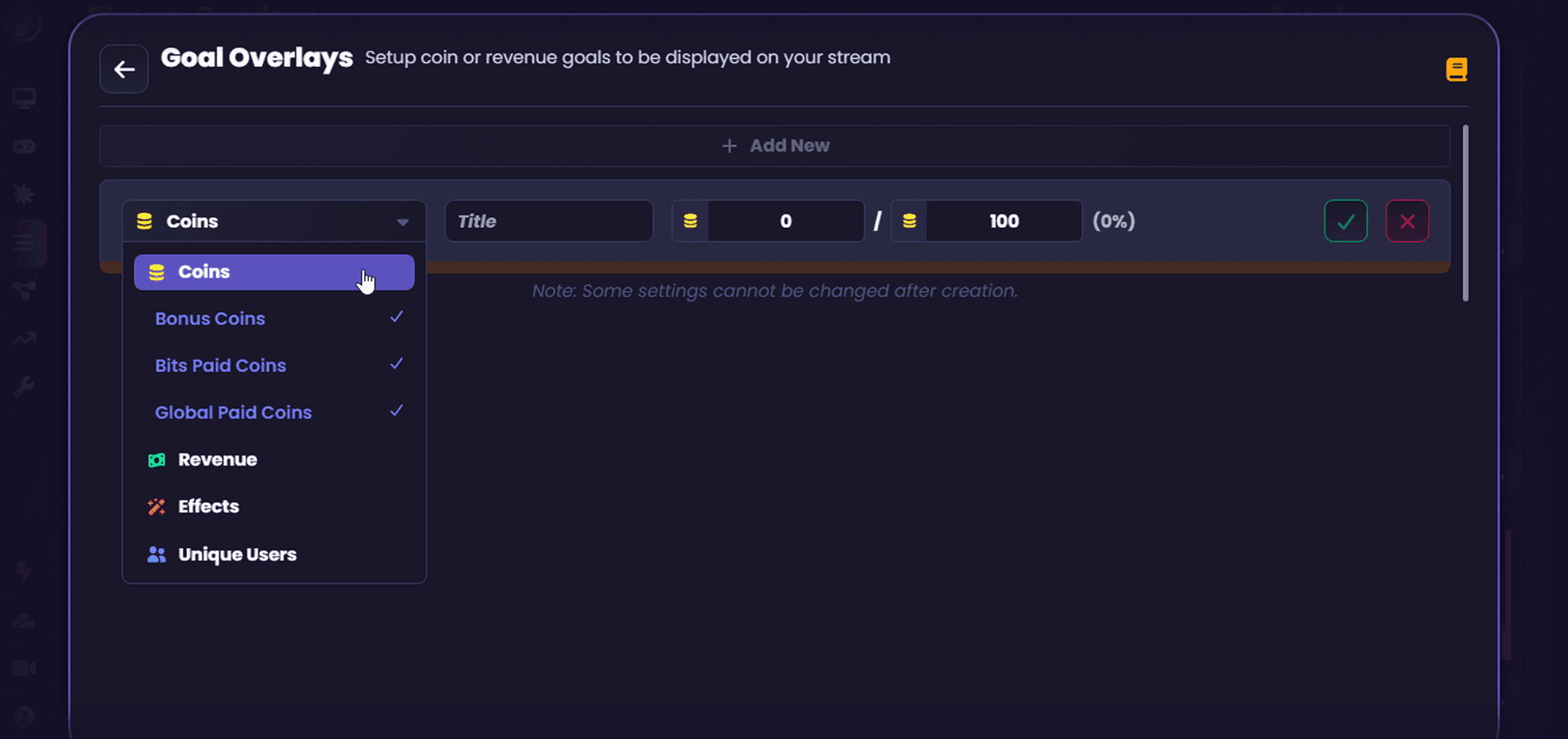
Track all kinds of Crowd Control Coins being spent, including:
Bonus Coins: Free Coins, plus coins earned from Twitch Interactions like Channel Rewards or Subscriptions
Local Paid Coins: Coins from viewers using the Twitch Extension
Global Paid Coins: Coins from your Interact Link
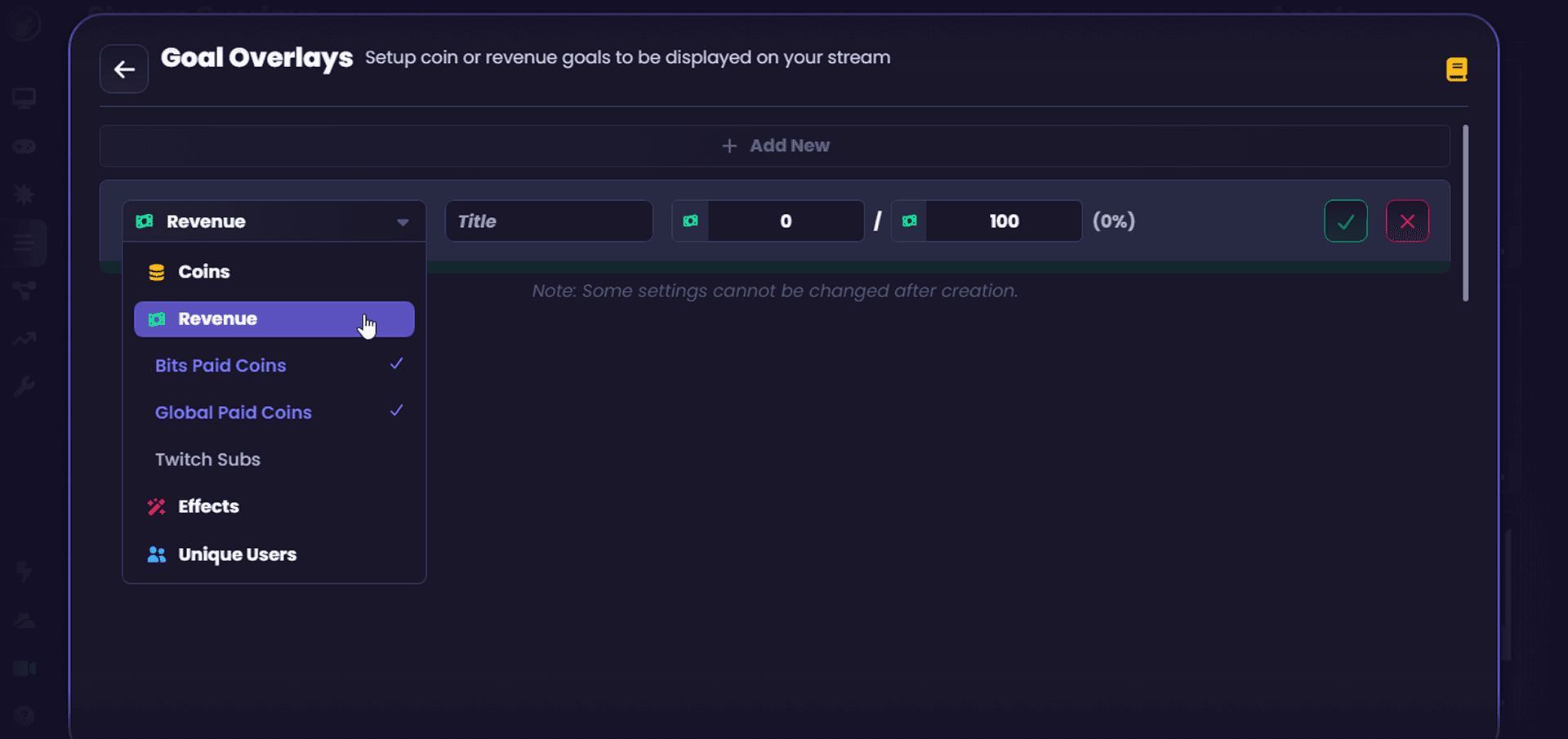
Track revenue from both types of paid coins, plus Twitch Subs, Bits, and TikTok Diamonds.
Track effects triggered from multiple sources, including Coins, Twitch Channel Point Rewards, and TikTok Gifts or Interactions.

Step 3: Set Up Your Goal
Once you've picked a goal type, set its:
Name
Starting amount
Target amount
You can edit any of these numbers later if your goals change.
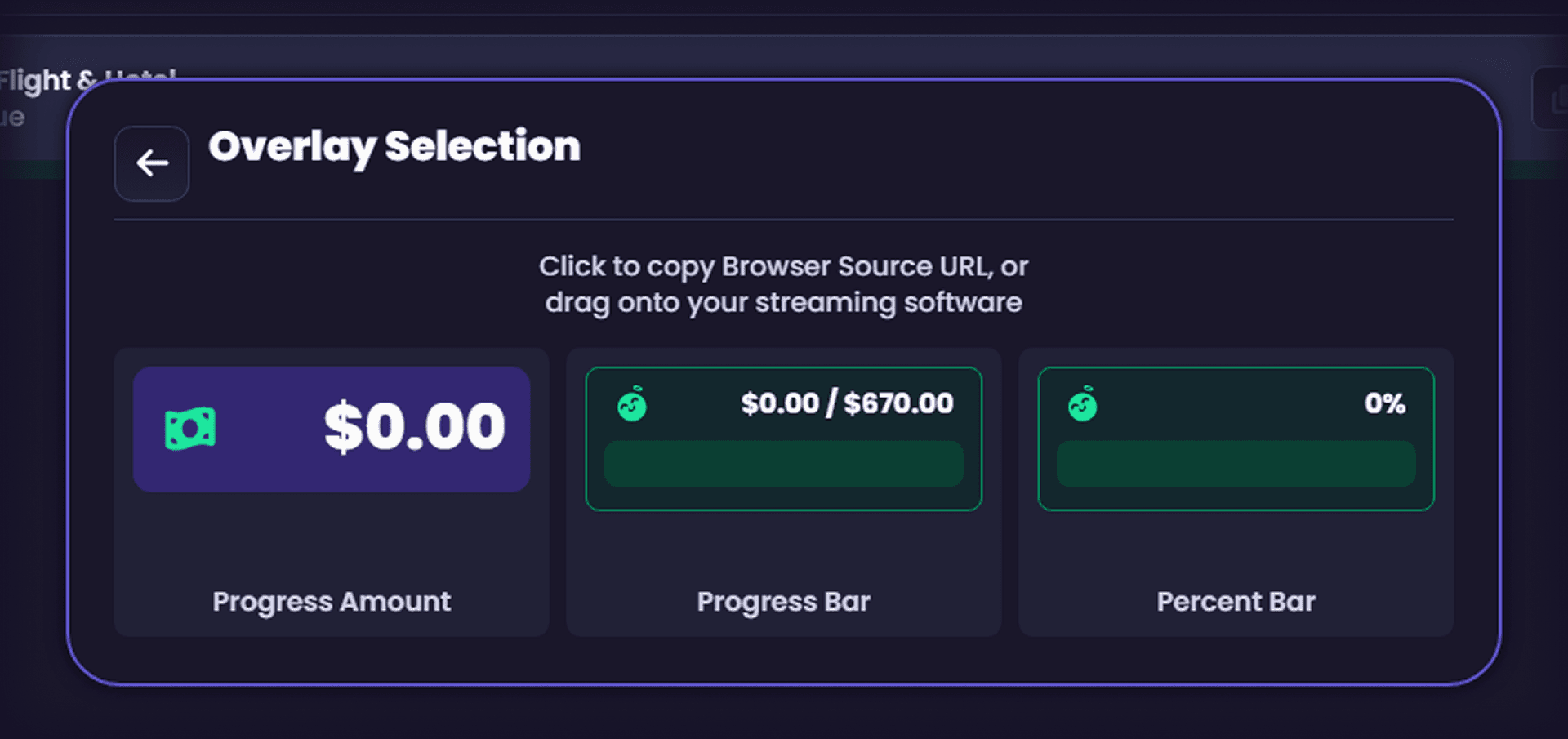
Step 4: Add the Overlay to Your Stream
Confirm your goal, then choose which overlay to add to your streaming software.
You have two options:
Copy the overlay URL and add it as a Browser Source
Drag the overlay directly onto your Stream Preview
What's Next
This feature came directly from creator requests, and we're listening for more. What other goals would you like to track with Crowd Control? Let us know in the comments.


" width="14.000000116459887px"><path d="M 3.269 0 C 5.075 0 6.538 1.464 6.538 3.269 C 6.538 5.075 5.075 6.538 3.269 6.538 C 1.464 6.538 0 5.075 0 3.269 C 0 1.464 1.464 0 3.269 0 Z M 2.177 2.015 C 2.114 1.989 2.039 1.958 1.98 2.003 C 1.95 2.024 1.928 2.054 1.906 2.082 L 1.902 2.087 C 1.866 2.135 1.825 2.183 1.778 2.22 C 1.67 2.31 1.536 2.354 1.394 2.361 L 1.392 2.361 C 1.368 2.362 1.343 2.365 1.319 2.37 C 1.23 2.388 1.208 2.456 1.192 2.54 C 1.189 2.554 1.186 2.569 1.183 2.583 C 1.171 2.636 1.158 2.695 1.173 2.74 C 1.204 2.832 1.372 2.822 1.477 2.815 L 1.49 2.814 C 1.502 2.813 1.513 2.813 1.523 2.812 C 1.608 2.806 1.673 2.823 1.718 2.901 C 1.939 3.363 2.222 3.801 2.607 4.159 C 2.624 4.174 2.642 4.189 2.661 4.201 C 2.686 4.216 2.714 4.224 2.74 4.22 C 2.791 4.21 2.827 4.17 2.86 4.132 L 2.863 4.129 C 2.869 4.123 2.875 4.116 2.881 4.11 C 2.887 4.102 2.894 4.095 2.901 4.087 C 2.937 4.047 2.977 4.002 2.98 3.95 C 2.982 3.911 2.961 3.878 2.936 3.849 C 2.76 3.667 2.59 3.477 2.449 3.269 C 2.324 3.082 2.208 2.89 2.134 2.68 C 2.125 2.646 2.121 2.611 2.129 2.576 C 2.14 2.526 2.173 2.485 2.206 2.444 L 2.219 2.427 C 2.258 2.379 2.294 2.329 2.325 2.276 C 2.348 2.236 2.372 2.188 2.36 2.142 L 2.36 2.141 C 2.343 2.084 2.276 2.056 2.22 2.033 C 2.207 2.028 2.194 2.023 2.183 2.018 Z M 5.468 2.642 C 5.442 2.639 5.413 2.638 5.388 2.646 L 5.304 2.726 C 5.199 2.935 5.028 3.05 4.795 3.067 C 4.766 3.071 4.736 3.077 4.712 3.093 L 4.711 3.093 C 4.661 3.126 4.649 3.195 4.638 3.258 L 4.637 3.261 C 4.634 3.277 4.631 3.293 4.628 3.308 C 4.623 3.331 4.619 3.354 4.614 3.377 L 4.612 3.389 L 4.611 3.393 C 4.601 3.444 4.591 3.494 4.582 3.541 C 4.578 3.566 4.574 3.591 4.578 3.616 C 4.583 3.656 4.614 3.681 4.653 3.691 C 5.086 3.76 5.545 3.534 5.788 3.176 C 5.845 3.092 5.976 2.864 5.935 2.768 C 5.915 2.726 5.858 2.715 5.811 2.706 C 5.801 2.704 5.791 2.703 5.782 2.701 C 5.746 2.694 5.708 2.687 5.67 2.679 C 5.603 2.666 5.536 2.653 5.468 2.642 Z M 3.146 1.105 C 3.094 1.1 3.037 1.095 2.997 1.131 C 2.978 1.151 2.968 1.181 2.963 1.214 C 2.912 1.824 2.997 2.394 3.257 2.859 C 3.284 2.901 3.327 2.926 3.377 2.911 C 3.406 2.903 3.432 2.889 3.458 2.875 C 3.46 2.873 3.463 2.872 3.465 2.87 C 3.522 2.839 3.582 2.805 3.64 2.772 L 3.69 2.744 C 3.699 2.739 3.708 2.733 3.718 2.728 C 3.764 2.702 3.814 2.674 3.826 2.621 L 3.826 2.621 C 3.831 2.598 3.826 2.573 3.818 2.55 C 3.663 2.204 3.583 1.819 3.604 1.38 C 3.604 1.366 3.604 1.352 3.605 1.337 C 3.608 1.284 3.61 1.227 3.584 1.185 C 3.559 1.148 3.512 1.138 3.471 1.133 C 3.407 1.127 3.343 1.121 3.279 1.116 C 3.246 1.113 3.214 1.111 3.182 1.108 C 3.17 1.107 3.158 1.106 3.146 1.105 Z M 5.376 2.65 C 5.375 2.651 5.373 2.652 5.371 2.653 L 5.375 2.651 Z" fill="rgb(234, 61, 106)" height="6.538250575370619px" id="EHOHSwCqJ" transform="translate(0 2.239)" width="6.538250568278272px"/><path d="M 1.24 0.899 C 1.24 1.156 1.293 1.399 1.388 1.621 C 1.393 1.632 1.392 1.645 1.387 1.655 C 1.381 1.666 1.371 1.673 1.359 1.676 C 0.828 1.772 0.334 2.051 0.109 2.209 C 0.099 2.216 0.086 2.218 0.074 2.214 C 0.062 2.209 0.053 2.199 0.05 2.187 C 0.011 2.025 -0.005 1.859 0.001 1.692 C 0.034 0.858 0.627 0.179 1.404 0.001 C 1.435 -0.006 1.46 0.028 1.445 0.057 C 1.31 0.317 1.239 0.606 1.24 0.899 Z" fill="rgb(234, 61, 106)" height="2.215802804588664px" id="f7GQHGnLg" transform="translate(1.053 0)" width="1.4492800256519736px"/><path d="M 3.269 0 C 5.075 0 6.538 1.464 6.538 3.269 C 6.538 5.075 5.075 6.538 3.269 6.538 C 1.464 6.538 0 5.075 0 3.269 C 0 1.464 1.464 0 3.269 0 Z M 3.833 2.887 C 3.802 2.893 3.77 2.91 3.739 2.928 L 3.738 2.928 C 3.712 2.943 3.685 2.958 3.659 2.974 C 3.584 3.017 3.535 3.06 3.545 3.153 C 3.547 3.171 3.549 3.188 3.552 3.205 C 3.556 3.235 3.56 3.264 3.561 3.294 C 3.576 3.688 3.118 3.935 2.798 3.698 C 2.782 3.687 2.767 3.676 2.753 3.663 C 2.723 3.638 2.692 3.613 2.654 3.602 L 2.654 3.602 C 2.603 3.589 2.553 3.613 2.508 3.638 C 2.479 3.654 2.45 3.671 2.421 3.688 L 2.416 3.691 C 2.369 3.719 2.311 3.755 2.317 3.817 C 2.326 3.903 2.445 4.004 2.511 4.056 C 3.221 4.598 4.209 3.929 3.989 3.071 L 3.988 3.068 C 3.967 2.991 3.934 2.87 3.833 2.887 Z M 2.32 2.836 C 1.907 2.311 1.071 2.37 0.732 2.945 C 0.594 3.177 0.552 3.467 0.629 3.727 C 0.661 3.828 0.696 3.934 0.823 3.878 C 0.863 3.86 0.901 3.837 0.939 3.815 C 0.957 3.805 0.974 3.794 0.992 3.784 C 1.092 3.727 1.15 3.692 1.133 3.57 C 1.123 3.491 1.117 3.412 1.14 3.335 L 1.14 3.334 C 1.21 3.068 1.528 2.928 1.769 3.06 C 1.8 3.075 1.828 3.097 1.856 3.118 C 1.88 3.136 1.905 3.155 1.93 3.169 C 1.962 3.186 1.997 3.187 2.032 3.175 C 2.066 3.163 2.099 3.145 2.13 3.127 L 2.137 3.123 L 2.174 3.102 C 2.211 3.081 2.247 3.061 2.282 3.039 C 2.371 2.985 2.385 2.921 2.32 2.836 Z M 4.579 1.271 C 4.366 1.119 4.092 1.055 3.834 1.102 C 3.639 1.138 3.459 1.234 3.32 1.376 C 3.085 1.613 2.983 1.975 3.064 2.3 L 3.068 2.314 C 3.087 2.383 3.115 2.482 3.18 2.503 C 3.226 2.514 3.276 2.488 3.317 2.465 L 3.318 2.465 L 3.325 2.461 C 3.372 2.435 3.418 2.408 3.465 2.381 C 3.505 2.357 3.549 2.33 3.568 2.286 C 3.586 2.25 3.582 2.207 3.577 2.168 L 3.577 2.167 C 3.542 1.976 3.62 1.777 3.791 1.681 L 3.792 1.68 C 3.952 1.585 4.164 1.612 4.305 1.733 L 4.308 1.736 L 4.312 1.739 C 4.322 1.746 4.332 1.755 4.343 1.762 C 4.363 1.776 4.383 1.787 4.406 1.792 C 4.458 1.804 4.51 1.776 4.554 1.752 L 4.568 1.744 C 4.62 1.715 4.671 1.685 4.721 1.654 C 4.766 1.628 4.815 1.589 4.804 1.531 C 4.787 1.439 4.652 1.325 4.579 1.271 Z" fill="rgb(255, 236, 59)" height="6.538250573381028px" id="PKYXAbHzG" transform="translate(7.462 2.195)" width="6.538250562779467px"/><path d="M 0.265 0.872 C 0.616 1.141 1.117 1.29 1.565 1.282 C 1.786 1.273 2.031 1.231 2.155 1.035 C 2.224 0.923 2.221 0.783 2.162 0.667 C 1.92 0.235 1.222 0.021 0.75 0.001 C 0.52 -0.005 0.254 0.018 0.091 0.194 C -0.108 0.426 0.052 0.707 0.264 0.871 L 0.265 0.872 Z M 0.679 0.361 C 1.004 0.364 1.377 0.467 1.659 0.649 C 1.705 0.678 1.898 0.817 1.828 0.868 C 1.775 0.914 1.549 0.931 1.396 0.915 C 1.152 0.893 0.915 0.827 0.696 0.718 C 0.566 0.654 0.339 0.504 0.363 0.437 C 0.399 0.372 0.607 0.361 0.678 0.361 L 0.679 0.361 L 0.679 0.361 Z" fill="rgb(255, 236, 59)" height="1.2826122415748673px" id="SRezIcBjl" transform="translate(10.929 0.483)" width="2.2065572669175775px"/></g></svg>)
