
How To
How to Customize Your Crowd Control Effects [2026 Update]

Moni Mendez
Head of Marketing
Have any Crowd Control Questions?
Our Team is quick to answer!

Crowd Control lets your viewers send all kinds of interactions, from captchas and jumpscares to helpful in-game items. Whether you're spicing up your stream or building an extra income stream, Crowd Control can be customized for any game on any platform.
Here's everything you need to know to make it your own.
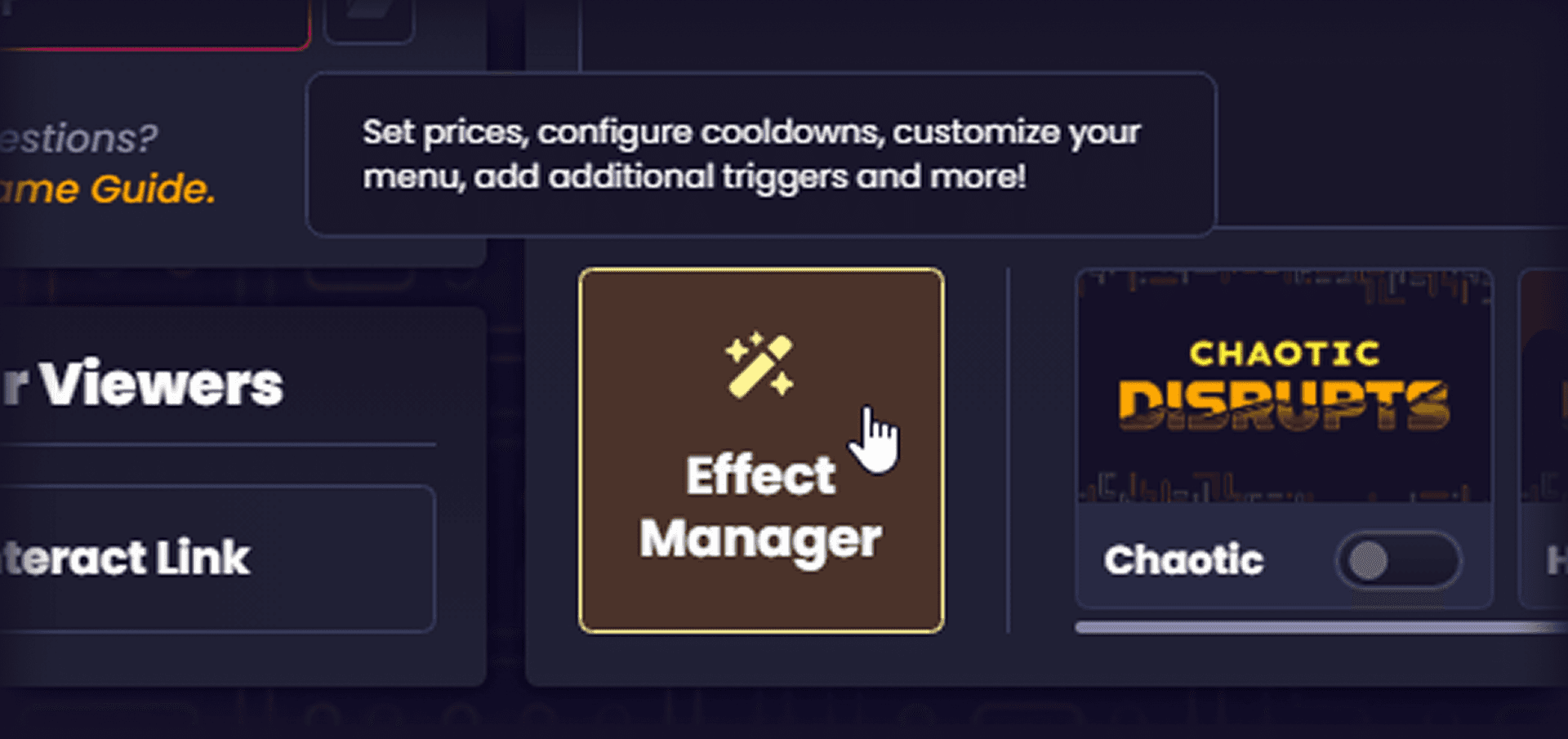
Where to Customize Effects
All Crowd Control effects can be modified in one place: the Effect Manager.
Once you've selected a game or a set of Disrupt Packs, head to the Live page and open the Effect Manager to get started.
Understanding Effect Parameters
Each effect comes with several adjustable parameters. We'll break them down one by one.
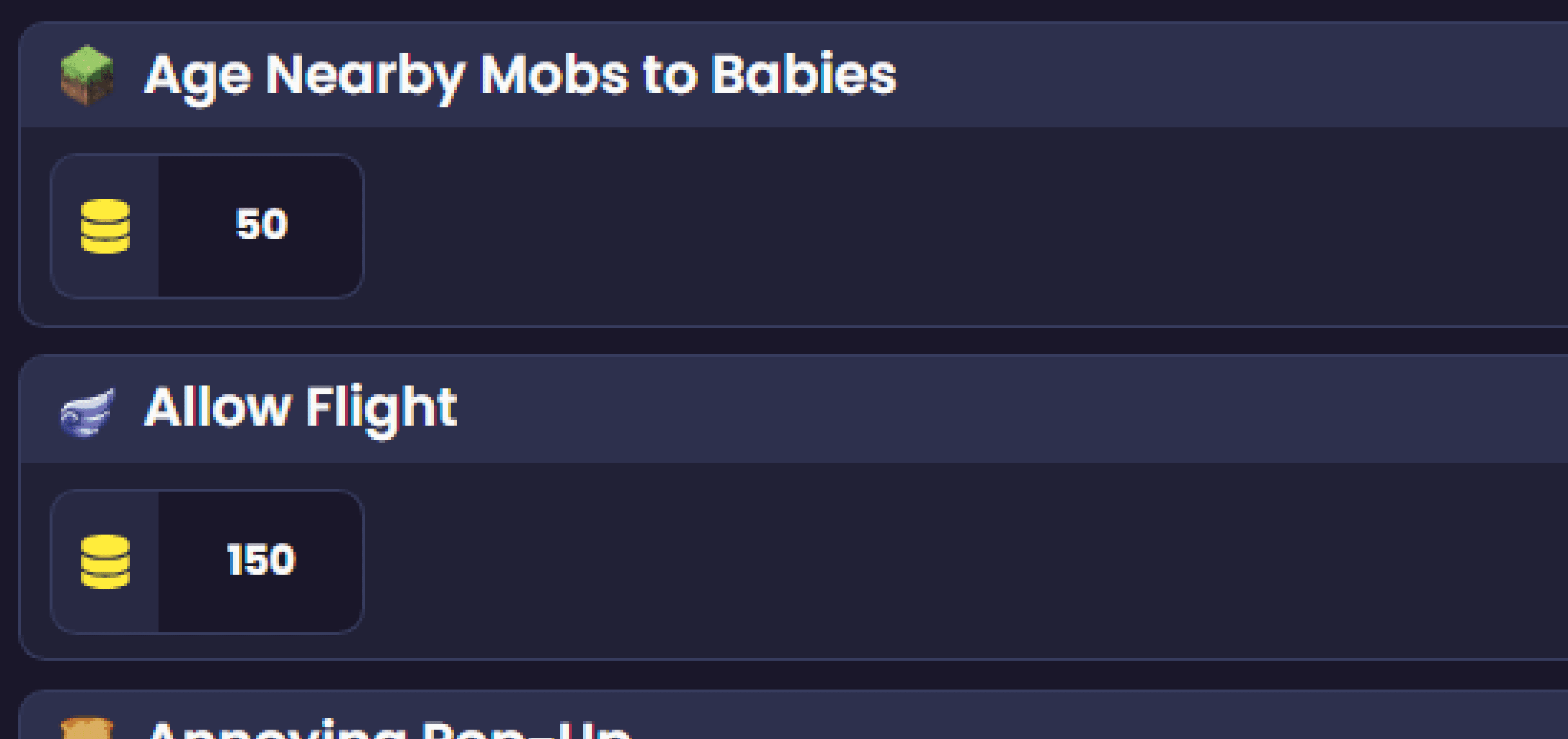
100 Coins = 1 USD. Viewers can collect coins in multiple ways, including Free Coins and Twitch Bits.
Default prices vary based on your following, but that doesn't mean they're tailored to your community. Expect to experiment.
To make this easier, Crowd Control gives you:
Filtering and searching to find specific effects fast
Keyboard shortcuts for quick adjustments
The Price Wizard, which applies a multiplier to all selected or visible effects so you can update pricing in bulk
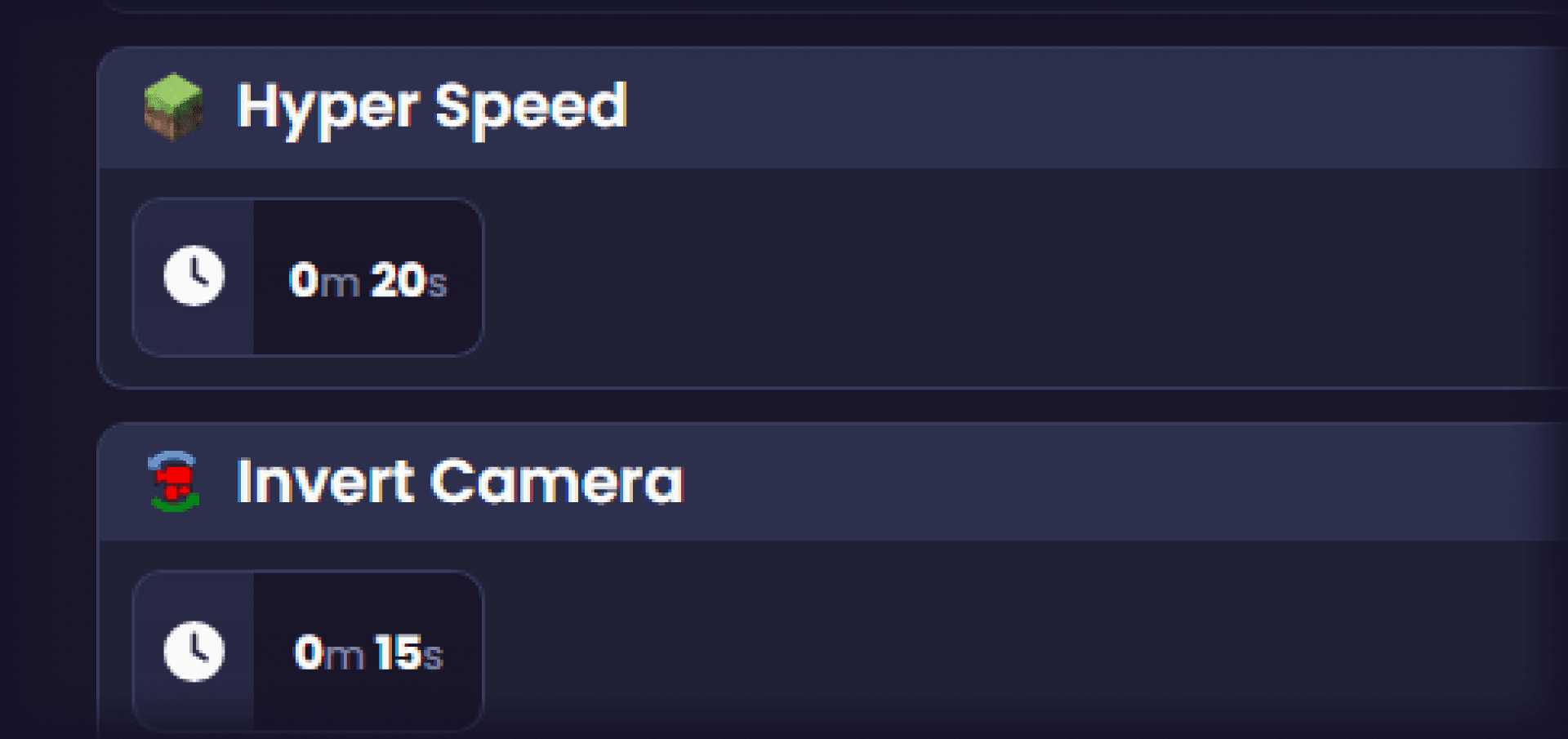
Time-based effects have adjustable durations. This feature requires a Crowd Control Pro subscription.
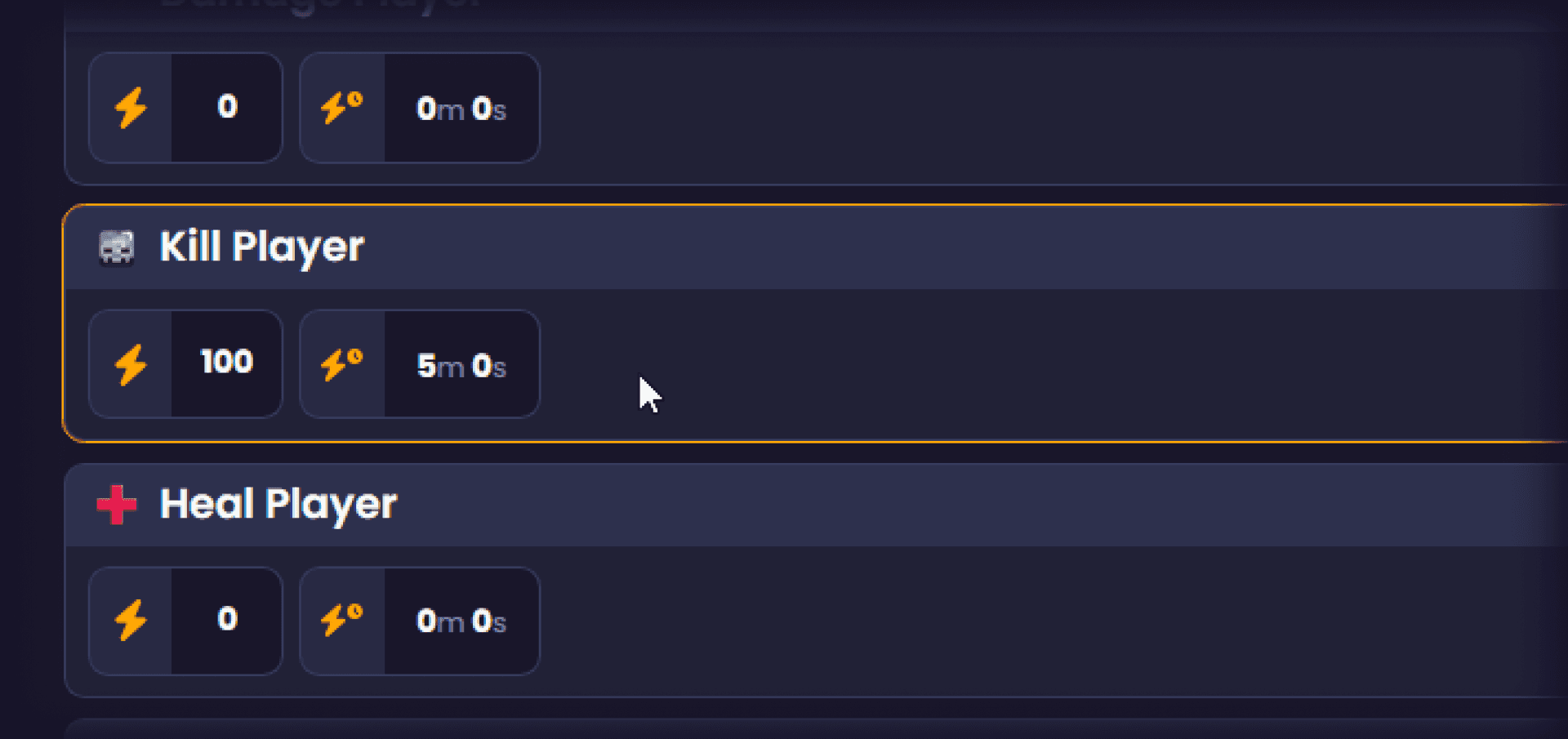
If a high-impact effect (like Kill Player) is getting triggered too often, Price Scaling lets you set its cost to automatically increase with each purchase, and decrease over time as activity slows.
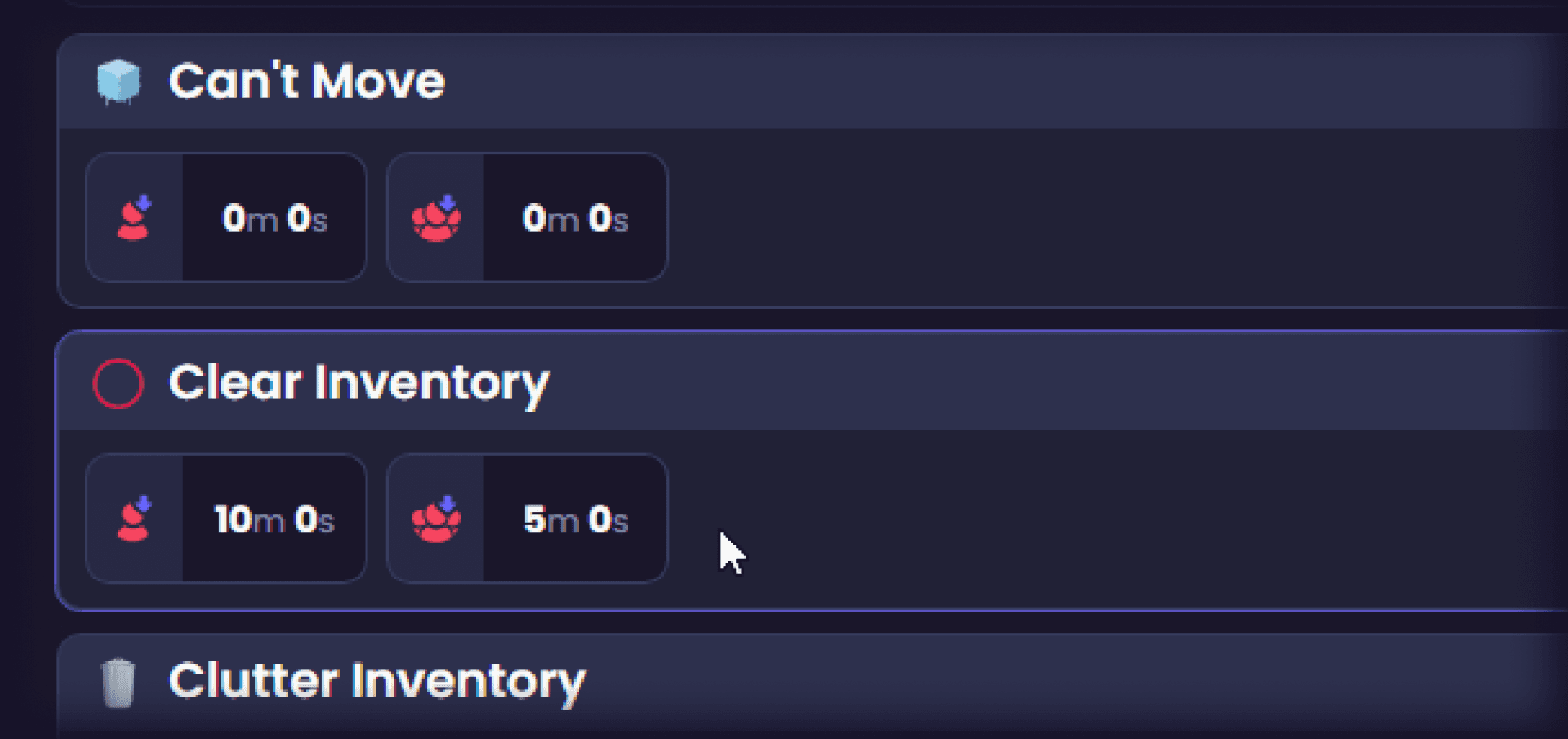
There are two types of cooldowns:
Individual cooldowns for specific effects
Global cooldowns that apply across all effects
Both help control the pace of chaos on your stream. You can also adjust the volume of each Disrupt.
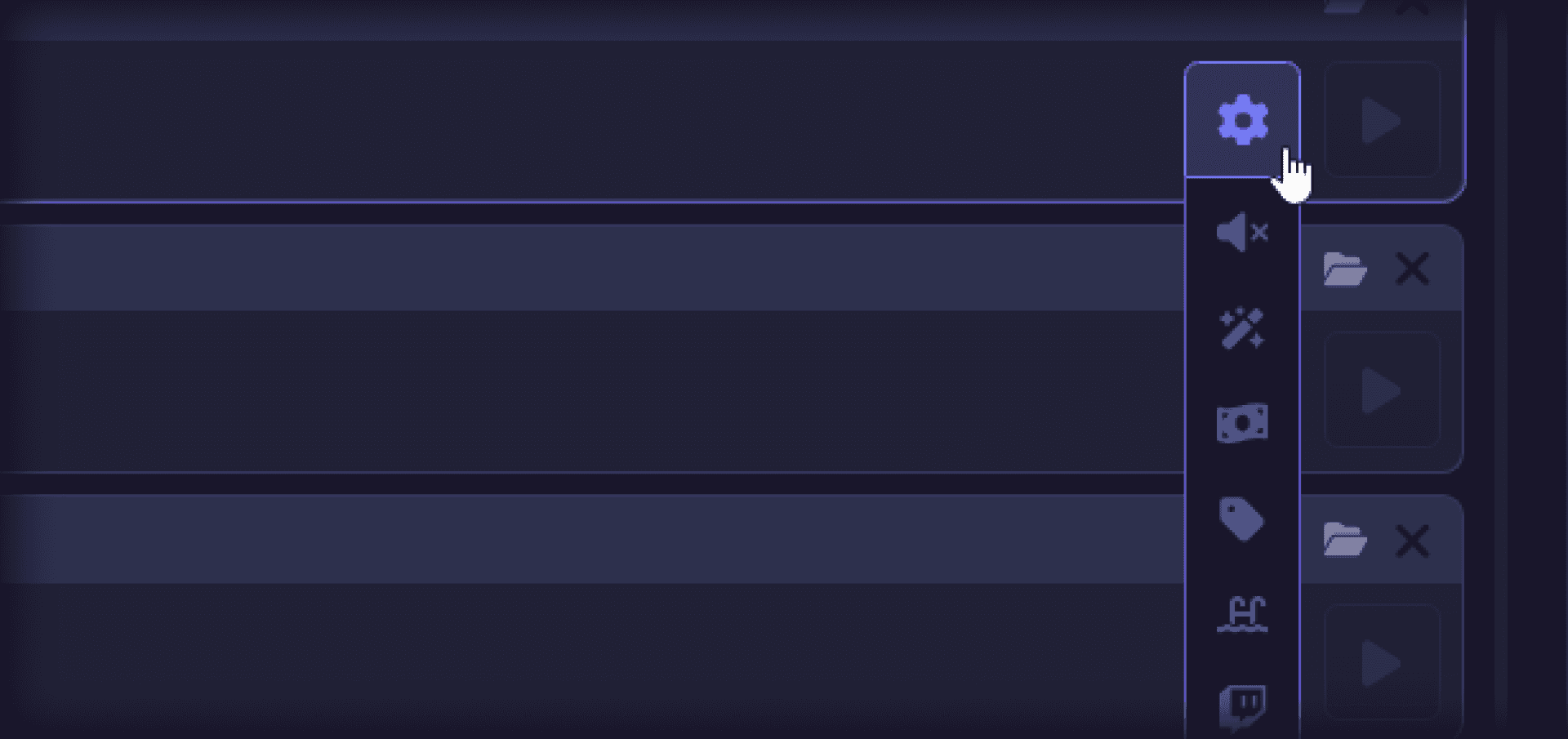
Effect Settings
Each effect has its own settings button, where you can:
Link a custom sound effect
Restrict the effect to paid coins only
If you've connected accounts through the Integrations page, you'll also find options to link effects to services like Voicemod, Lumia, Streamfog, and more.
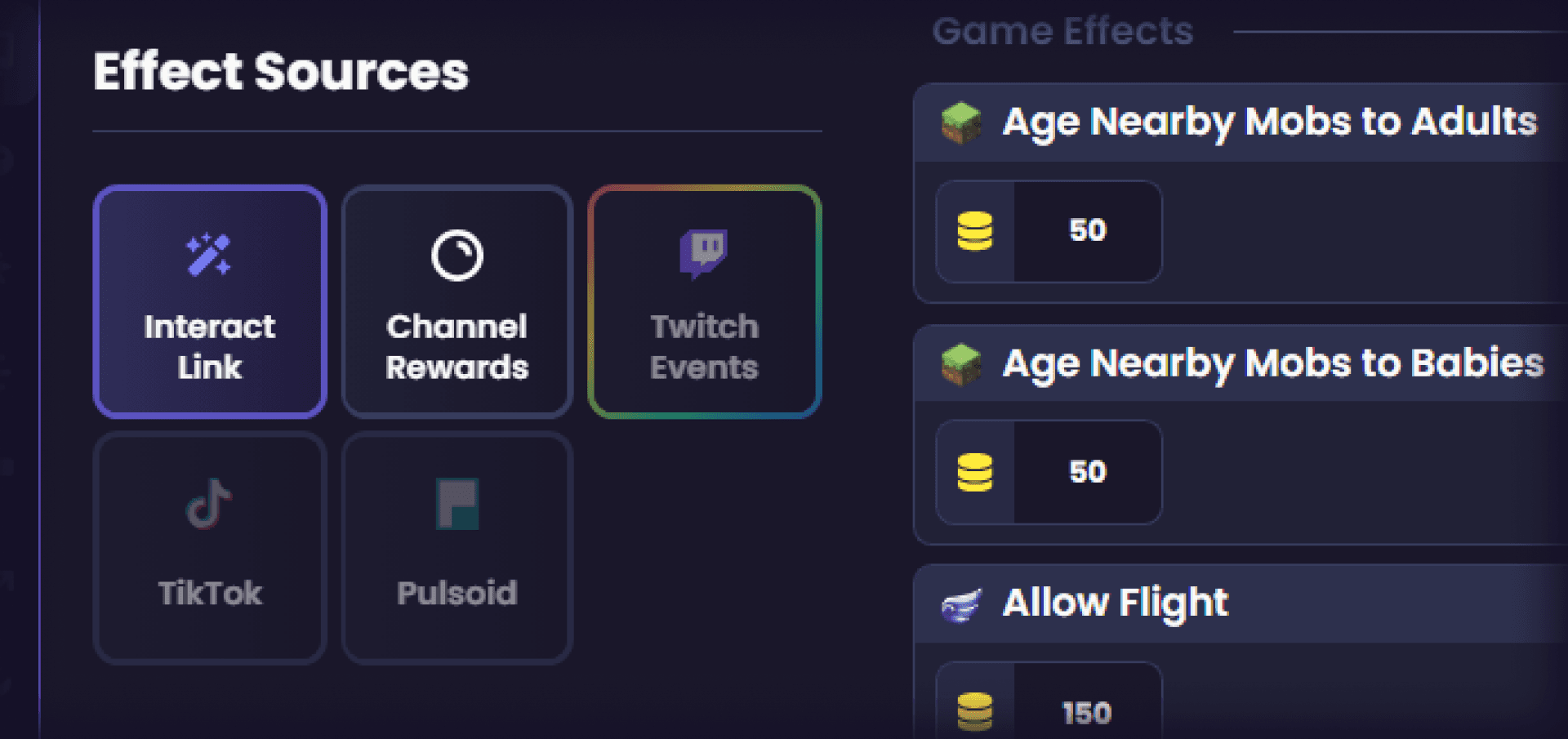
Effect Sources
On the left side of the Effect Manager, you'll see your available Effect Sources. These depend on which accounts you've linked and whether you're subscribed to Crowd Control Pro or Max.
Effect Sources let viewers trigger effects through channels beyond Crowd Control Coins, including:
TikTok Gifts and Interactions
Twitch Channel Points and Subscriptions
We'll cover these integrations in more depth in a future post, so stay tuned.
You're Ready to Customize
That covers the essentials for tailoring Crowd Control to your stream. Experiment, find what works for your community, and have fun with it.
Crowd Control lets your viewers send all kinds of interactions, from captchas and jumpscares to helpful in-game items. Whether you're spicing up your stream or building an extra income stream, Crowd Control can be customized for any game on any platform.
Here's everything you need to know to make it your own.
Where to Customize Effects
All Crowd Control effects can be modified in one place: the Effect Manager.
Once you've selected a game or a set of Disrupt Packs, head to the Live page and open the Effect Manager to get started.
Understanding Effect Parameters
Each effect comes with several adjustable parameters. We'll break them down one by one.
100 Coins = 1 USD. Viewers can collect coins in multiple ways, including Free Coins and Twitch Bits.
Default prices vary based on your following, but that doesn't mean they're tailored to your community. Expect to experiment.
To make this easier, Crowd Control gives you:
Filtering and searching to find specific effects fast
Keyboard shortcuts for quick adjustments
The Price Wizard, which applies a multiplier to all selected or visible effects so you can update pricing in bulk
Time-based effects have adjustable durations. This feature requires a Crowd Control Pro subscription.
If a high-impact effect (like Kill Player) is getting triggered too often, Price Scaling lets you set its cost to automatically increase with each purchase, and decrease over time as activity slows.
There are two types of cooldowns:
Individual cooldowns for specific effects
Global cooldowns that apply across all effects
Both help control the pace of chaos on your stream. You can also adjust the volume of each Disrupt.
Effect Settings
Each effect has its own settings button, where you can:
Link a custom sound effect
Restrict the effect to paid coins only
If you've connected accounts through the Integrations page, you'll also find options to link effects to services like Voicemod, Lumia, Streamfog, and more.
Effect Sources
On the left side of the Effect Manager, you'll see your available Effect Sources. These depend on which accounts you've linked and whether you're subscribed to Crowd Control Pro or Max.
Effect Sources let viewers trigger effects through channels beyond Crowd Control Coins, including:
TikTok Gifts and Interactions
Twitch Channel Points and Subscriptions
We'll cover these integrations in more depth in a future post, so stay tuned.
You're Ready to Customize
That covers the essentials for tailoring Crowd Control to your stream. Experiment, find what works for your community, and have fun with it.
" width="14.000000116459887px"><path d="M 3.269 0 C 5.075 0 6.538 1.464 6.538 3.269 C 6.538 5.075 5.075 6.538 3.269 6.538 C 1.464 6.538 0 5.075 0 3.269 C 0 1.464 1.464 0 3.269 0 Z M 2.177 2.015 C 2.114 1.989 2.039 1.958 1.98 2.003 C 1.95 2.024 1.928 2.054 1.906 2.082 L 1.902 2.087 C 1.866 2.135 1.825 2.183 1.778 2.22 C 1.67 2.31 1.536 2.354 1.394 2.361 L 1.392 2.361 C 1.368 2.362 1.343 2.365 1.319 2.37 C 1.23 2.388 1.208 2.456 1.192 2.54 C 1.189 2.554 1.186 2.569 1.183 2.583 C 1.171 2.636 1.158 2.695 1.173 2.74 C 1.204 2.832 1.372 2.822 1.477 2.815 L 1.49 2.814 C 1.502 2.813 1.513 2.813 1.523 2.812 C 1.608 2.806 1.673 2.823 1.718 2.901 C 1.939 3.363 2.222 3.801 2.607 4.159 C 2.624 4.174 2.642 4.189 2.661 4.201 C 2.686 4.216 2.714 4.224 2.74 4.22 C 2.791 4.21 2.827 4.17 2.86 4.132 L 2.863 4.129 C 2.869 4.123 2.875 4.116 2.881 4.11 C 2.887 4.102 2.894 4.095 2.901 4.087 C 2.937 4.047 2.977 4.002 2.98 3.95 C 2.982 3.911 2.961 3.878 2.936 3.849 C 2.76 3.667 2.59 3.477 2.449 3.269 C 2.324 3.082 2.208 2.89 2.134 2.68 C 2.125 2.646 2.121 2.611 2.129 2.576 C 2.14 2.526 2.173 2.485 2.206 2.444 L 2.219 2.427 C 2.258 2.379 2.294 2.329 2.325 2.276 C 2.348 2.236 2.372 2.188 2.36 2.142 L 2.36 2.141 C 2.343 2.084 2.276 2.056 2.22 2.033 C 2.207 2.028 2.194 2.023 2.183 2.018 Z M 5.468 2.642 C 5.442 2.639 5.413 2.638 5.388 2.646 L 5.304 2.726 C 5.199 2.935 5.028 3.05 4.795 3.067 C 4.766 3.071 4.736 3.077 4.712 3.093 L 4.711 3.093 C 4.661 3.126 4.649 3.195 4.638 3.258 L 4.637 3.261 C 4.634 3.277 4.631 3.293 4.628 3.308 C 4.623 3.331 4.619 3.354 4.614 3.377 L 4.612 3.389 L 4.611 3.393 C 4.601 3.444 4.591 3.494 4.582 3.541 C 4.578 3.566 4.574 3.591 4.578 3.616 C 4.583 3.656 4.614 3.681 4.653 3.691 C 5.086 3.76 5.545 3.534 5.788 3.176 C 5.845 3.092 5.976 2.864 5.935 2.768 C 5.915 2.726 5.858 2.715 5.811 2.706 C 5.801 2.704 5.791 2.703 5.782 2.701 C 5.746 2.694 5.708 2.687 5.67 2.679 C 5.603 2.666 5.536 2.653 5.468 2.642 Z M 3.146 1.105 C 3.094 1.1 3.037 1.095 2.997 1.131 C 2.978 1.151 2.968 1.181 2.963 1.214 C 2.912 1.824 2.997 2.394 3.257 2.859 C 3.284 2.901 3.327 2.926 3.377 2.911 C 3.406 2.903 3.432 2.889 3.458 2.875 C 3.46 2.873 3.463 2.872 3.465 2.87 C 3.522 2.839 3.582 2.805 3.64 2.772 L 3.69 2.744 C 3.699 2.739 3.708 2.733 3.718 2.728 C 3.764 2.702 3.814 2.674 3.826 2.621 L 3.826 2.621 C 3.831 2.598 3.826 2.573 3.818 2.55 C 3.663 2.204 3.583 1.819 3.604 1.38 C 3.604 1.366 3.604 1.352 3.605 1.337 C 3.608 1.284 3.61 1.227 3.584 1.185 C 3.559 1.148 3.512 1.138 3.471 1.133 C 3.407 1.127 3.343 1.121 3.279 1.116 C 3.246 1.113 3.214 1.111 3.182 1.108 C 3.17 1.107 3.158 1.106 3.146 1.105 Z M 5.376 2.65 C 5.375 2.651 5.373 2.652 5.371 2.653 L 5.375 2.651 Z" fill="rgb(234, 61, 106)" height="6.538250575370619px" id="EHOHSwCqJ" transform="translate(0 2.239)" width="6.538250568278272px"/><path d="M 1.24 0.899 C 1.24 1.156 1.293 1.399 1.388 1.621 C 1.393 1.632 1.392 1.645 1.387 1.655 C 1.381 1.666 1.371 1.673 1.359 1.676 C 0.828 1.772 0.334 2.051 0.109 2.209 C 0.099 2.216 0.086 2.218 0.074 2.214 C 0.062 2.209 0.053 2.199 0.05 2.187 C 0.011 2.025 -0.005 1.859 0.001 1.692 C 0.034 0.858 0.627 0.179 1.404 0.001 C 1.435 -0.006 1.46 0.028 1.445 0.057 C 1.31 0.317 1.239 0.606 1.24 0.899 Z" fill="rgb(234, 61, 106)" height="2.215802804588664px" id="f7GQHGnLg" transform="translate(1.053 0)" width="1.4492800256519736px"/><path d="M 3.269 0 C 5.075 0 6.538 1.464 6.538 3.269 C 6.538 5.075 5.075 6.538 3.269 6.538 C 1.464 6.538 0 5.075 0 3.269 C 0 1.464 1.464 0 3.269 0 Z M 3.833 2.887 C 3.802 2.893 3.77 2.91 3.739 2.928 L 3.738 2.928 C 3.712 2.943 3.685 2.958 3.659 2.974 C 3.584 3.017 3.535 3.06 3.545 3.153 C 3.547 3.171 3.549 3.188 3.552 3.205 C 3.556 3.235 3.56 3.264 3.561 3.294 C 3.576 3.688 3.118 3.935 2.798 3.698 C 2.782 3.687 2.767 3.676 2.753 3.663 C 2.723 3.638 2.692 3.613 2.654 3.602 L 2.654 3.602 C 2.603 3.589 2.553 3.613 2.508 3.638 C 2.479 3.654 2.45 3.671 2.421 3.688 L 2.416 3.691 C 2.369 3.719 2.311 3.755 2.317 3.817 C 2.326 3.903 2.445 4.004 2.511 4.056 C 3.221 4.598 4.209 3.929 3.989 3.071 L 3.988 3.068 C 3.967 2.991 3.934 2.87 3.833 2.887 Z M 2.32 2.836 C 1.907 2.311 1.071 2.37 0.732 2.945 C 0.594 3.177 0.552 3.467 0.629 3.727 C 0.661 3.828 0.696 3.934 0.823 3.878 C 0.863 3.86 0.901 3.837 0.939 3.815 C 0.957 3.805 0.974 3.794 0.992 3.784 C 1.092 3.727 1.15 3.692 1.133 3.57 C 1.123 3.491 1.117 3.412 1.14 3.335 L 1.14 3.334 C 1.21 3.068 1.528 2.928 1.769 3.06 C 1.8 3.075 1.828 3.097 1.856 3.118 C 1.88 3.136 1.905 3.155 1.93 3.169 C 1.962 3.186 1.997 3.187 2.032 3.175 C 2.066 3.163 2.099 3.145 2.13 3.127 L 2.137 3.123 L 2.174 3.102 C 2.211 3.081 2.247 3.061 2.282 3.039 C 2.371 2.985 2.385 2.921 2.32 2.836 Z M 4.579 1.271 C 4.366 1.119 4.092 1.055 3.834 1.102 C 3.639 1.138 3.459 1.234 3.32 1.376 C 3.085 1.613 2.983 1.975 3.064 2.3 L 3.068 2.314 C 3.087 2.383 3.115 2.482 3.18 2.503 C 3.226 2.514 3.276 2.488 3.317 2.465 L 3.318 2.465 L 3.325 2.461 C 3.372 2.435 3.418 2.408 3.465 2.381 C 3.505 2.357 3.549 2.33 3.568 2.286 C 3.586 2.25 3.582 2.207 3.577 2.168 L 3.577 2.167 C 3.542 1.976 3.62 1.777 3.791 1.681 L 3.792 1.68 C 3.952 1.585 4.164 1.612 4.305 1.733 L 4.308 1.736 L 4.312 1.739 C 4.322 1.746 4.332 1.755 4.343 1.762 C 4.363 1.776 4.383 1.787 4.406 1.792 C 4.458 1.804 4.51 1.776 4.554 1.752 L 4.568 1.744 C 4.62 1.715 4.671 1.685 4.721 1.654 C 4.766 1.628 4.815 1.589 4.804 1.531 C 4.787 1.439 4.652 1.325 4.579 1.271 Z" fill="rgb(255, 236, 59)" height="6.538250573381028px" id="PKYXAbHzG" transform="translate(7.462 2.195)" width="6.538250562779467px"/><path d="M 0.265 0.872 C 0.616 1.141 1.117 1.29 1.565 1.282 C 1.786 1.273 2.031 1.231 2.155 1.035 C 2.224 0.923 2.221 0.783 2.162 0.667 C 1.92 0.235 1.222 0.021 0.75 0.001 C 0.52 -0.005 0.254 0.018 0.091 0.194 C -0.108 0.426 0.052 0.707 0.264 0.871 L 0.265 0.872 Z M 0.679 0.361 C 1.004 0.364 1.377 0.467 1.659 0.649 C 1.705 0.678 1.898 0.817 1.828 0.868 C 1.775 0.914 1.549 0.931 1.396 0.915 C 1.152 0.893 0.915 0.827 0.696 0.718 C 0.566 0.654 0.339 0.504 0.363 0.437 C 0.399 0.372 0.607 0.361 0.678 0.361 L 0.679 0.361 L 0.679 0.361 Z" fill="rgb(255, 236, 59)" height="1.2826122415748673px" id="SRezIcBjl" transform="translate(10.929 0.483)" width="2.2065572669175775px"/></g></svg>)
Crowd Control lets your viewers send effects like interactive puzzles, jumpscares, and even in-game events: no matter where or what you stream.
Link effects to all kinds of actions, including TikTok Gifts, Likes, Shares and Follows, plus Twitch Channel Points, Subs, Raids and more!
Have any Crowd Control Questions?
Our Team is quick to answer!
Ready to get Started?
Start Streaming the Interactive Way
Have any Questions?
Check our FAQs, or join Discord for Support
Making a Game?
Consider integrating Crowd Control!
