
How To
How to Add the Crowd Control Effect Overlay to Your Streams [2026 Update]

Moni Mendez
Head of Marketing
Have any Crowd Control Questions?
Our Team is quick to answer!

How to Set Up the Crowd Control Overlay [2026 Update]
New viewers land on interactive streams mid-chaos more often than not. The effect overlay gives them context: what just happened, what's currently active, and how long a timed effect like Inverted Controls still has left. Without it, some of the best moments of interactive streaming go unexplained.
Before you jump into your first Crowd Control session, it's worth spending a few minutes in the Overlays & Assets tab. This is where you customize how effects, goals, and gifts actually show up on stream, and where you grab the links you'll need to bring everything into your streaming software.
Here's how to set up every piece of it, from the app to your streaming software.
Setting Up the Effects Overlay
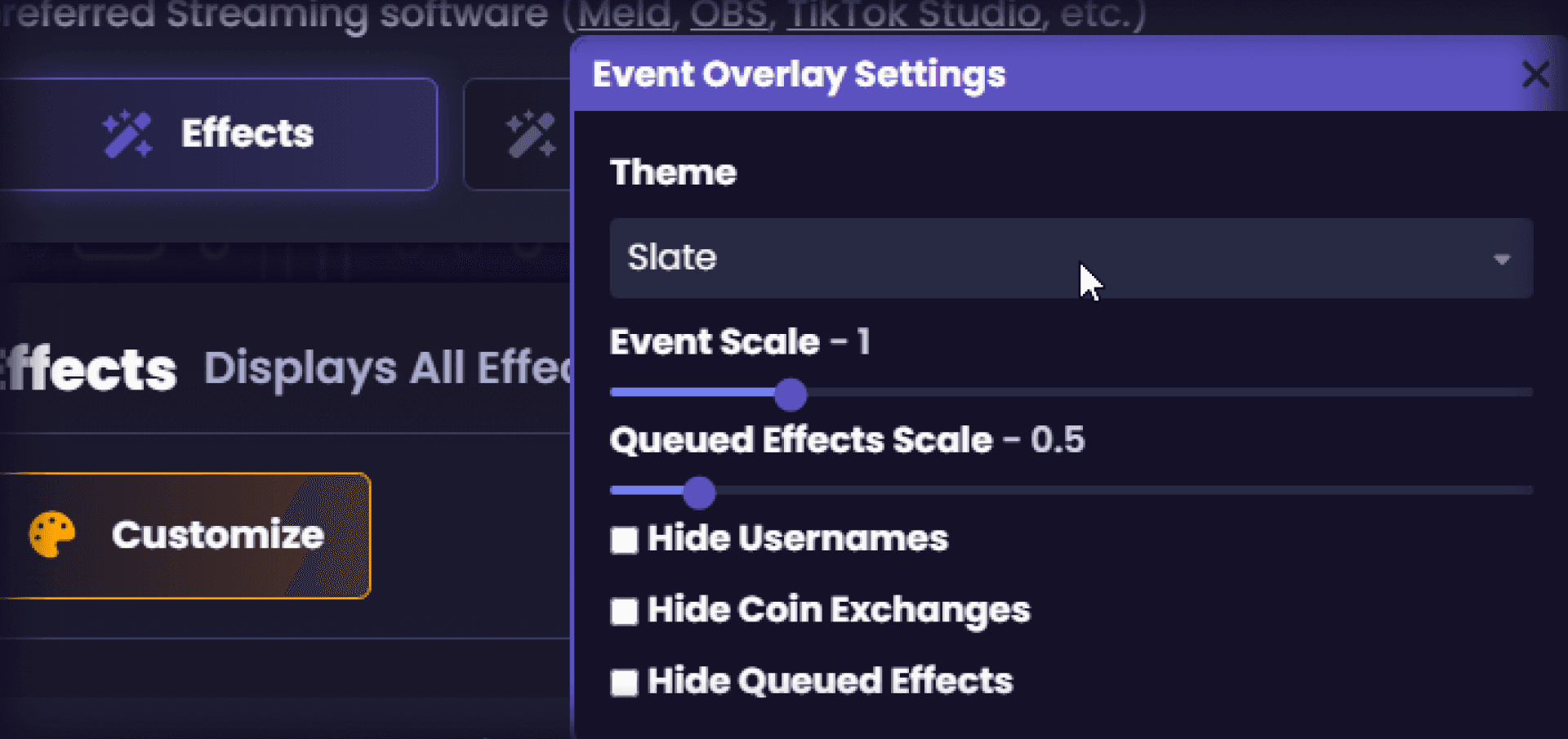
In the Crowd Control app, head to the Overlays & Assets tab and find the Effects Overlay section. Click Customize to open your options:
Scale the size of your effect up or down
Adjust the size of cued effects
Choose from several visual themes
Hide usernames, coin exchanges, or cued effects if you want a cleaner look
Once everything's set the way you like it, click the green Copy Private Overlay URL button. That link is what you'll paste into your streaming software in the next step.
Legacy Effects Overlay: When to Use It
Crowd Control also offers a Legacy Effects Overlay. You'll find similar customization options here, plus a couple extras:
Compact mode, which hides some elements to reduce on-screen clutter
An effect opacity slider
The legacy overlay is really only recommended if you're running other integrations alongside Crowd Control, like Streamer.bot. If that's not part of your setup, the standard overlay is the better pick.
Disrupts, Goals, and TikTok Gifts
The Overlays & Assets tab also hosts other features worth knowing about:
Disrupts Clicking the Disrupts button takes you straight to disrupt setup inside the app. That's a big enough topic that we've covered it in its own guide, so we won't go deep here.
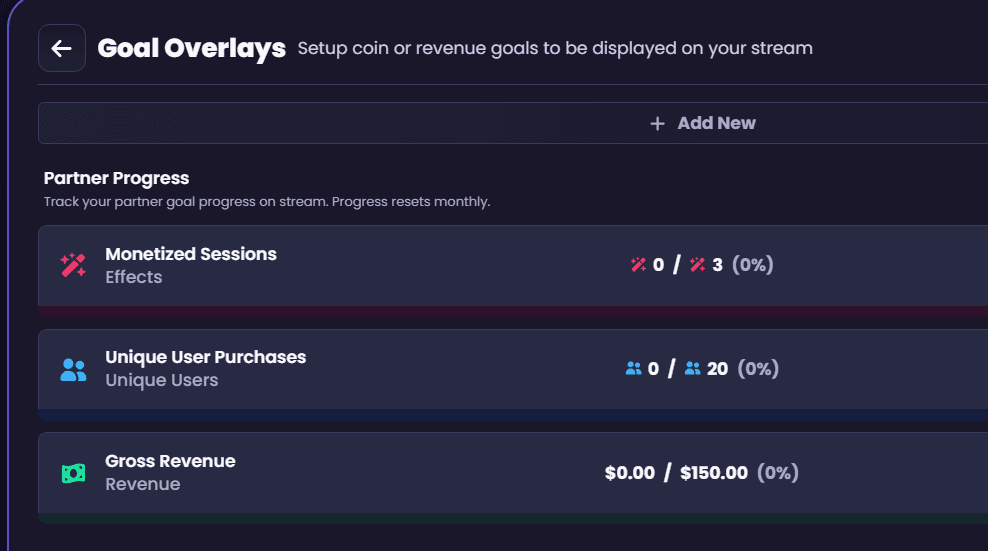
Goals Want a visible goal bar on stream? Hit Add New and choose what the goal tracks (total revenue, coins, bit-paid coins, global paid coins, or Twitch subs), give it a name, and set your target. Save it, then use the toggle to turn it on or off whenever you want. Click the copy button next to a goal to grab its browser source URL, or drag it directly into your streaming software. You can edit a goal anytime with the pencil icon, or remove it with the trash icon.
TikTok Gifts Overlay If you stream to TikTok, the TikTok Gifts overlay works the same way as the others. Customize rows, columns, cycle duration, and scale, and toggle on grouping so gifts of the same type stack together instead of cluttering the screen. Copy the private overlay URL when you're done.
Adding the Overlay to OBS
Go to Sources and click the plus button.
Select Browser Source.
Paste your private overlay link into the URL field. You can also drag the link directly from the Crowd Control app to create the source automatically.
If you see a prompt to increase your browser source resolution, open Properties and set it to match your canvas, typically 1280x720 or 1920x1080. For retro or 4:3 games, the legacy overlay has resolution examples built in.
Once your session starts and effects begin coming through, they'll appear right over your gameplay.
Adding the Overlay in Meld Studio
Go to Layers and click the plus button, then select Browser.
Click the pointer arrow, clear the existing text in the URL box, and paste your private overlay link. Hit enter, then click the pointer again to close the field.
If the overlay isn't filling the screen, adjust the resolution until it does.
Same as OBS, nothing will show until effects start coming in during a live session.
Adding the TikTok Overlay in TikTok Live Studio
Go to Sources and click the plus button.
Select Link, then Add.
Paste your private TikTok overlay link.
Set a custom resolution of 1280x720, then click Add Source.
The overlay usually appears small at first. Click and drag to resize it, then move it wherever you want on screen. This works the same way in both landscape and portrait mode.
Test Before You Go Live
Once everything's connected, start a session and send a few effects to confirm placement, sizing, and visibility all look right. This is also a good time to check that timed effects display clearly enough for new viewers to follow along.
Still running into issues? Reach out on Discord and the community can help troubleshoot your setup.
How to Set Up the Crowd Control Overlay [2026 Update]
New viewers land on interactive streams mid-chaos more often than not. The effect overlay gives them context: what just happened, what's currently active, and how long a timed effect like Inverted Controls still has left. Without it, some of the best moments of interactive streaming go unexplained.
Before you jump into your first Crowd Control session, it's worth spending a few minutes in the Overlays & Assets tab. This is where you customize how effects, goals, and gifts actually show up on stream, and where you grab the links you'll need to bring everything into your streaming software.
Here's how to set up every piece of it, from the app to your streaming software.
Setting Up the Effects Overlay
In the Crowd Control app, head to the Overlays & Assets tab and find the Effects Overlay section. Click Customize to open your options:
Scale the size of your effect up or down
Adjust the size of cued effects
Choose from several visual themes
Hide usernames, coin exchanges, or cued effects if you want a cleaner look
Once everything's set the way you like it, click the green Copy Private Overlay URL button. That link is what you'll paste into your streaming software in the next step.
Legacy Effects Overlay: When to Use It
Crowd Control also offers a Legacy Effects Overlay. You'll find similar customization options here, plus a couple extras:
Compact mode, which hides some elements to reduce on-screen clutter
An effect opacity slider
The legacy overlay is really only recommended if you're running other integrations alongside Crowd Control, like Streamer.bot. If that's not part of your setup, the standard overlay is the better pick.
Disrupts, Goals, and TikTok Gifts
The Overlays & Assets tab also hosts other features worth knowing about:
Disrupts Clicking the Disrupts button takes you straight to disrupt setup inside the app. That's a big enough topic that we've covered it in its own guide, so we won't go deep here.
Goals Want a visible goal bar on stream? Hit Add New and choose what the goal tracks (total revenue, coins, bit-paid coins, global paid coins, or Twitch subs), give it a name, and set your target. Save it, then use the toggle to turn it on or off whenever you want. Click the copy button next to a goal to grab its browser source URL, or drag it directly into your streaming software. You can edit a goal anytime with the pencil icon, or remove it with the trash icon.
TikTok Gifts Overlay If you stream to TikTok, the TikTok Gifts overlay works the same way as the others. Customize rows, columns, cycle duration, and scale, and toggle on grouping so gifts of the same type stack together instead of cluttering the screen. Copy the private overlay URL when you're done.
Adding the Overlay to OBS
Go to Sources and click the plus button.
Select Browser Source.
Paste your private overlay link into the URL field. You can also drag the link directly from the Crowd Control app to create the source automatically.
If you see a prompt to increase your browser source resolution, open Properties and set it to match your canvas, typically 1280x720 or 1920x1080. For retro or 4:3 games, the legacy overlay has resolution examples built in.
Once your session starts and effects begin coming through, they'll appear right over your gameplay.
Adding the Overlay in Meld Studio
Go to Layers and click the plus button, then select Browser.
Click the pointer arrow, clear the existing text in the URL box, and paste your private overlay link. Hit enter, then click the pointer again to close the field.
If the overlay isn't filling the screen, adjust the resolution until it does.
Same as OBS, nothing will show until effects start coming in during a live session.
Adding the TikTok Overlay in TikTok Live Studio
Go to Sources and click the plus button.
Select Link, then Add.
Paste your private TikTok overlay link.
Set a custom resolution of 1280x720, then click Add Source.
The overlay usually appears small at first. Click and drag to resize it, then move it wherever you want on screen. This works the same way in both landscape and portrait mode.
Test Before You Go Live
Once everything's connected, start a session and send a few effects to confirm placement, sizing, and visibility all look right. This is also a good time to check that timed effects display clearly enough for new viewers to follow along.
Still running into issues? Reach out on Discord and the community can help troubleshoot your setup.
" width="14.000000116459887px"><path d="M 3.269 0 C 5.075 0 6.538 1.464 6.538 3.269 C 6.538 5.075 5.075 6.538 3.269 6.538 C 1.464 6.538 0 5.075 0 3.269 C 0 1.464 1.464 0 3.269 0 Z M 2.177 2.015 C 2.114 1.989 2.039 1.958 1.98 2.003 C 1.95 2.024 1.928 2.054 1.906 2.082 L 1.902 2.087 C 1.866 2.135 1.825 2.183 1.778 2.22 C 1.67 2.31 1.536 2.354 1.394 2.361 L 1.392 2.361 C 1.368 2.362 1.343 2.365 1.319 2.37 C 1.23 2.388 1.208 2.456 1.192 2.54 C 1.189 2.554 1.186 2.569 1.183 2.583 C 1.171 2.636 1.158 2.695 1.173 2.74 C 1.204 2.832 1.372 2.822 1.477 2.815 L 1.49 2.814 C 1.502 2.813 1.513 2.813 1.523 2.812 C 1.608 2.806 1.673 2.823 1.718 2.901 C 1.939 3.363 2.222 3.801 2.607 4.159 C 2.624 4.174 2.642 4.189 2.661 4.201 C 2.686 4.216 2.714 4.224 2.74 4.22 C 2.791 4.21 2.827 4.17 2.86 4.132 L 2.863 4.129 C 2.869 4.123 2.875 4.116 2.881 4.11 C 2.887 4.102 2.894 4.095 2.901 4.087 C 2.937 4.047 2.977 4.002 2.98 3.95 C 2.982 3.911 2.961 3.878 2.936 3.849 C 2.76 3.667 2.59 3.477 2.449 3.269 C 2.324 3.082 2.208 2.89 2.134 2.68 C 2.125 2.646 2.121 2.611 2.129 2.576 C 2.14 2.526 2.173 2.485 2.206 2.444 L 2.219 2.427 C 2.258 2.379 2.294 2.329 2.325 2.276 C 2.348 2.236 2.372 2.188 2.36 2.142 L 2.36 2.141 C 2.343 2.084 2.276 2.056 2.22 2.033 C 2.207 2.028 2.194 2.023 2.183 2.018 Z M 5.468 2.642 C 5.442 2.639 5.413 2.638 5.388 2.646 L 5.304 2.726 C 5.199 2.935 5.028 3.05 4.795 3.067 C 4.766 3.071 4.736 3.077 4.712 3.093 L 4.711 3.093 C 4.661 3.126 4.649 3.195 4.638 3.258 L 4.637 3.261 C 4.634 3.277 4.631 3.293 4.628 3.308 C 4.623 3.331 4.619 3.354 4.614 3.377 L 4.612 3.389 L 4.611 3.393 C 4.601 3.444 4.591 3.494 4.582 3.541 C 4.578 3.566 4.574 3.591 4.578 3.616 C 4.583 3.656 4.614 3.681 4.653 3.691 C 5.086 3.76 5.545 3.534 5.788 3.176 C 5.845 3.092 5.976 2.864 5.935 2.768 C 5.915 2.726 5.858 2.715 5.811 2.706 C 5.801 2.704 5.791 2.703 5.782 2.701 C 5.746 2.694 5.708 2.687 5.67 2.679 C 5.603 2.666 5.536 2.653 5.468 2.642 Z M 3.146 1.105 C 3.094 1.1 3.037 1.095 2.997 1.131 C 2.978 1.151 2.968 1.181 2.963 1.214 C 2.912 1.824 2.997 2.394 3.257 2.859 C 3.284 2.901 3.327 2.926 3.377 2.911 C 3.406 2.903 3.432 2.889 3.458 2.875 C 3.46 2.873 3.463 2.872 3.465 2.87 C 3.522 2.839 3.582 2.805 3.64 2.772 L 3.69 2.744 C 3.699 2.739 3.708 2.733 3.718 2.728 C 3.764 2.702 3.814 2.674 3.826 2.621 L 3.826 2.621 C 3.831 2.598 3.826 2.573 3.818 2.55 C 3.663 2.204 3.583 1.819 3.604 1.38 C 3.604 1.366 3.604 1.352 3.605 1.337 C 3.608 1.284 3.61 1.227 3.584 1.185 C 3.559 1.148 3.512 1.138 3.471 1.133 C 3.407 1.127 3.343 1.121 3.279 1.116 C 3.246 1.113 3.214 1.111 3.182 1.108 C 3.17 1.107 3.158 1.106 3.146 1.105 Z M 5.376 2.65 C 5.375 2.651 5.373 2.652 5.371 2.653 L 5.375 2.651 Z" fill="rgb(234, 61, 106)" height="6.538250575370619px" id="EHOHSwCqJ" transform="translate(0 2.239)" width="6.538250568278272px"/><path d="M 1.24 0.899 C 1.24 1.156 1.293 1.399 1.388 1.621 C 1.393 1.632 1.392 1.645 1.387 1.655 C 1.381 1.666 1.371 1.673 1.359 1.676 C 0.828 1.772 0.334 2.051 0.109 2.209 C 0.099 2.216 0.086 2.218 0.074 2.214 C 0.062 2.209 0.053 2.199 0.05 2.187 C 0.011 2.025 -0.005 1.859 0.001 1.692 C 0.034 0.858 0.627 0.179 1.404 0.001 C 1.435 -0.006 1.46 0.028 1.445 0.057 C 1.31 0.317 1.239 0.606 1.24 0.899 Z" fill="rgb(234, 61, 106)" height="2.215802804588664px" id="f7GQHGnLg" transform="translate(1.053 0)" width="1.4492800256519736px"/><path d="M 3.269 0 C 5.075 0 6.538 1.464 6.538 3.269 C 6.538 5.075 5.075 6.538 3.269 6.538 C 1.464 6.538 0 5.075 0 3.269 C 0 1.464 1.464 0 3.269 0 Z M 3.833 2.887 C 3.802 2.893 3.77 2.91 3.739 2.928 L 3.738 2.928 C 3.712 2.943 3.685 2.958 3.659 2.974 C 3.584 3.017 3.535 3.06 3.545 3.153 C 3.547 3.171 3.549 3.188 3.552 3.205 C 3.556 3.235 3.56 3.264 3.561 3.294 C 3.576 3.688 3.118 3.935 2.798 3.698 C 2.782 3.687 2.767 3.676 2.753 3.663 C 2.723 3.638 2.692 3.613 2.654 3.602 L 2.654 3.602 C 2.603 3.589 2.553 3.613 2.508 3.638 C 2.479 3.654 2.45 3.671 2.421 3.688 L 2.416 3.691 C 2.369 3.719 2.311 3.755 2.317 3.817 C 2.326 3.903 2.445 4.004 2.511 4.056 C 3.221 4.598 4.209 3.929 3.989 3.071 L 3.988 3.068 C 3.967 2.991 3.934 2.87 3.833 2.887 Z M 2.32 2.836 C 1.907 2.311 1.071 2.37 0.732 2.945 C 0.594 3.177 0.552 3.467 0.629 3.727 C 0.661 3.828 0.696 3.934 0.823 3.878 C 0.863 3.86 0.901 3.837 0.939 3.815 C 0.957 3.805 0.974 3.794 0.992 3.784 C 1.092 3.727 1.15 3.692 1.133 3.57 C 1.123 3.491 1.117 3.412 1.14 3.335 L 1.14 3.334 C 1.21 3.068 1.528 2.928 1.769 3.06 C 1.8 3.075 1.828 3.097 1.856 3.118 C 1.88 3.136 1.905 3.155 1.93 3.169 C 1.962 3.186 1.997 3.187 2.032 3.175 C 2.066 3.163 2.099 3.145 2.13 3.127 L 2.137 3.123 L 2.174 3.102 C 2.211 3.081 2.247 3.061 2.282 3.039 C 2.371 2.985 2.385 2.921 2.32 2.836 Z M 4.579 1.271 C 4.366 1.119 4.092 1.055 3.834 1.102 C 3.639 1.138 3.459 1.234 3.32 1.376 C 3.085 1.613 2.983 1.975 3.064 2.3 L 3.068 2.314 C 3.087 2.383 3.115 2.482 3.18 2.503 C 3.226 2.514 3.276 2.488 3.317 2.465 L 3.318 2.465 L 3.325 2.461 C 3.372 2.435 3.418 2.408 3.465 2.381 C 3.505 2.357 3.549 2.33 3.568 2.286 C 3.586 2.25 3.582 2.207 3.577 2.168 L 3.577 2.167 C 3.542 1.976 3.62 1.777 3.791 1.681 L 3.792 1.68 C 3.952 1.585 4.164 1.612 4.305 1.733 L 4.308 1.736 L 4.312 1.739 C 4.322 1.746 4.332 1.755 4.343 1.762 C 4.363 1.776 4.383 1.787 4.406 1.792 C 4.458 1.804 4.51 1.776 4.554 1.752 L 4.568 1.744 C 4.62 1.715 4.671 1.685 4.721 1.654 C 4.766 1.628 4.815 1.589 4.804 1.531 C 4.787 1.439 4.652 1.325 4.579 1.271 Z" fill="rgb(255, 236, 59)" height="6.538250573381028px" id="PKYXAbHzG" transform="translate(7.462 2.195)" width="6.538250562779467px"/><path d="M 0.265 0.872 C 0.616 1.141 1.117 1.29 1.565 1.282 C 1.786 1.273 2.031 1.231 2.155 1.035 C 2.224 0.923 2.221 0.783 2.162 0.667 C 1.92 0.235 1.222 0.021 0.75 0.001 C 0.52 -0.005 0.254 0.018 0.091 0.194 C -0.108 0.426 0.052 0.707 0.264 0.871 L 0.265 0.872 Z M 0.679 0.361 C 1.004 0.364 1.377 0.467 1.659 0.649 C 1.705 0.678 1.898 0.817 1.828 0.868 C 1.775 0.914 1.549 0.931 1.396 0.915 C 1.152 0.893 0.915 0.827 0.696 0.718 C 0.566 0.654 0.339 0.504 0.363 0.437 C 0.399 0.372 0.607 0.361 0.678 0.361 L 0.679 0.361 L 0.679 0.361 Z" fill="rgb(255, 236, 59)" height="1.2826122415748673px" id="SRezIcBjl" transform="translate(10.929 0.483)" width="2.2065572669175775px"/></g></svg>)
Crowd Control lets your viewers send effects like interactive puzzles, jumpscares, and even in-game events: no matter where or what you stream.
Link effects to all kinds of actions, including TikTok Gifts, Likes, Shares and Follows, plus Twitch Channel Points, Subs, Raids and more!
Have any Crowd Control Questions?
Our Team is quick to answer!
Ready to get Started?
Start Streaming the Interactive Way
Have any Questions?
Check our FAQs, or join Discord for Support
Making a Game?
Consider integrating Crowd Control!
