
How To
Helpful Tips For When You’re Live with Crowd Control

Moni Mendez
Head of Marketing
Have any Crowd Control Questions?
Our Team is quick to answer!
Helpful Tips for When You're Live with Crowd Control
Even a well-configured Crowd Control session can run into hiccups mid-stream. These tips help you troubleshoot quickly, without derailing your stream.

Check the Game Guide First
Next to the game selection bar, you'll see a small book icon. Clicking it opens that game's dedicated game guide. Crowd Control supports a wide range of games, many with their own setup quirks and common issues, so the game guide is often the fastest way to find an answer specific to what you're playing. It's worth checking before you troubleshoot anything else.
Restart Crowd Control and the Game
If effects are queuing oddly or Crowd Control is behaving unusually, the classic fix still works: stop your session, close both Crowd Control and the game, then reopen everything and start a new session. It sounds too simple, but it resolves more issues than people expect.
Disable a Problem Effect Without Stopping Your Stream
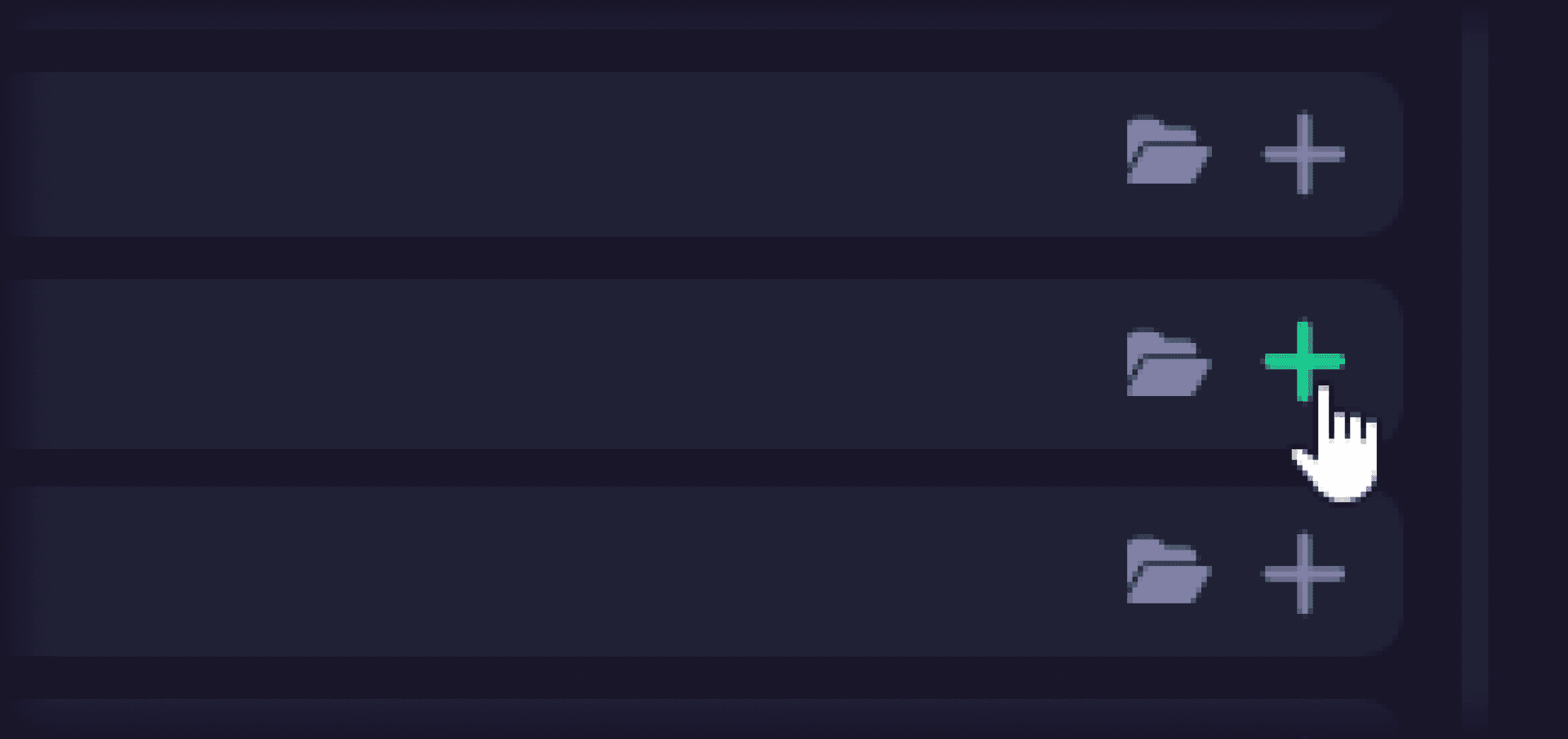
If a specific effect isn't triggering, gets stuck queuing, or is otherwise misbehaving, you don't need to pause your stream to fix it. Open the effect manager, find the effect, and click Disable Effect on the right side. The change saves automatically, or you can save it manually, and the effect moves to the bottom of the list with the other disabled effects. Some games disable certain effects by default, so seeing effects there isn't always a sign of a problem.
To bring it back later, click the plus icon next to it and it returns to its original spot in the effects list.
Disabling the effect in the moment stops viewers from repeatedly trying to activate something that isn't working, which keeps the stream moving instead of forcing a mid-stream troubleshooting session. If you do reach out for support while live, it actually helps the team diagnose the issue faster, but disabling the effect yourself is a fine way to keep things running in the meantime.
Verify Your Game Files in Steam
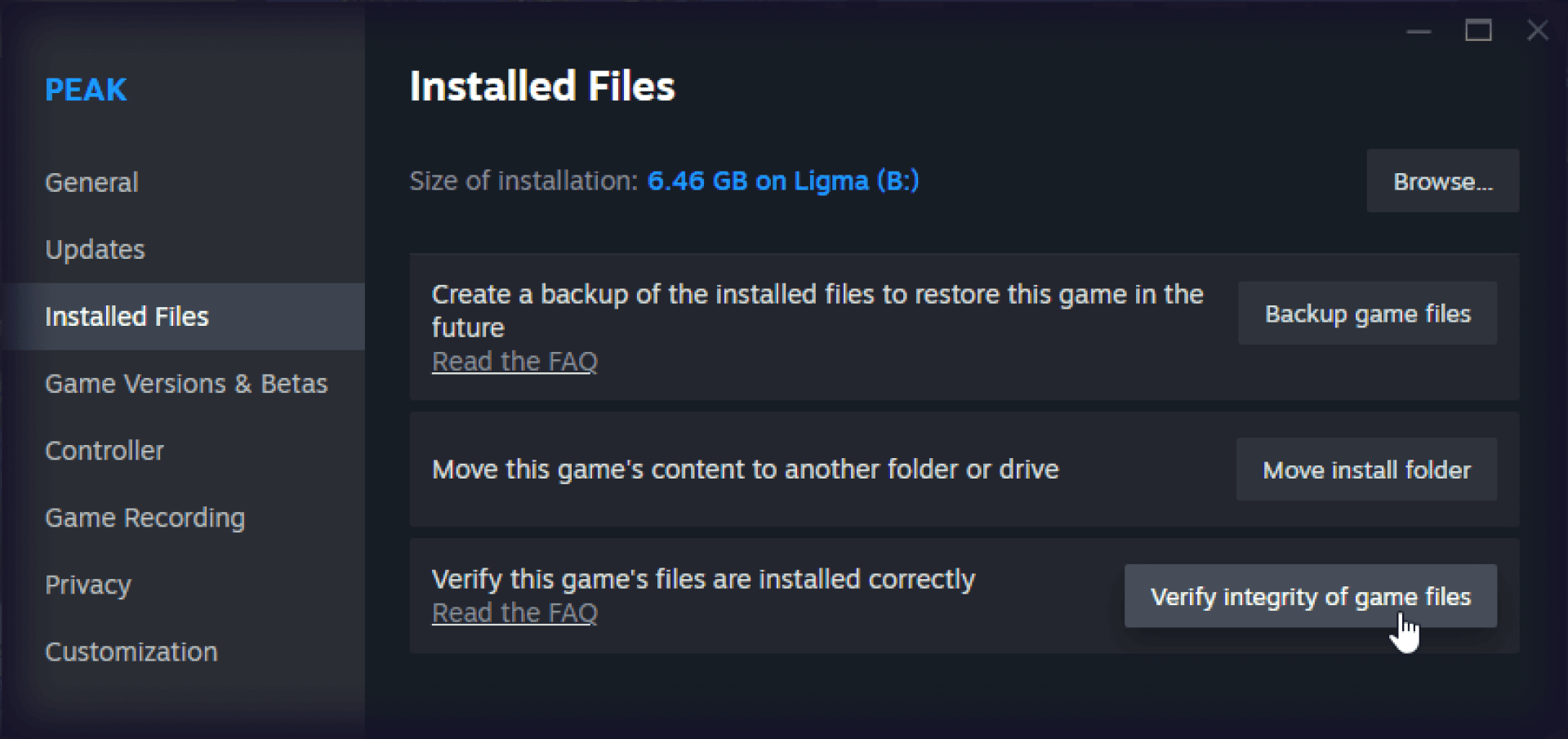
Corrupted or missing game files can cause effects to misbehave. In Steam, right-click the game, go to Properties, then Installed Files, and click Verify Integrity of Game Files. This confirms the game itself is set up correctly and helps rule it out as the source of an issue.
Reinstall the Crowd Control Mod
If problems persist, reinstalling the mod is a quick next step. From the Live tab, find Mod Installed in your checklist. Click the trash can icon next to it to uninstall, confirm with Yes, Uninstall, then OK. Once it's uninstalled, the same spot will show Click to Install. Click it, confirm with OK, and the mod reinstalls.
Helpful Tips for When You're Live with Crowd Control
Even a well-configured Crowd Control session can run into hiccups mid-stream. These tips help you troubleshoot quickly, without derailing your stream.
Check the Game Guide First
Next to the game selection bar, you'll see a small book icon. Clicking it opens that game's dedicated game guide. Crowd Control supports a wide range of games, many with their own setup quirks and common issues, so the game guide is often the fastest way to find an answer specific to what you're playing. It's worth checking before you troubleshoot anything else.
Restart Crowd Control and the Game
If effects are queuing oddly or Crowd Control is behaving unusually, the classic fix still works: stop your session, close both Crowd Control and the game, then reopen everything and start a new session. It sounds too simple, but it resolves more issues than people expect.
Disable a Problem Effect Without Stopping Your Stream
If a specific effect isn't triggering, gets stuck queuing, or is otherwise misbehaving, you don't need to pause your stream to fix it. Open the effect manager, find the effect, and click Disable Effect on the right side. The change saves automatically, or you can save it manually, and the effect moves to the bottom of the list with the other disabled effects. Some games disable certain effects by default, so seeing effects there isn't always a sign of a problem.
To bring it back later, click the plus icon next to it and it returns to its original spot in the effects list.
Disabling the effect in the moment stops viewers from repeatedly trying to activate something that isn't working, which keeps the stream moving instead of forcing a mid-stream troubleshooting session. If you do reach out for support while live, it actually helps the team diagnose the issue faster, but disabling the effect yourself is a fine way to keep things running in the meantime.
Verify Your Game Files in Steam
Corrupted or missing game files can cause effects to misbehave. In Steam, right-click the game, go to Properties, then Installed Files, and click Verify Integrity of Game Files. This confirms the game itself is set up correctly and helps rule it out as the source of an issue.
Reinstall the Crowd Control Mod
If problems persist, reinstalling the mod is a quick next step. From the Live tab, find Mod Installed in your checklist. Click the trash can icon next to it to uninstall, confirm with Yes, Uninstall, then OK. Once it's uninstalled, the same spot will show Click to Install. Click it, confirm with OK, and the mod reinstalls.
" width="14.000000116459887px"><path d="M 3.269 0 C 5.075 0 6.538 1.464 6.538 3.269 C 6.538 5.075 5.075 6.538 3.269 6.538 C 1.464 6.538 0 5.075 0 3.269 C 0 1.464 1.464 0 3.269 0 Z M 2.177 2.015 C 2.114 1.989 2.039 1.958 1.98 2.003 C 1.95 2.024 1.928 2.054 1.906 2.082 L 1.902 2.087 C 1.866 2.135 1.825 2.183 1.778 2.22 C 1.67 2.31 1.536 2.354 1.394 2.361 L 1.392 2.361 C 1.368 2.362 1.343 2.365 1.319 2.37 C 1.23 2.388 1.208 2.456 1.192 2.54 C 1.189 2.554 1.186 2.569 1.183 2.583 C 1.171 2.636 1.158 2.695 1.173 2.74 C 1.204 2.832 1.372 2.822 1.477 2.815 L 1.49 2.814 C 1.502 2.813 1.513 2.813 1.523 2.812 C 1.608 2.806 1.673 2.823 1.718 2.901 C 1.939 3.363 2.222 3.801 2.607 4.159 C 2.624 4.174 2.642 4.189 2.661 4.201 C 2.686 4.216 2.714 4.224 2.74 4.22 C 2.791 4.21 2.827 4.17 2.86 4.132 L 2.863 4.129 C 2.869 4.123 2.875 4.116 2.881 4.11 C 2.887 4.102 2.894 4.095 2.901 4.087 C 2.937 4.047 2.977 4.002 2.98 3.95 C 2.982 3.911 2.961 3.878 2.936 3.849 C 2.76 3.667 2.59 3.477 2.449 3.269 C 2.324 3.082 2.208 2.89 2.134 2.68 C 2.125 2.646 2.121 2.611 2.129 2.576 C 2.14 2.526 2.173 2.485 2.206 2.444 L 2.219 2.427 C 2.258 2.379 2.294 2.329 2.325 2.276 C 2.348 2.236 2.372 2.188 2.36 2.142 L 2.36 2.141 C 2.343 2.084 2.276 2.056 2.22 2.033 C 2.207 2.028 2.194 2.023 2.183 2.018 Z M 5.468 2.642 C 5.442 2.639 5.413 2.638 5.388 2.646 L 5.304 2.726 C 5.199 2.935 5.028 3.05 4.795 3.067 C 4.766 3.071 4.736 3.077 4.712 3.093 L 4.711 3.093 C 4.661 3.126 4.649 3.195 4.638 3.258 L 4.637 3.261 C 4.634 3.277 4.631 3.293 4.628 3.308 C 4.623 3.331 4.619 3.354 4.614 3.377 L 4.612 3.389 L 4.611 3.393 C 4.601 3.444 4.591 3.494 4.582 3.541 C 4.578 3.566 4.574 3.591 4.578 3.616 C 4.583 3.656 4.614 3.681 4.653 3.691 C 5.086 3.76 5.545 3.534 5.788 3.176 C 5.845 3.092 5.976 2.864 5.935 2.768 C 5.915 2.726 5.858 2.715 5.811 2.706 C 5.801 2.704 5.791 2.703 5.782 2.701 C 5.746 2.694 5.708 2.687 5.67 2.679 C 5.603 2.666 5.536 2.653 5.468 2.642 Z M 3.146 1.105 C 3.094 1.1 3.037 1.095 2.997 1.131 C 2.978 1.151 2.968 1.181 2.963 1.214 C 2.912 1.824 2.997 2.394 3.257 2.859 C 3.284 2.901 3.327 2.926 3.377 2.911 C 3.406 2.903 3.432 2.889 3.458 2.875 C 3.46 2.873 3.463 2.872 3.465 2.87 C 3.522 2.839 3.582 2.805 3.64 2.772 L 3.69 2.744 C 3.699 2.739 3.708 2.733 3.718 2.728 C 3.764 2.702 3.814 2.674 3.826 2.621 L 3.826 2.621 C 3.831 2.598 3.826 2.573 3.818 2.55 C 3.663 2.204 3.583 1.819 3.604 1.38 C 3.604 1.366 3.604 1.352 3.605 1.337 C 3.608 1.284 3.61 1.227 3.584 1.185 C 3.559 1.148 3.512 1.138 3.471 1.133 C 3.407 1.127 3.343 1.121 3.279 1.116 C 3.246 1.113 3.214 1.111 3.182 1.108 C 3.17 1.107 3.158 1.106 3.146 1.105 Z M 5.376 2.65 C 5.375 2.651 5.373 2.652 5.371 2.653 L 5.375 2.651 Z" fill="rgb(234, 61, 106)" height="6.538250575370619px" id="EHOHSwCqJ" transform="translate(0 2.239)" width="6.538250568278272px"/><path d="M 1.24 0.899 C 1.24 1.156 1.293 1.399 1.388 1.621 C 1.393 1.632 1.392 1.645 1.387 1.655 C 1.381 1.666 1.371 1.673 1.359 1.676 C 0.828 1.772 0.334 2.051 0.109 2.209 C 0.099 2.216 0.086 2.218 0.074 2.214 C 0.062 2.209 0.053 2.199 0.05 2.187 C 0.011 2.025 -0.005 1.859 0.001 1.692 C 0.034 0.858 0.627 0.179 1.404 0.001 C 1.435 -0.006 1.46 0.028 1.445 0.057 C 1.31 0.317 1.239 0.606 1.24 0.899 Z" fill="rgb(234, 61, 106)" height="2.215802804588664px" id="f7GQHGnLg" transform="translate(1.053 0)" width="1.4492800256519736px"/><path d="M 3.269 0 C 5.075 0 6.538 1.464 6.538 3.269 C 6.538 5.075 5.075 6.538 3.269 6.538 C 1.464 6.538 0 5.075 0 3.269 C 0 1.464 1.464 0 3.269 0 Z M 3.833 2.887 C 3.802 2.893 3.77 2.91 3.739 2.928 L 3.738 2.928 C 3.712 2.943 3.685 2.958 3.659 2.974 C 3.584 3.017 3.535 3.06 3.545 3.153 C 3.547 3.171 3.549 3.188 3.552 3.205 C 3.556 3.235 3.56 3.264 3.561 3.294 C 3.576 3.688 3.118 3.935 2.798 3.698 C 2.782 3.687 2.767 3.676 2.753 3.663 C 2.723 3.638 2.692 3.613 2.654 3.602 L 2.654 3.602 C 2.603 3.589 2.553 3.613 2.508 3.638 C 2.479 3.654 2.45 3.671 2.421 3.688 L 2.416 3.691 C 2.369 3.719 2.311 3.755 2.317 3.817 C 2.326 3.903 2.445 4.004 2.511 4.056 C 3.221 4.598 4.209 3.929 3.989 3.071 L 3.988 3.068 C 3.967 2.991 3.934 2.87 3.833 2.887 Z M 2.32 2.836 C 1.907 2.311 1.071 2.37 0.732 2.945 C 0.594 3.177 0.552 3.467 0.629 3.727 C 0.661 3.828 0.696 3.934 0.823 3.878 C 0.863 3.86 0.901 3.837 0.939 3.815 C 0.957 3.805 0.974 3.794 0.992 3.784 C 1.092 3.727 1.15 3.692 1.133 3.57 C 1.123 3.491 1.117 3.412 1.14 3.335 L 1.14 3.334 C 1.21 3.068 1.528 2.928 1.769 3.06 C 1.8 3.075 1.828 3.097 1.856 3.118 C 1.88 3.136 1.905 3.155 1.93 3.169 C 1.962 3.186 1.997 3.187 2.032 3.175 C 2.066 3.163 2.099 3.145 2.13 3.127 L 2.137 3.123 L 2.174 3.102 C 2.211 3.081 2.247 3.061 2.282 3.039 C 2.371 2.985 2.385 2.921 2.32 2.836 Z M 4.579 1.271 C 4.366 1.119 4.092 1.055 3.834 1.102 C 3.639 1.138 3.459 1.234 3.32 1.376 C 3.085 1.613 2.983 1.975 3.064 2.3 L 3.068 2.314 C 3.087 2.383 3.115 2.482 3.18 2.503 C 3.226 2.514 3.276 2.488 3.317 2.465 L 3.318 2.465 L 3.325 2.461 C 3.372 2.435 3.418 2.408 3.465 2.381 C 3.505 2.357 3.549 2.33 3.568 2.286 C 3.586 2.25 3.582 2.207 3.577 2.168 L 3.577 2.167 C 3.542 1.976 3.62 1.777 3.791 1.681 L 3.792 1.68 C 3.952 1.585 4.164 1.612 4.305 1.733 L 4.308 1.736 L 4.312 1.739 C 4.322 1.746 4.332 1.755 4.343 1.762 C 4.363 1.776 4.383 1.787 4.406 1.792 C 4.458 1.804 4.51 1.776 4.554 1.752 L 4.568 1.744 C 4.62 1.715 4.671 1.685 4.721 1.654 C 4.766 1.628 4.815 1.589 4.804 1.531 C 4.787 1.439 4.652 1.325 4.579 1.271 Z" fill="rgb(255, 236, 59)" height="6.538250573381028px" id="PKYXAbHzG" transform="translate(7.462 2.195)" width="6.538250562779467px"/><path d="M 0.265 0.872 C 0.616 1.141 1.117 1.29 1.565 1.282 C 1.786 1.273 2.031 1.231 2.155 1.035 C 2.224 0.923 2.221 0.783 2.162 0.667 C 1.92 0.235 1.222 0.021 0.75 0.001 C 0.52 -0.005 0.254 0.018 0.091 0.194 C -0.108 0.426 0.052 0.707 0.264 0.871 L 0.265 0.872 Z M 0.679 0.361 C 1.004 0.364 1.377 0.467 1.659 0.649 C 1.705 0.678 1.898 0.817 1.828 0.868 C 1.775 0.914 1.549 0.931 1.396 0.915 C 1.152 0.893 0.915 0.827 0.696 0.718 C 0.566 0.654 0.339 0.504 0.363 0.437 C 0.399 0.372 0.607 0.361 0.678 0.361 L 0.679 0.361 L 0.679 0.361 Z" fill="rgb(255, 236, 59)" height="1.2826122415748673px" id="SRezIcBjl" transform="translate(10.929 0.483)" width="2.2065572669175775px"/></g></svg>)
Crowd Control lets your viewers send effects like interactive puzzles, jumpscares, and even in-game events: no matter where or what you stream.
Link effects to all kinds of actions, including TikTok Gifts, Likes, Shares and Follows, plus Twitch Channel Points, Subs, Raids and more!
Have any Crowd Control Questions?
Our Team is quick to answer!
Ready to get Started?
Start Streaming the Interactive Way
Have any Questions?
Check our FAQs, or join Discord for Support
Making a Game?
Consider integrating Crowd Control!
