
Guide
Complete Guide to the Crowd Control Effect Manager [2026 Update]

Moni Mendez
Head of Marketing
Have any Crowd Control Questions?
Our Team is quick to answer!

Complete Guide to the Crowd Control Effect Manager [2026 Update]
The Crowd Control effect manager is where you control every part of your viewer interaction session, from what effects cost to how they connect to Twitch and TikTok. This guide walks through the full effect manager so you can build a crowd control session that fits your channel.
Getting Started with the Interact Link Tab
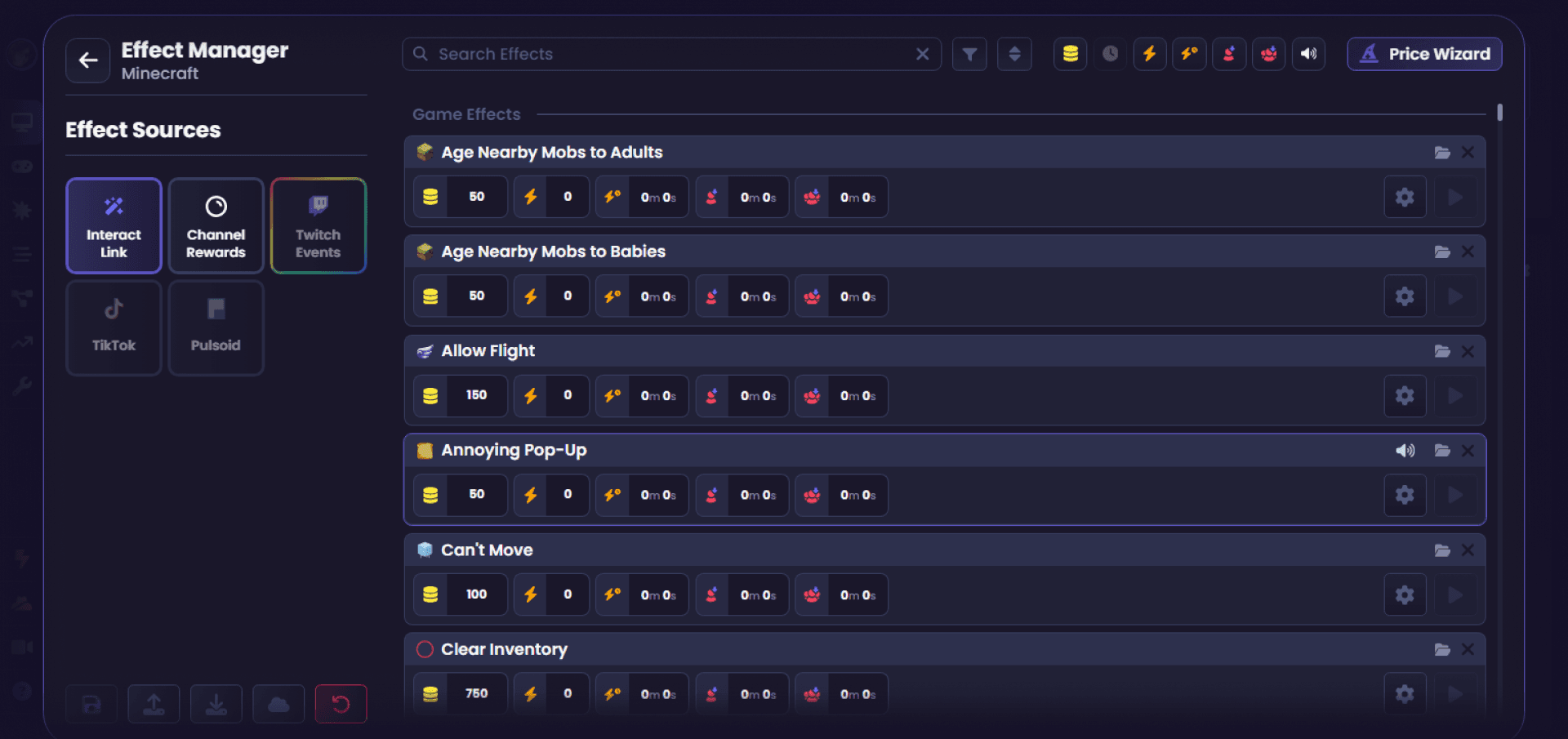
The Interact Link tab on the left side of the effect manager lists every available effect, split into game effects and active disrupts. Click the arrow next to each category to expand it and see the full list. This is also the tab your viewers see when they open your interact link to redeem effects, so any changes you make here show up on their end too.
Understanding Effect Settings
Every effect has a row of icons beneath its name. Each icon represents a setting you can adjust, and hovering over any of them shows a quick explanation.
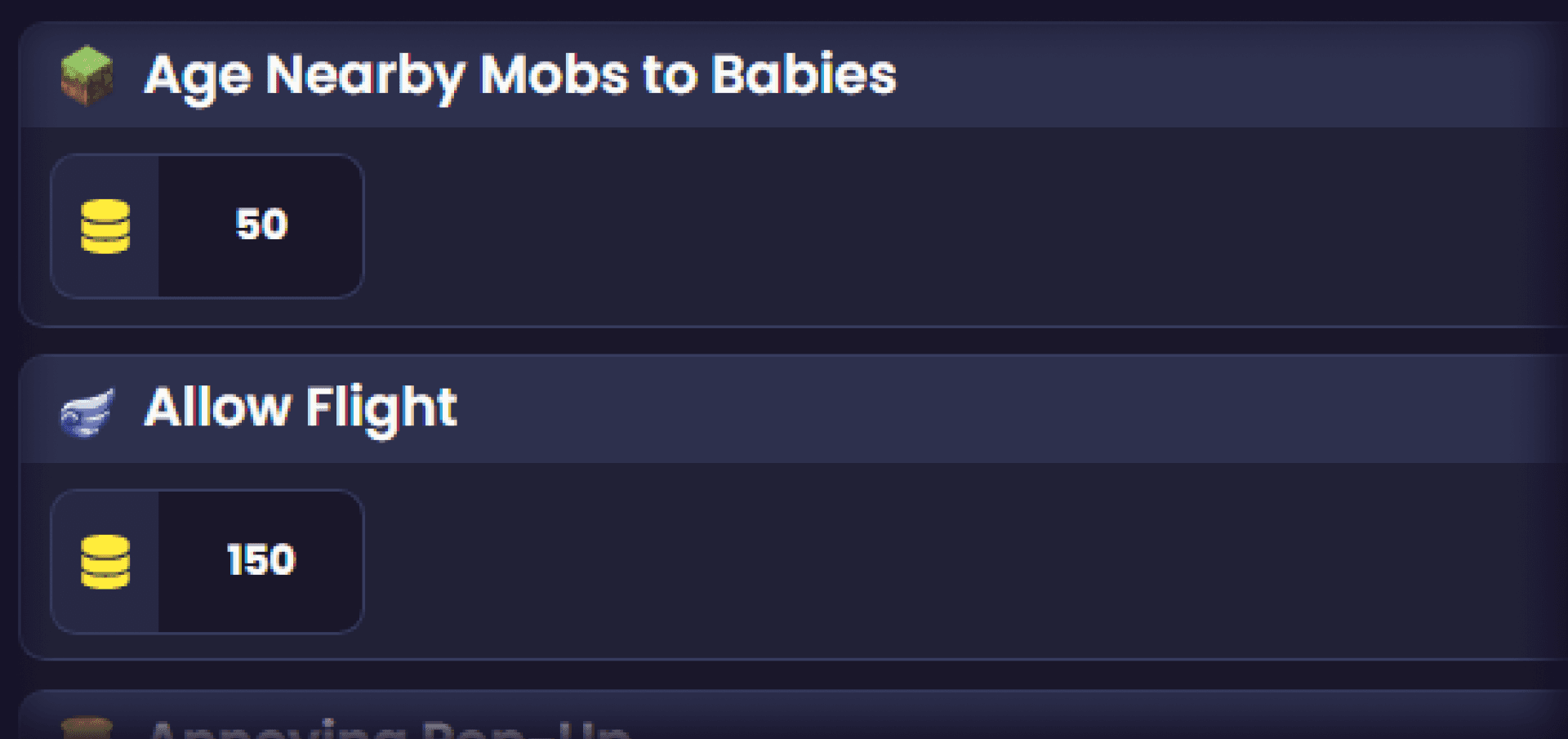
Price is the most important setting on any effect. It's how many coins a viewer spends to trigger it, and you can raise or lower it to whatever works for your channel.
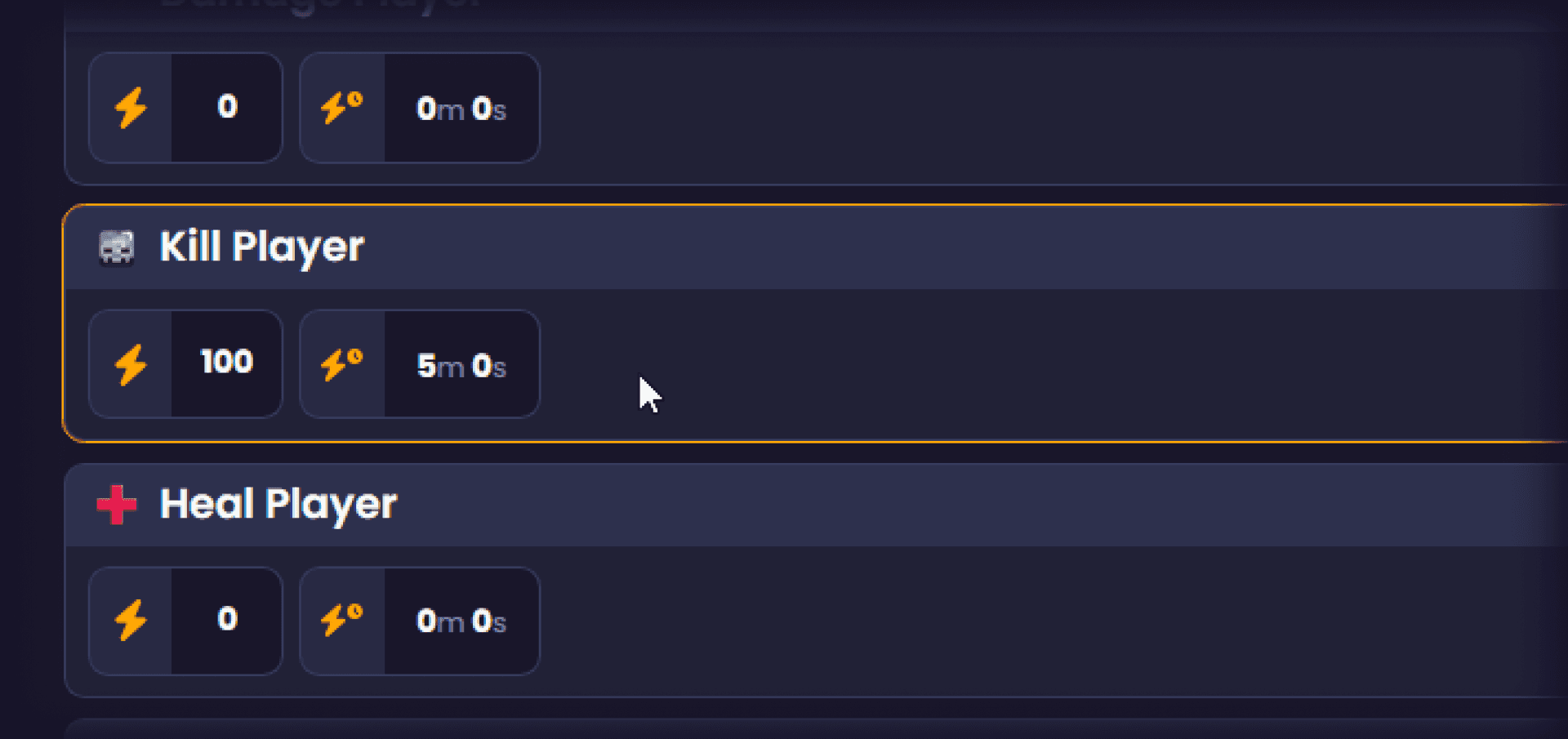
Scaling up and scaling down are linked settings, meaning scaling down can't be turned on unless scaling up is enabled first.
Scaling up raises an effect's price by a set percentage every time it's triggered, based on the current price rather than the base price. For example, an effect priced at 50 coins with a 20 percent scale-up rate goes to 60 coins after the first trigger, then 72 coins after the second, and so on.
Scaling down brings the price back to normal over time. You set a duration, and once that time passes, the price drops by half. It keeps halving at each interval until it reaches the original base price. So an effect scaled up to 105 coins with a 15-second scale-down timer would drop to 53 coins after the first interval, then back down to its 50-coin base price at the next one, since it can't go below the original price.
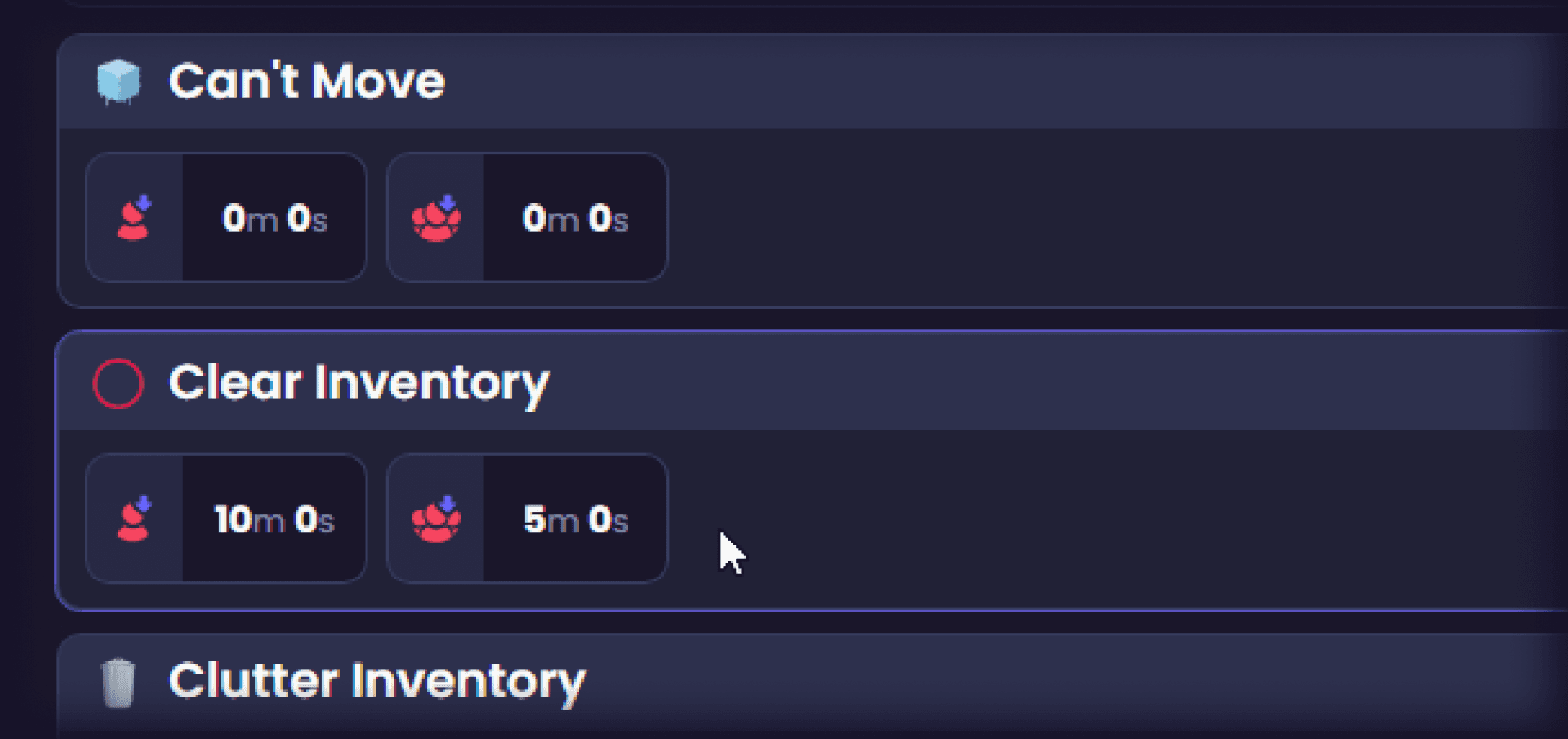
An individual cooldown controls how long a single viewer has to wait before ordering the same effect again. If someone tries to reorder an effect that's on cooldown, they'll see a red symbol on the interact link along with hover text showing the remaining wait time.
A global cooldown works the same way but applies to every viewer, not just the one who triggered it.
Any change you make to these settings is protected by an auto-save feature that kicks in about five seconds after your last edit, so you don't need to manually save.
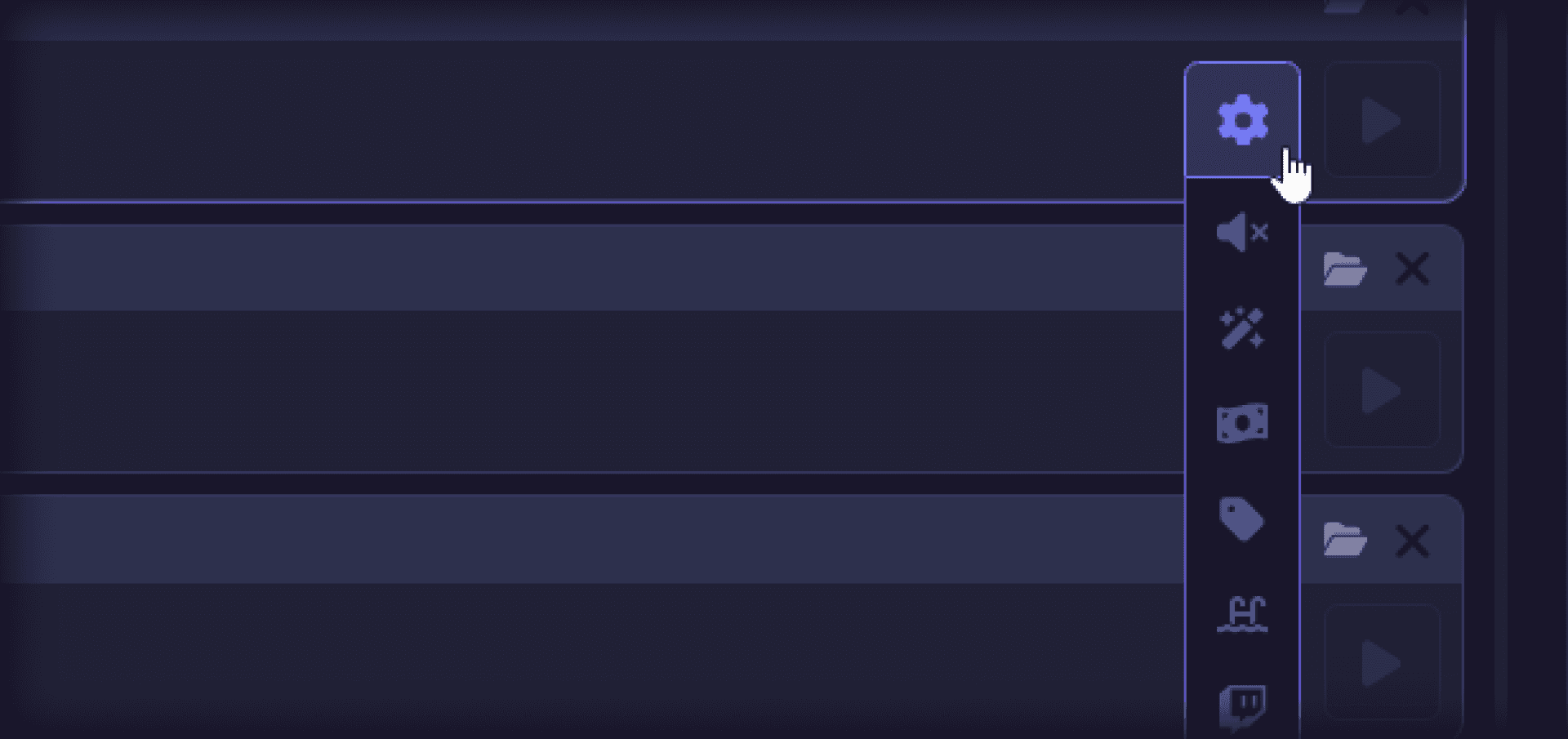
Clicking the cog icon on an effect reveals a few more options. The sound icon lets you attach an audio cue that plays whenever the effect triggers. The dollar bill icon marks the effect as paid-only, meaning viewers can only trigger it with paid coins, not free ones. The play icon lets you test the effect as if a session were live.
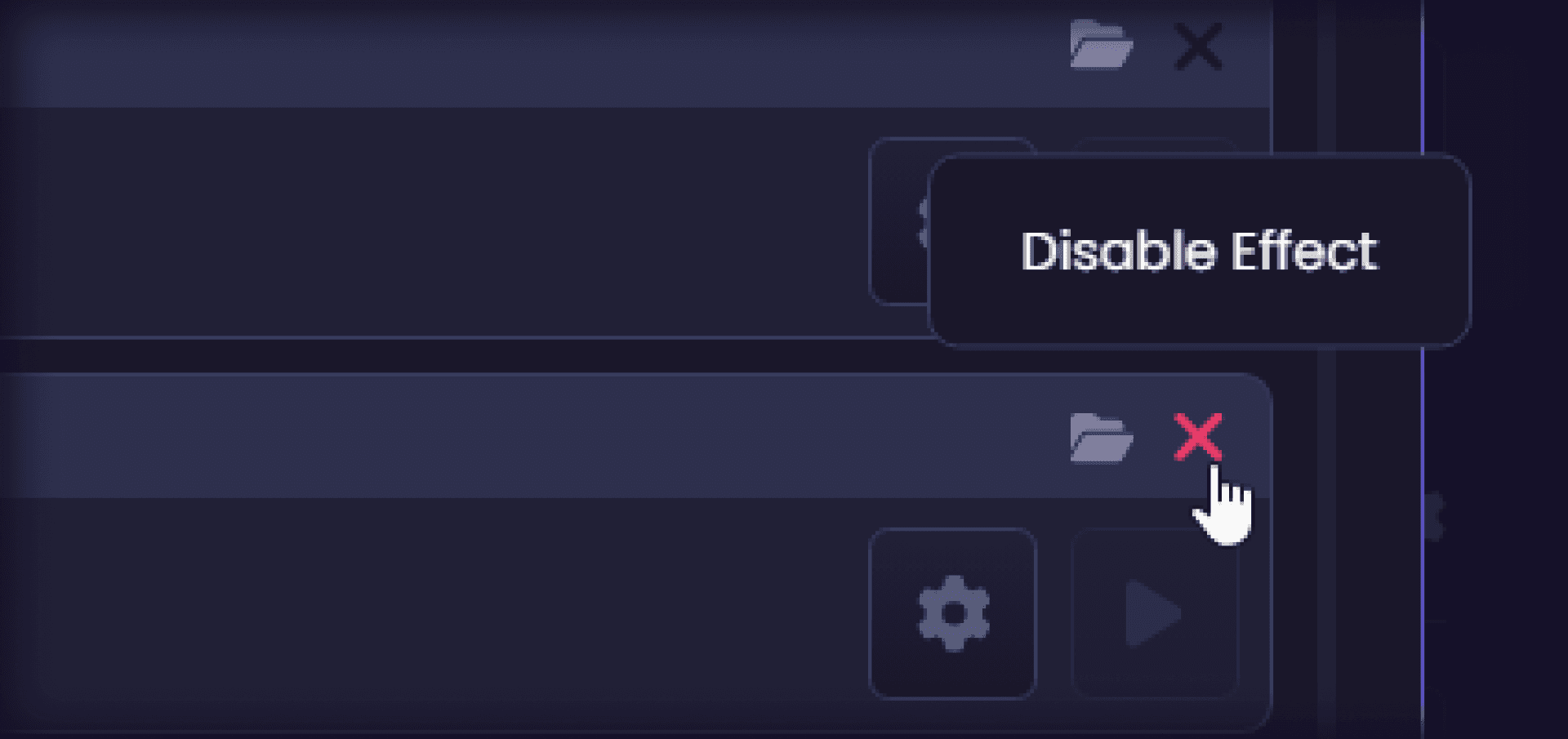
Clicking the X on an effect disables it, removing it from the viewer-facing list. Disabled effects move to the bottom of the effect manager, and some games disable certain effects by default. Click the plus icon on a disabled effect to restore it to its original spot in the list.
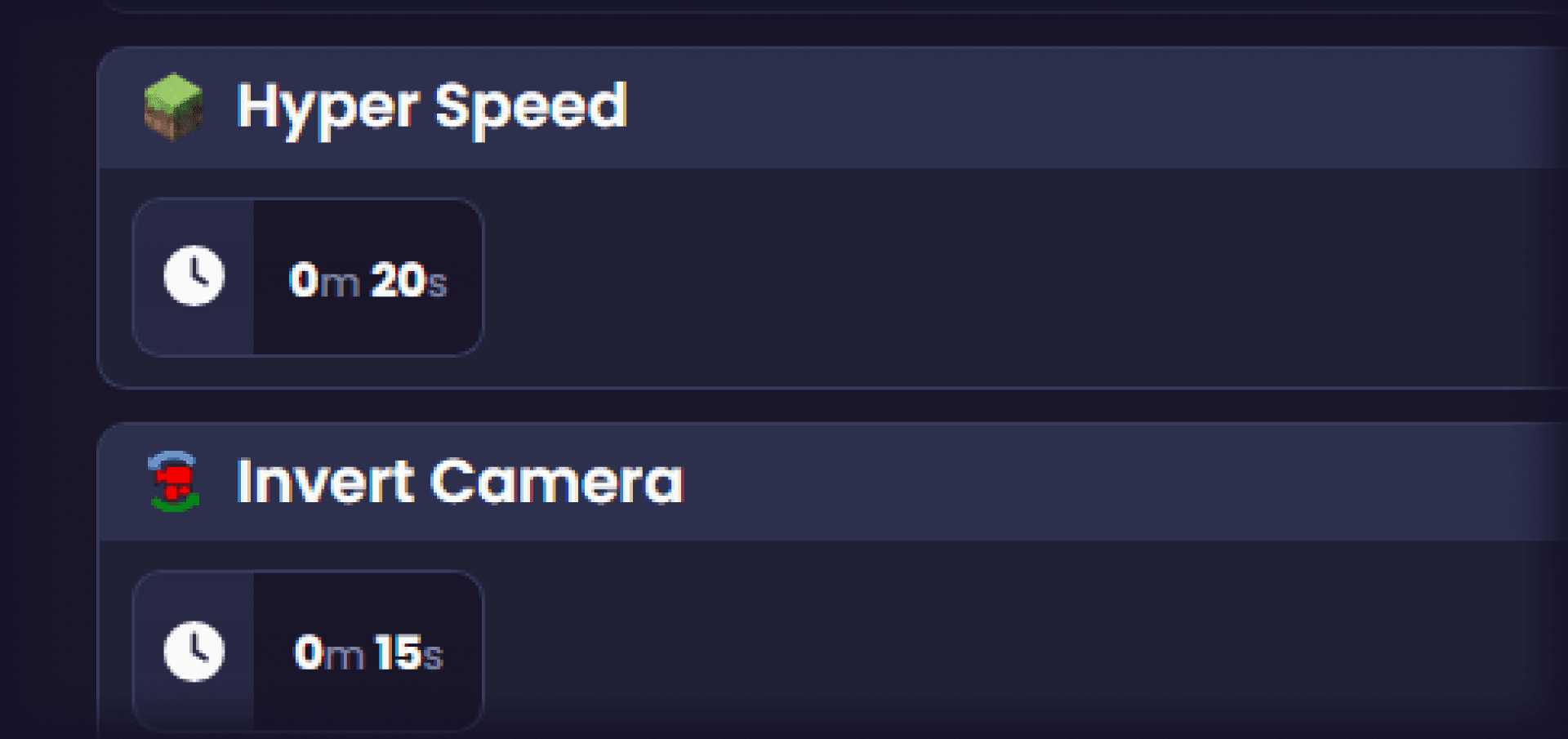
Some effects, like Bullet Bill Airstrike, run over a period of time rather than triggering instantly. For these, a clock icon appears that lets you adjust the duration. This feature is exclusive to Crowd Control Pro and Max subscribers, and some games restrict duration editing entirely even on paid plans, since it can affect gameplay balance. Instant effects never show this option, since there's no duration to adjust.
Active Disrupts have one setting the other effects don't: a volume icon that lets you adjust the audio level of individual disrupts. If a disrupt like Annoying Neighbor Lawnmower feels too loud for your stream, you can turn it down without muting it entirely.
You can also toggle which setting icons appear across the board using the icons near the top of the effect manager, so you only see the controls you actually use.
Searching and Filtering Effects
The search bar at the top of the effect manager lets you look up specific effects by name. By default the filter is set to All, but you can narrow it to a specific effect category if you only want to search within game effects or active disrupts.
Using the Price Wizard
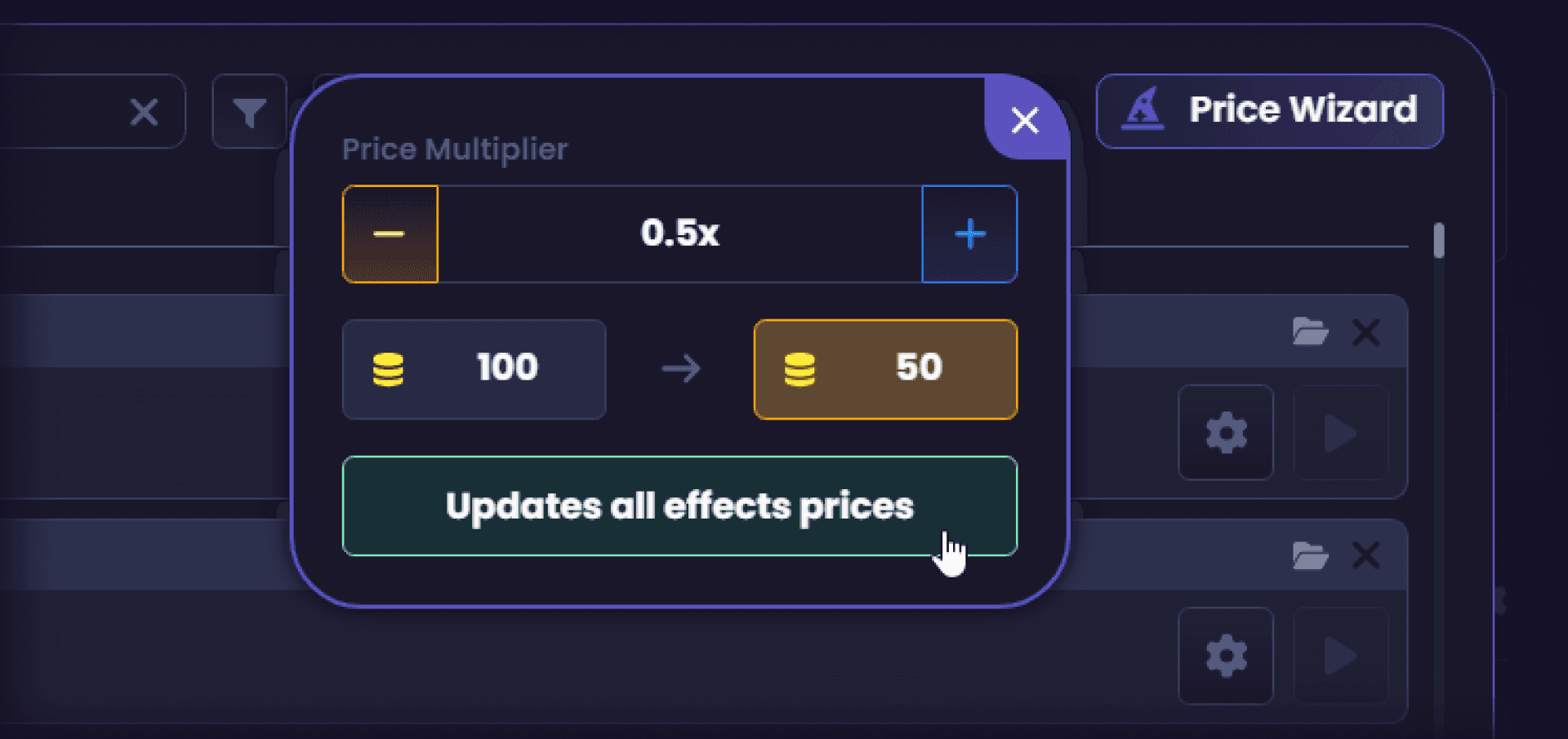
The Price Wizard is built for bulk pricing changes. With no effects selected, adjusting the multiplier and hitting Save updates every effect's price at once. Setting the multiplier to 2, for example, doubles every price across the board.
Selecting individual effects changes the wizard's behavior; it switches to updating only the effects you've selected. Shift-click selects a range of effects, the same way it works in Windows file explorers or email clients. Control-click adds individual effects to your selection one at a time, and Control-A selects everything. Multi-selecting is also the fastest way to apply bulk changes to cooldowns or scaling settings, not just price.
A Reset button in the bottom-left corner reverts every effect back to its default settings if you want to start over.
Importing and Exporting Effect Settings
The Export feature lets you choose exactly which settings to save, whether that's just price, just cooldowns, or any combination. Select All and Deselect All make it quick to toggle everything at once.
The Only Export Changed Values toggle is worth understanding closely. With it off, exporting saves the current values for every setting you've selected, across all effects. With it on, the export only includes effects whose settings differ from default. This matters if you want to import a partial update later without overwriting other changes: for example, if the only edit you made was raising the price on Bullet Bill Airstrike, exporting with this toggle on means importing that file later will only touch that one effect, leaving anything else you've changed since untouched.
Once you've exported a settings file, the Import button lets you load it back in at any time.
Setting Up Twitch Channel Rewards
Crowd Control effects can be tied directly to Twitch channel point rewards, letting viewers redeem effects with points instead of coins. The number of channel rewards available depends on your plan; Crowd Control Max supports the full 50 rewards Twitch allows.
A few things to know before setting these up. Channel rewards are only created on Twitch once you've started a session in Crowd Control, and disabled rewards still count toward your 50-reward Twitch limit.
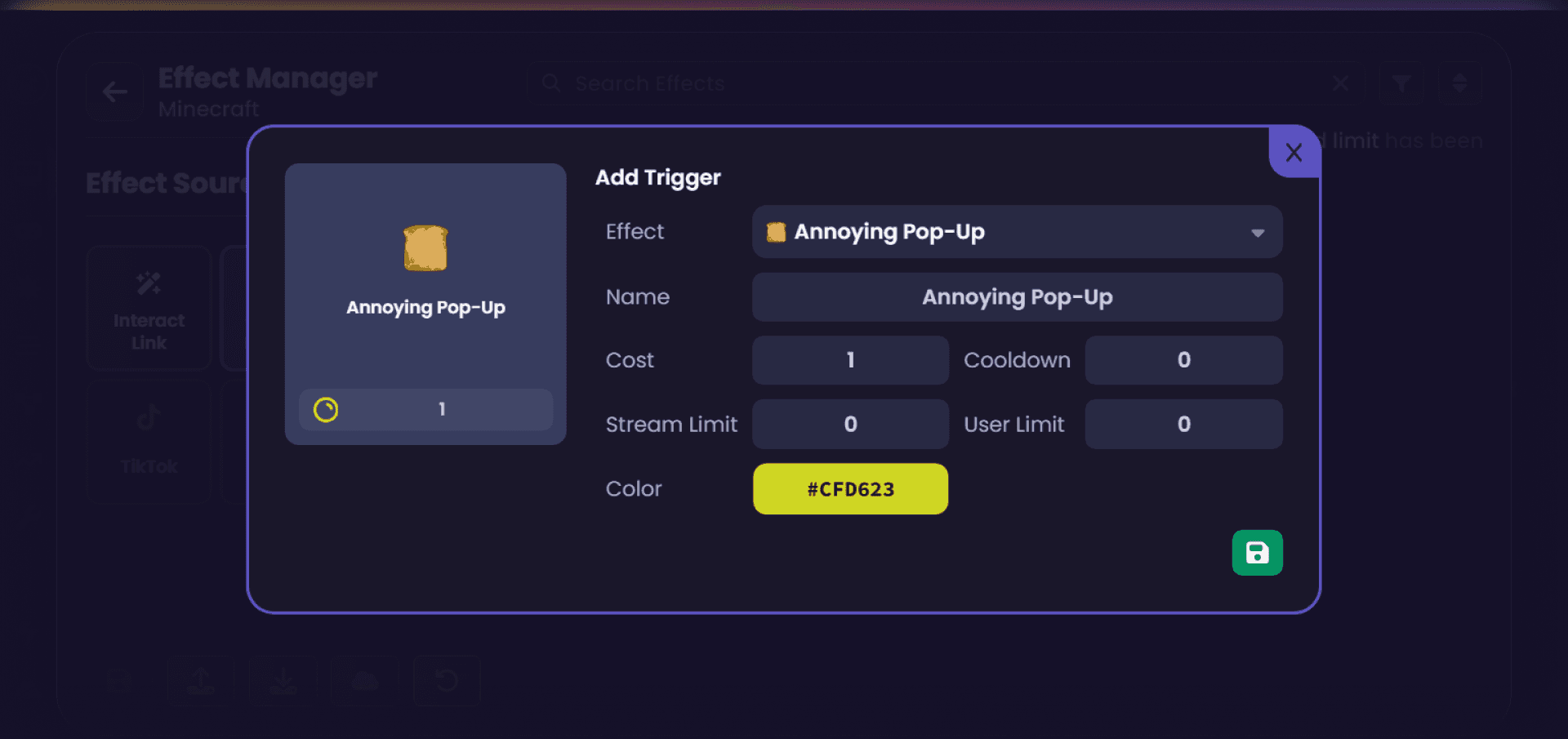
To create one, click Add New, then Search an Effect to pick which Crowd Control effect the reward triggers. From there you can configure:
Name – what the reward is called on Twitch (for example, renaming it to "Instant Fire")
Cost – how many channel points it takes to redeem
Cooldown – how many minutes before the same viewer can trigger it again
Stream limit – the maximum number of times the reward can be redeemed per stream, across all viewers
User limit – the maximum number of times one viewer can redeem it per stream
Color – the reward's display color on Twitch
Stream and user limits work together. With a stream limit of 5 and a user limit of 3, one viewer could redeem the reward up to 3 times, and a second viewer could then redeem it twice more before the stream limit is hit and nobody else can redeem it. Both limits reset after the stream ends.
Once a reward is created, the eye icon toggles it on and off, the trash can deletes it, and the pencil lets you edit it. Keep in mind rewards only appear on Twitch once a Crowd Control session is live.
Connecting Twitch Events
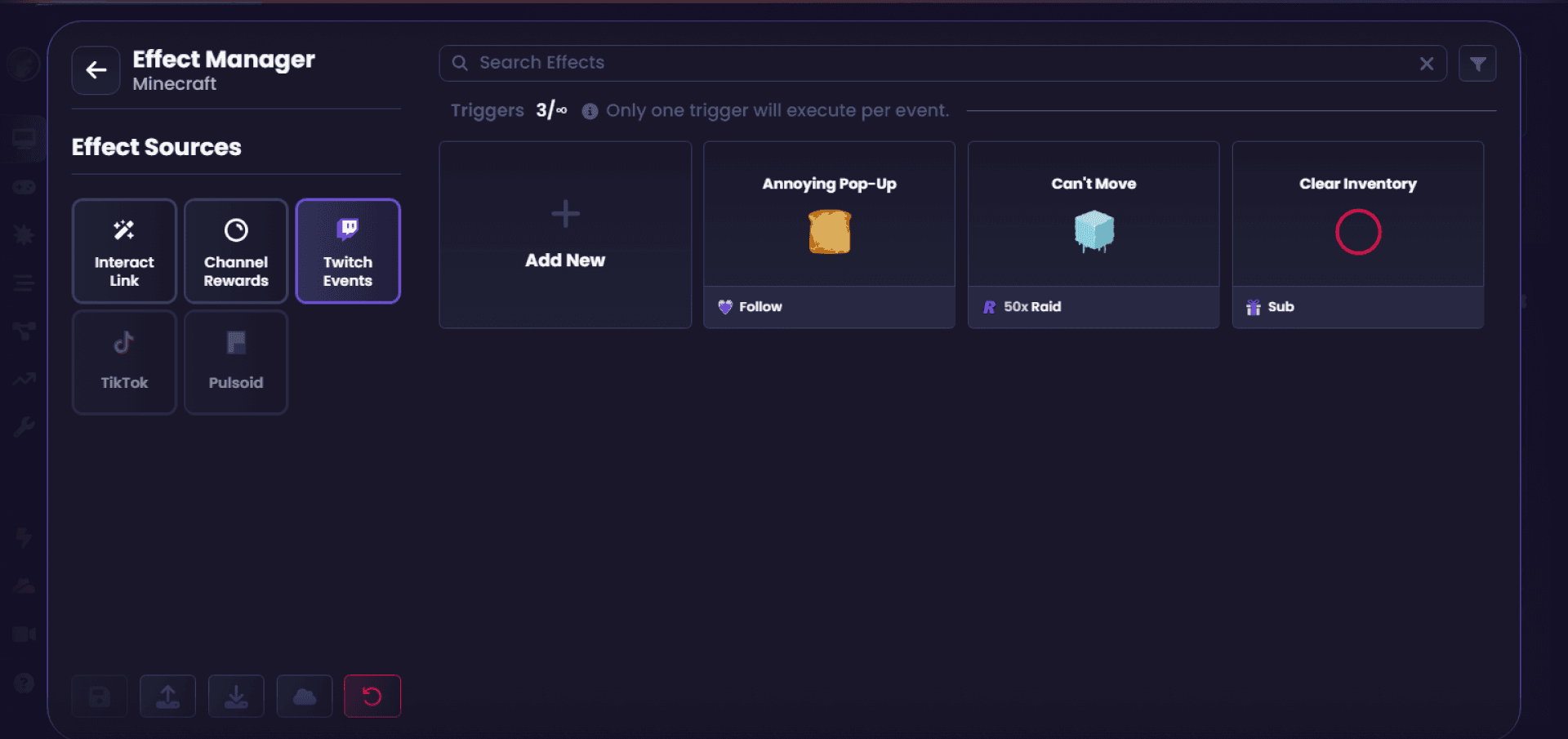
The Twitch Events tab, available exclusively to Crowd Control Max users, lets you trigger effects automatically based on Twitch activity like follows, subs, gift subs, and raids.
Click Add New, then When Event to choose the trigger, such as a new follow, and Send to choose which effect fires in response. You can stack multiple triggers for the same event type at different tiers. For example, if a Tier 1 sub triggers Cape Feather and a Tier 2 sub triggers a mushroom effect, a Tier 3 sub only activates the mushroom effect, since the system always fires the largest matching trigger rather than stacking them. The same layered logic works for gift subs and raids, so you can set different effects for smaller versus larger gift bombs.

Configuring the TikTok Tab
The TikTok tab shows your current trigger usage against your plan's limit; Crowd Control Max includes unlimited triggers.
The Auto-Populate Gifts feature saves setup time by generating a starter set of gift-to-effect mappings for you. Choose a cost tier (low, medium, or high) and how many triggers to generate, then hit Generate Preview to see the suggested pairings. Each one shows the effect and the gift it's tied to, and you can swap in a different gift before submitting if a suggestion doesn't fit.
You can also build triggers manually. Click Add New, select If Gift, choose the specific gift (for example, Maracas), and set how many times it needs to be sent before triggering. That count can apply across all viewers combined, cumulatively by one viewer, or separately per unique viewer. Then use Then Send to choose the Crowd Control effect and optionally rename the trigger, which changes how it displays on your gifts overlay.
As with other effects, the pencil icon edits a trigger, the eyeball toggles it on and off, and the trash can removes it. You can also attach a sound effect to any TikTok trigger.
Third-Party Integrations
The Pulsoid tab (or any other connected integration) appears in the effect manager once enabled. For setup help with Pulsoid or other integrations, check the dedicated guides in the Integrations tab.
Need More Help?
That covers the full Crowd Control effect manager, from pricing and scaling to Twitch and TikTok automation. If you run into any issues setting up your session, the Crowd Control Discord is the fastest place to get support.
Complete Guide to the Crowd Control Effect Manager [2026 Update]
The Crowd Control effect manager is where you control every part of your viewer interaction session, from what effects cost to how they connect to Twitch and TikTok. This guide walks through the full effect manager so you can build a crowd control session that fits your channel.
Getting Started with the Interact Link Tab
The Interact Link tab on the left side of the effect manager lists every available effect, split into game effects and active disrupts. Click the arrow next to each category to expand it and see the full list. This is also the tab your viewers see when they open your interact link to redeem effects, so any changes you make here show up on their end too.
Understanding Effect Settings
Every effect has a row of icons beneath its name. Each icon represents a setting you can adjust, and hovering over any of them shows a quick explanation.
Price is the most important setting on any effect. It's how many coins a viewer spends to trigger it, and you can raise or lower it to whatever works for your channel.
Scaling up and scaling down are linked settings, meaning scaling down can't be turned on unless scaling up is enabled first.
Scaling up raises an effect's price by a set percentage every time it's triggered, based on the current price rather than the base price. For example, an effect priced at 50 coins with a 20 percent scale-up rate goes to 60 coins after the first trigger, then 72 coins after the second, and so on.
Scaling down brings the price back to normal over time. You set a duration, and once that time passes, the price drops by half. It keeps halving at each interval until it reaches the original base price. So an effect scaled up to 105 coins with a 15-second scale-down timer would drop to 53 coins after the first interval, then back down to its 50-coin base price at the next one, since it can't go below the original price.
An individual cooldown controls how long a single viewer has to wait before ordering the same effect again. If someone tries to reorder an effect that's on cooldown, they'll see a red symbol on the interact link along with hover text showing the remaining wait time.
A global cooldown works the same way but applies to every viewer, not just the one who triggered it.
Any change you make to these settings is protected by an auto-save feature that kicks in about five seconds after your last edit, so you don't need to manually save.
Clicking the cog icon on an effect reveals a few more options. The sound icon lets you attach an audio cue that plays whenever the effect triggers. The dollar bill icon marks the effect as paid-only, meaning viewers can only trigger it with paid coins, not free ones. The play icon lets you test the effect as if a session were live.
Clicking the X on an effect disables it, removing it from the viewer-facing list. Disabled effects move to the bottom of the effect manager, and some games disable certain effects by default. Click the plus icon on a disabled effect to restore it to its original spot in the list.
Some effects, like Bullet Bill Airstrike, run over a period of time rather than triggering instantly. For these, a clock icon appears that lets you adjust the duration. This feature is exclusive to Crowd Control Pro and Max subscribers, and some games restrict duration editing entirely even on paid plans, since it can affect gameplay balance. Instant effects never show this option, since there's no duration to adjust.
Active Disrupts have one setting the other effects don't: a volume icon that lets you adjust the audio level of individual disrupts. If a disrupt like Annoying Neighbor Lawnmower feels too loud for your stream, you can turn it down without muting it entirely.
You can also toggle which setting icons appear across the board using the icons near the top of the effect manager, so you only see the controls you actually use.
Searching and Filtering Effects
The search bar at the top of the effect manager lets you look up specific effects by name. By default the filter is set to All, but you can narrow it to a specific effect category if you only want to search within game effects or active disrupts.
Using the Price Wizard
The Price Wizard is built for bulk pricing changes. With no effects selected, adjusting the multiplier and hitting Save updates every effect's price at once. Setting the multiplier to 2, for example, doubles every price across the board.
Selecting individual effects changes the wizard's behavior; it switches to updating only the effects you've selected. Shift-click selects a range of effects, the same way it works in Windows file explorers or email clients. Control-click adds individual effects to your selection one at a time, and Control-A selects everything. Multi-selecting is also the fastest way to apply bulk changes to cooldowns or scaling settings, not just price.
A Reset button in the bottom-left corner reverts every effect back to its default settings if you want to start over.
Importing and Exporting Effect Settings
The Export feature lets you choose exactly which settings to save, whether that's just price, just cooldowns, or any combination. Select All and Deselect All make it quick to toggle everything at once.
The Only Export Changed Values toggle is worth understanding closely. With it off, exporting saves the current values for every setting you've selected, across all effects. With it on, the export only includes effects whose settings differ from default. This matters if you want to import a partial update later without overwriting other changes: for example, if the only edit you made was raising the price on Bullet Bill Airstrike, exporting with this toggle on means importing that file later will only touch that one effect, leaving anything else you've changed since untouched.
Once you've exported a settings file, the Import button lets you load it back in at any time.
Setting Up Twitch Channel Rewards
Crowd Control effects can be tied directly to Twitch channel point rewards, letting viewers redeem effects with points instead of coins. The number of channel rewards available depends on your plan; Crowd Control Max supports the full 50 rewards Twitch allows.
A few things to know before setting these up. Channel rewards are only created on Twitch once you've started a session in Crowd Control, and disabled rewards still count toward your 50-reward Twitch limit.
To create one, click Add New, then Search an Effect to pick which Crowd Control effect the reward triggers. From there you can configure:
Name – what the reward is called on Twitch (for example, renaming it to "Instant Fire")
Cost – how many channel points it takes to redeem
Cooldown – how many minutes before the same viewer can trigger it again
Stream limit – the maximum number of times the reward can be redeemed per stream, across all viewers
User limit – the maximum number of times one viewer can redeem it per stream
Color – the reward's display color on Twitch
Stream and user limits work together. With a stream limit of 5 and a user limit of 3, one viewer could redeem the reward up to 3 times, and a second viewer could then redeem it twice more before the stream limit is hit and nobody else can redeem it. Both limits reset after the stream ends.
Once a reward is created, the eye icon toggles it on and off, the trash can deletes it, and the pencil lets you edit it. Keep in mind rewards only appear on Twitch once a Crowd Control session is live.
Connecting Twitch Events
The Twitch Events tab, available exclusively to Crowd Control Max users, lets you trigger effects automatically based on Twitch activity like follows, subs, gift subs, and raids.
Click Add New, then When Event to choose the trigger, such as a new follow, and Send to choose which effect fires in response. You can stack multiple triggers for the same event type at different tiers. For example, if a Tier 1 sub triggers Cape Feather and a Tier 2 sub triggers a mushroom effect, a Tier 3 sub only activates the mushroom effect, since the system always fires the largest matching trigger rather than stacking them. The same layered logic works for gift subs and raids, so you can set different effects for smaller versus larger gift bombs.
Configuring the TikTok Tab
The TikTok tab shows your current trigger usage against your plan's limit; Crowd Control Max includes unlimited triggers.
The Auto-Populate Gifts feature saves setup time by generating a starter set of gift-to-effect mappings for you. Choose a cost tier (low, medium, or high) and how many triggers to generate, then hit Generate Preview to see the suggested pairings. Each one shows the effect and the gift it's tied to, and you can swap in a different gift before submitting if a suggestion doesn't fit.
You can also build triggers manually. Click Add New, select If Gift, choose the specific gift (for example, Maracas), and set how many times it needs to be sent before triggering. That count can apply across all viewers combined, cumulatively by one viewer, or separately per unique viewer. Then use Then Send to choose the Crowd Control effect and optionally rename the trigger, which changes how it displays on your gifts overlay.
As with other effects, the pencil icon edits a trigger, the eyeball toggles it on and off, and the trash can removes it. You can also attach a sound effect to any TikTok trigger.
Third-Party Integrations
The Pulsoid tab (or any other connected integration) appears in the effect manager once enabled. For setup help with Pulsoid or other integrations, check the dedicated guides in the Integrations tab.
Need More Help?
That covers the full Crowd Control effect manager, from pricing and scaling to Twitch and TikTok automation. If you run into any issues setting up your session, the Crowd Control Discord is the fastest place to get support.
" width="14.000000116459887px"><path d="M 3.269 0 C 5.075 0 6.538 1.464 6.538 3.269 C 6.538 5.075 5.075 6.538 3.269 6.538 C 1.464 6.538 0 5.075 0 3.269 C 0 1.464 1.464 0 3.269 0 Z M 2.177 2.015 C 2.114 1.989 2.039 1.958 1.98 2.003 C 1.95 2.024 1.928 2.054 1.906 2.082 L 1.902 2.087 C 1.866 2.135 1.825 2.183 1.778 2.22 C 1.67 2.31 1.536 2.354 1.394 2.361 L 1.392 2.361 C 1.368 2.362 1.343 2.365 1.319 2.37 C 1.23 2.388 1.208 2.456 1.192 2.54 C 1.189 2.554 1.186 2.569 1.183 2.583 C 1.171 2.636 1.158 2.695 1.173 2.74 C 1.204 2.832 1.372 2.822 1.477 2.815 L 1.49 2.814 C 1.502 2.813 1.513 2.813 1.523 2.812 C 1.608 2.806 1.673 2.823 1.718 2.901 C 1.939 3.363 2.222 3.801 2.607 4.159 C 2.624 4.174 2.642 4.189 2.661 4.201 C 2.686 4.216 2.714 4.224 2.74 4.22 C 2.791 4.21 2.827 4.17 2.86 4.132 L 2.863 4.129 C 2.869 4.123 2.875 4.116 2.881 4.11 C 2.887 4.102 2.894 4.095 2.901 4.087 C 2.937 4.047 2.977 4.002 2.98 3.95 C 2.982 3.911 2.961 3.878 2.936 3.849 C 2.76 3.667 2.59 3.477 2.449 3.269 C 2.324 3.082 2.208 2.89 2.134 2.68 C 2.125 2.646 2.121 2.611 2.129 2.576 C 2.14 2.526 2.173 2.485 2.206 2.444 L 2.219 2.427 C 2.258 2.379 2.294 2.329 2.325 2.276 C 2.348 2.236 2.372 2.188 2.36 2.142 L 2.36 2.141 C 2.343 2.084 2.276 2.056 2.22 2.033 C 2.207 2.028 2.194 2.023 2.183 2.018 Z M 5.468 2.642 C 5.442 2.639 5.413 2.638 5.388 2.646 L 5.304 2.726 C 5.199 2.935 5.028 3.05 4.795 3.067 C 4.766 3.071 4.736 3.077 4.712 3.093 L 4.711 3.093 C 4.661 3.126 4.649 3.195 4.638 3.258 L 4.637 3.261 C 4.634 3.277 4.631 3.293 4.628 3.308 C 4.623 3.331 4.619 3.354 4.614 3.377 L 4.612 3.389 L 4.611 3.393 C 4.601 3.444 4.591 3.494 4.582 3.541 C 4.578 3.566 4.574 3.591 4.578 3.616 C 4.583 3.656 4.614 3.681 4.653 3.691 C 5.086 3.76 5.545 3.534 5.788 3.176 C 5.845 3.092 5.976 2.864 5.935 2.768 C 5.915 2.726 5.858 2.715 5.811 2.706 C 5.801 2.704 5.791 2.703 5.782 2.701 C 5.746 2.694 5.708 2.687 5.67 2.679 C 5.603 2.666 5.536 2.653 5.468 2.642 Z M 3.146 1.105 C 3.094 1.1 3.037 1.095 2.997 1.131 C 2.978 1.151 2.968 1.181 2.963 1.214 C 2.912 1.824 2.997 2.394 3.257 2.859 C 3.284 2.901 3.327 2.926 3.377 2.911 C 3.406 2.903 3.432 2.889 3.458 2.875 C 3.46 2.873 3.463 2.872 3.465 2.87 C 3.522 2.839 3.582 2.805 3.64 2.772 L 3.69 2.744 C 3.699 2.739 3.708 2.733 3.718 2.728 C 3.764 2.702 3.814 2.674 3.826 2.621 L 3.826 2.621 C 3.831 2.598 3.826 2.573 3.818 2.55 C 3.663 2.204 3.583 1.819 3.604 1.38 C 3.604 1.366 3.604 1.352 3.605 1.337 C 3.608 1.284 3.61 1.227 3.584 1.185 C 3.559 1.148 3.512 1.138 3.471 1.133 C 3.407 1.127 3.343 1.121 3.279 1.116 C 3.246 1.113 3.214 1.111 3.182 1.108 C 3.17 1.107 3.158 1.106 3.146 1.105 Z M 5.376 2.65 C 5.375 2.651 5.373 2.652 5.371 2.653 L 5.375 2.651 Z" fill="rgb(234, 61, 106)" height="6.538250575370619px" id="EHOHSwCqJ" transform="translate(0 2.239)" width="6.538250568278272px"/><path d="M 1.24 0.899 C 1.24 1.156 1.293 1.399 1.388 1.621 C 1.393 1.632 1.392 1.645 1.387 1.655 C 1.381 1.666 1.371 1.673 1.359 1.676 C 0.828 1.772 0.334 2.051 0.109 2.209 C 0.099 2.216 0.086 2.218 0.074 2.214 C 0.062 2.209 0.053 2.199 0.05 2.187 C 0.011 2.025 -0.005 1.859 0.001 1.692 C 0.034 0.858 0.627 0.179 1.404 0.001 C 1.435 -0.006 1.46 0.028 1.445 0.057 C 1.31 0.317 1.239 0.606 1.24 0.899 Z" fill="rgb(234, 61, 106)" height="2.215802804588664px" id="f7GQHGnLg" transform="translate(1.053 0)" width="1.4492800256519736px"/><path d="M 3.269 0 C 5.075 0 6.538 1.464 6.538 3.269 C 6.538 5.075 5.075 6.538 3.269 6.538 C 1.464 6.538 0 5.075 0 3.269 C 0 1.464 1.464 0 3.269 0 Z M 3.833 2.887 C 3.802 2.893 3.77 2.91 3.739 2.928 L 3.738 2.928 C 3.712 2.943 3.685 2.958 3.659 2.974 C 3.584 3.017 3.535 3.06 3.545 3.153 C 3.547 3.171 3.549 3.188 3.552 3.205 C 3.556 3.235 3.56 3.264 3.561 3.294 C 3.576 3.688 3.118 3.935 2.798 3.698 C 2.782 3.687 2.767 3.676 2.753 3.663 C 2.723 3.638 2.692 3.613 2.654 3.602 L 2.654 3.602 C 2.603 3.589 2.553 3.613 2.508 3.638 C 2.479 3.654 2.45 3.671 2.421 3.688 L 2.416 3.691 C 2.369 3.719 2.311 3.755 2.317 3.817 C 2.326 3.903 2.445 4.004 2.511 4.056 C 3.221 4.598 4.209 3.929 3.989 3.071 L 3.988 3.068 C 3.967 2.991 3.934 2.87 3.833 2.887 Z M 2.32 2.836 C 1.907 2.311 1.071 2.37 0.732 2.945 C 0.594 3.177 0.552 3.467 0.629 3.727 C 0.661 3.828 0.696 3.934 0.823 3.878 C 0.863 3.86 0.901 3.837 0.939 3.815 C 0.957 3.805 0.974 3.794 0.992 3.784 C 1.092 3.727 1.15 3.692 1.133 3.57 C 1.123 3.491 1.117 3.412 1.14 3.335 L 1.14 3.334 C 1.21 3.068 1.528 2.928 1.769 3.06 C 1.8 3.075 1.828 3.097 1.856 3.118 C 1.88 3.136 1.905 3.155 1.93 3.169 C 1.962 3.186 1.997 3.187 2.032 3.175 C 2.066 3.163 2.099 3.145 2.13 3.127 L 2.137 3.123 L 2.174 3.102 C 2.211 3.081 2.247 3.061 2.282 3.039 C 2.371 2.985 2.385 2.921 2.32 2.836 Z M 4.579 1.271 C 4.366 1.119 4.092 1.055 3.834 1.102 C 3.639 1.138 3.459 1.234 3.32 1.376 C 3.085 1.613 2.983 1.975 3.064 2.3 L 3.068 2.314 C 3.087 2.383 3.115 2.482 3.18 2.503 C 3.226 2.514 3.276 2.488 3.317 2.465 L 3.318 2.465 L 3.325 2.461 C 3.372 2.435 3.418 2.408 3.465 2.381 C 3.505 2.357 3.549 2.33 3.568 2.286 C 3.586 2.25 3.582 2.207 3.577 2.168 L 3.577 2.167 C 3.542 1.976 3.62 1.777 3.791 1.681 L 3.792 1.68 C 3.952 1.585 4.164 1.612 4.305 1.733 L 4.308 1.736 L 4.312 1.739 C 4.322 1.746 4.332 1.755 4.343 1.762 C 4.363 1.776 4.383 1.787 4.406 1.792 C 4.458 1.804 4.51 1.776 4.554 1.752 L 4.568 1.744 C 4.62 1.715 4.671 1.685 4.721 1.654 C 4.766 1.628 4.815 1.589 4.804 1.531 C 4.787 1.439 4.652 1.325 4.579 1.271 Z" fill="rgb(255, 236, 59)" height="6.538250573381028px" id="PKYXAbHzG" transform="translate(7.462 2.195)" width="6.538250562779467px"/><path d="M 0.265 0.872 C 0.616 1.141 1.117 1.29 1.565 1.282 C 1.786 1.273 2.031 1.231 2.155 1.035 C 2.224 0.923 2.221 0.783 2.162 0.667 C 1.92 0.235 1.222 0.021 0.75 0.001 C 0.52 -0.005 0.254 0.018 0.091 0.194 C -0.108 0.426 0.052 0.707 0.264 0.871 L 0.265 0.872 Z M 0.679 0.361 C 1.004 0.364 1.377 0.467 1.659 0.649 C 1.705 0.678 1.898 0.817 1.828 0.868 C 1.775 0.914 1.549 0.931 1.396 0.915 C 1.152 0.893 0.915 0.827 0.696 0.718 C 0.566 0.654 0.339 0.504 0.363 0.437 C 0.399 0.372 0.607 0.361 0.678 0.361 L 0.679 0.361 L 0.679 0.361 Z" fill="rgb(255, 236, 59)" height="1.2826122415748673px" id="SRezIcBjl" transform="translate(10.929 0.483)" width="2.2065572669175775px"/></g></svg>)
Crowd Control lets your viewers send effects like interactive puzzles, jumpscares, and even in-game events: no matter where or what you stream.
Link effects to all kinds of actions, including TikTok Gifts, Likes, Shares and Follows, plus Twitch Channel Points, Subs, Raids and more!
Have any Crowd Control Questions?
Our Team is quick to answer!
Ready to get Started?
Start Streaming the Interactive Way
Have any Questions?
Check our FAQs, or join Discord for Support
Making a Game?
Consider integrating Crowd Control!
